دليل المدرب
إزاي بيتبني منهج على Thinkera وبيتدار
الدليل ده بيشرح طريقة المنصة، مش منهج بعينه. أي منهج هنا (برمجة، إنجليزي، إدارة، أي مجال) بيتبني بنفس الطريقة وبيتدار من نفس الورشة، فاللي في الصفحة دي بيسري على أي منهج تشتغل عليه. الأقسام من 1 لـ10 لمدرب الأكاديمية اللي بيبني المنهج. ومن القسم 11 لـ16: المدرب المشارك ومدرب شريك المحتوى، من «انضم كمدرب» والاتفاقية لحد الطلاب والجلسات والفلوس وقواعد السلوك.
المقرر الرسمي هو الأساس، والإضافة بتيجي عليه عند الحاجة.
اللي في الدليل
1 · الطريقة
المبدأ اللي كل شاشة في الورشة مبنية عليه.
المنهج على المنصة بيبدأ من المقرر الرسمي: دروسه، وترتيبه، ومصطلحاته. ده الأساس وما بيتغيّرش، لأن الطالب بيمتحن فيه، ومصطلح مترجم بالمزاج بيكلّفه درجة. وفوق الأساس ده بيتضاف:
دروس المقرر
كل درس في المقرر بيتحوّل لدرس كامل: شرح، وملفات، وتقييمات، وتدريب. الترتيب ترتيب المقرر.
دروس إضافية
لحتة المقرر بيمرّ عليها بسرعة، أو مهارة عملية بيفترضها ومش بيشرحها. بتتحط كدرس مستقل اسمه «درس إضافي» وبتبان للطالب بعلامتها، فالطالب عارف إنها زيادة مش مادة امتحان.
المفصول يفضل مفصول
اللي برّه المقرر ما بيتدمجش جوّه درس أساسي. دمجه بيخلّي حاجة ما امتُحنش فيها حد تبان كأنها مادة امتحان.
2 · بناء المنهج
من المقرر لمنهج شغّال على المنصة.
قسّم المقرر وحدات
كل وحدة موضوع واحد، وجوّاها دروسها بترتيب المقرر، وفي آخرها قسم «امتحانات نهاية الوحدة». والوحدة الأولى بتفضل مفتوحة مجاناً بالكامل. دي طريقة المنصة في كل منهج، مش عرض مؤقت.
حط دروس المقرر
درس لكل درس، بنفس الاسم والترتيب. وكل درس بياخد خطواته الأربعة اللي في القسم الجاي.
ضيف الدروس الإضافية
بعد ما تقرا المقرر كله وتعرف فين الفجوات. الدرس الإضافي بيتحط في مكانه من التسلسل وبيبان بعلامته.
اظبط الترتيب والشروط
من صفحة «ترتيب وشروط الدروس»: تفتح الدروس بالترتيب ولا كلها مفتوحة، وإيه شرط فتح كل درس. وفيها «معاينة كطالب»: تختار طالب وتشوف أنهي دروس مفتوحة له دلوقتي، وليه الباقي مقفول.
الشرط الافتراضي واحد ومعلَن: الدرس بيتحسب خلص لما الطالب يجيب 75٪ فأكتر في «تدريب: مستوى متقدم» بتاعه، والدرس اللي بعده بيتفتح على كده، مش على فتح كل ملف ولا إنهاء كل نشاط. وتقدر تغيّره لأي درس من نفس الصفحة: تختار أنشطة تانية تتحسب، أو ترفع النسبة أو تنزّلها، أو تخلي الدرس مفتوح بلا شرط.
والدرس يتفتح بأربع طرق: بعد ما يخلّص الدرس اللي قبله (الافتراضي)، أو بعد ما يخلّص درس معيّن أو أكتر، أو بعد ما يخلّص وحدة كاملة، أو مفتوح دايماً. و«بعد وحدة كاملة» بيتسجّل بالوحدة نفسها مش بدروسها: لو ضفت درس جديد للوحدة بعدين، الدرس المستني هيستناه هو كمان من غير ما ترجع للصفحة. والوحدات اللي بتظهر لك هي اللي دروسها كلها قبل الدرس اللي بتعدّله.
وفي «إيه اللي يتحسب إن الطالب خلّص الدرس ده» تلات خيارات: كل أنشطة الدرس، أو الأنشطة المختارة تحت بس (ولازم يخلّصها كلها)، أو أي نشاط من الأنشطة المختارة تحت. التالت ده اللي تستخدمه لما تسيب للطالب اختيار الطريق: «يتفرّج على الفيديو أو يقرا الملزمة». وتحتهم أقل درجة في التدريب (اختياري)، و«يتفتح من يوم» (اختياري) لو عايز الدرس ما يتفتحش قبل تاريخ معيّن.
والوحدة نفسها بتتقفل بامتحاناتها: في نفس الصفحة، تحت كل وحدة، «إقفال الوحدة بالامتحانات» بيحدد كام امتحان لازم الطالب ينجح فيه عشان الوحدة اللي بعدها تتفتح. التفاصيل في القسم 5.
وزّع الأنشطة على الخطوات، واحكم المجاني والمدفوع
صفحة «الدروس والوصول» بتعرض أنشطة كل درس في جدول واحد: لكل نشاط خطوته (الشرح · ملفات الدرس · التقييمات · التدريب، أو «تلقائي» اللي بيحطّه في مكانه المتوقّع)، ووصوله مجاني ولا مدفوع. والاتنين بإيدك: تفتح درس كامل كعيّنة، أو تسيب نشاط واحد مفتوح، والتغيير بيبان للطالب على طول. اللي فاضل للأدمن هو سعر المنهج وطرق التسجيل ونشره على الموقع.
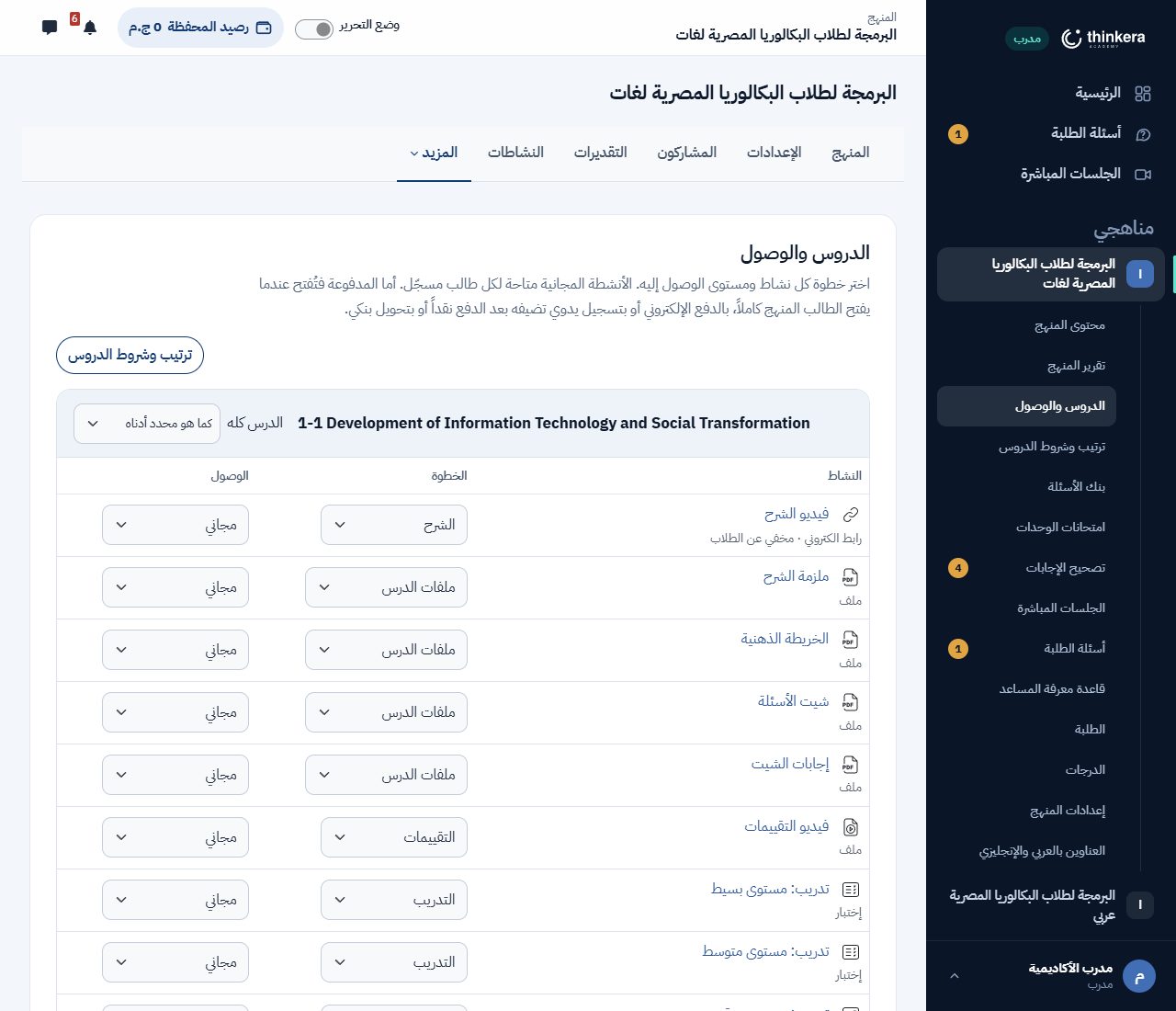
«الدروس والوصول»: كل نشاط بخطوته ووصوله، في جدول واحد لكل درس. وإنت بتبني: الصفحة بتقول لك وصلت لفين
الصفحة الرئيسية للمنهج بتعرض لك إنت أرقام تانية غير اللي الطالب بيشوفها. فوق: عدد الدروس مقسوم على نوعيه، دروس المقرر والدروس الإضافية، مش رقم واحد بيخلط الاتنين. وفي الدايرة: نسبة اكتمال المحتوى، يعني قد إيه من المنهج اتبنى فعلاً، مش قد إيه إنت فتحت. وتحتها: مكتمل كام من كام في كل نوع.
القياس على شكل الدرس المكتمل نفسه: شرح (تفاعلي وعادي) + ملفات الدرس + التقييمات + تدريب (تلات مستويات وتدريب تفاعلي)، وكل وحدة بتنتهي بامتحاناتها. الدروس اللي لسه ماتكتبتش موجودة في الخطة أصلاً وبتبان «قريباً»، وهي اللي بتدّي الرقم مقامه. فالنسبة دي بتقول لك فاضل إيه، والسطر اللي تحتها بيقول لك فاضل فين.
هو عدّ قطع مش حكم على جودتها: الدرس اللي عنده ملزمة، عنده ملزمة. فاقراه كتقدير لحجم الشغل الباقي.

بعين المدرب: الدايرة نسبة اكتمال المحتوى مش تقدّمه هو، وتحتها المكتمل من كل نوع. وعلى الجنب أدوات المنهج كلها.
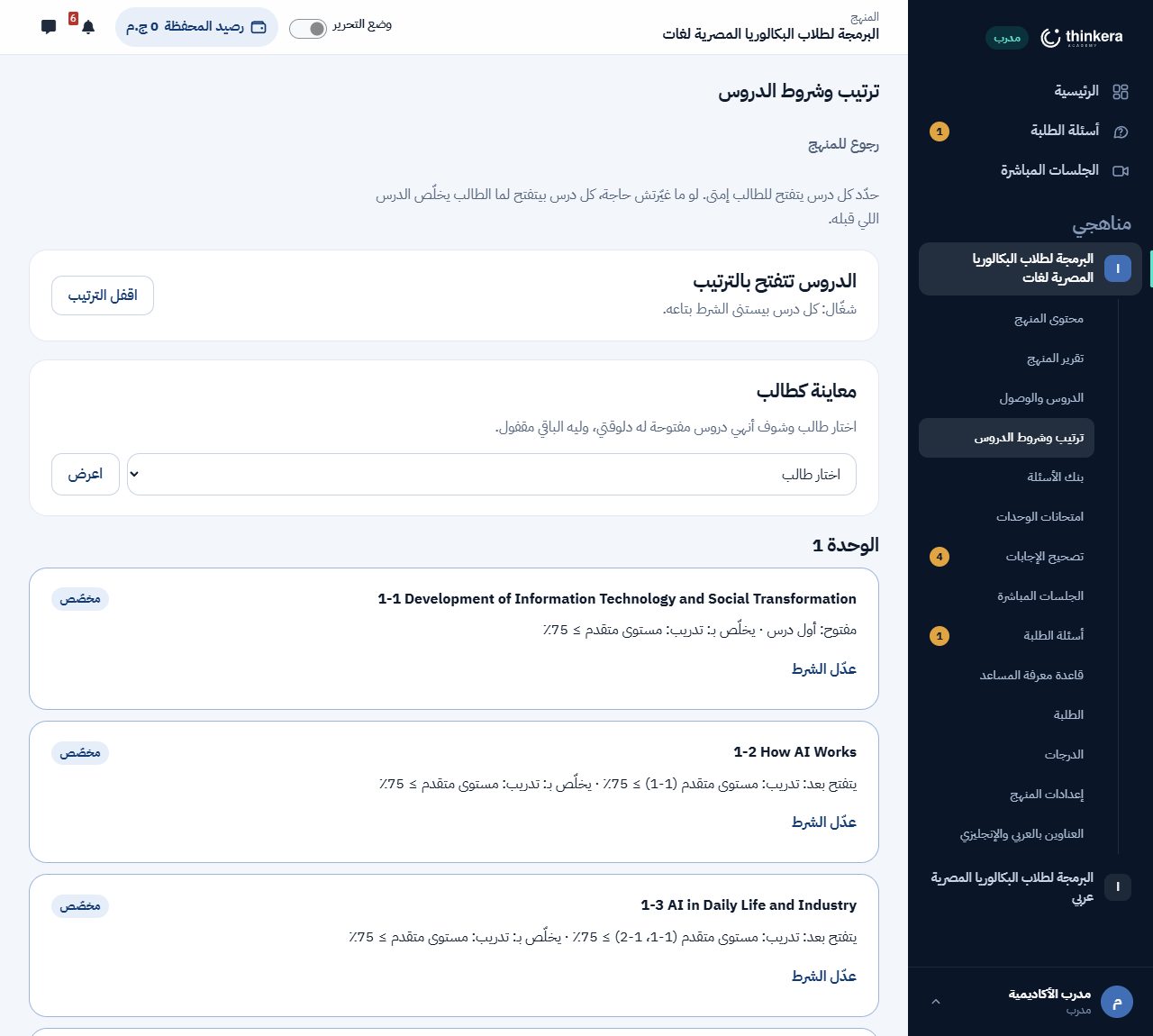
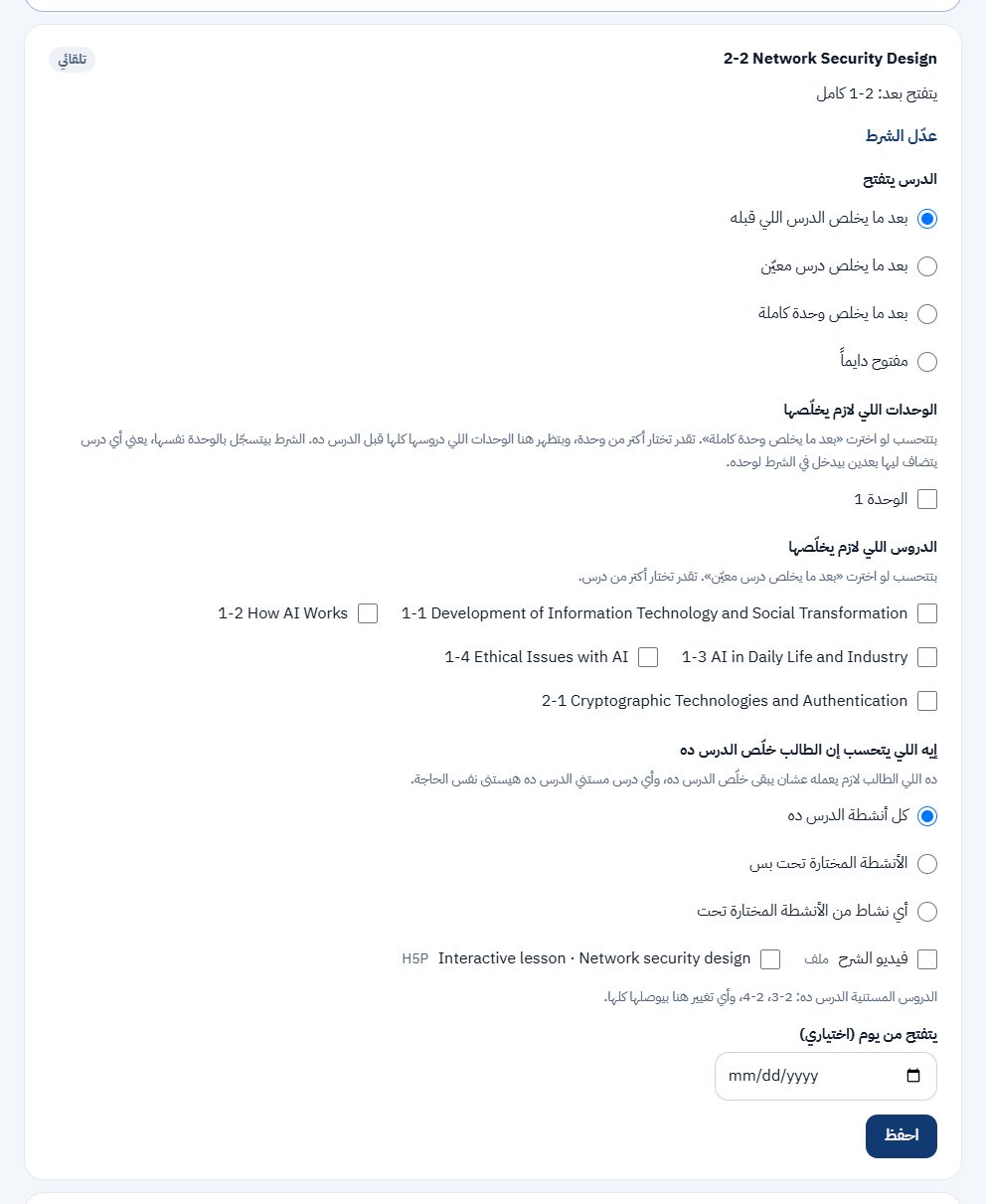
الصفحة دي لمدرب الأكاديمية وللأدمن. المدرب بيوصلها من القايمة الجانبية بتاعة المنهج («ترتيب وشروط الدروس»)، والأدمن من قايمة المنهج نفسه، والاتنين بنفس الصلاحيات ونفس الشاشة. مفيش مكان تاني بتتظبط منه شروط الانتقال.
3 · الدرس وخطواته الأربعة
الطالب بيشوف نفس الأربع خطوات في كل درس، وإنت اللي بتحدّد اللي جوّه كل واحدة.
| الخطوة | بتحط فيها إيه |
|---|---|
| الشرح | فيديو الدرس بنسختين: درس تفاعلي (نشاط H5P بيوقف الفيديو ويسأل)، وفيديو عادي بيمشي على طول. الطالب بيفتح على التفاعلي، وتحته لينك يوديه للعادي. الفيديو لينك يوتيوب أو ملف مرفوع. |
| ملفات الدرس | ملزمة الشرح، والخريطة الذهنية، وشيت الأسئلة، وإجابات الشيت، وأي ملف تاني. بتتعرض جوّه الصفحة وبتتنزّل باسمها. |
| التقييمات | فيديو التقييمات اللي بيشرح للطالب إزاي يستخدم الشيت والإجابات: يحلّ الأول ويصحّح بعدين. ولو فيه ورقة تقييمات ونموذج إجابتها، مكانهم هنا. |
| التدريب | تلات اختبارات بتتصحّح وتديه درجة: «تدريب: مستوى بسيط» و«متوسط» و«متقدم»، وكل واحد بيسحب أسئلته من بنك الدرس (القسم الجاي). وتحتها تبويب «تدريبات تفاعلية» لأنشطة H5P من غير درجة: مصطلحات، وترتيب، وتوصيل، وغيرها. الطالب بيفتح على الاختبارات. |
اللي بيحرّك الخطوات: كل نشاط بتحطه في الدرس بيتحط في خطوة من الأربعة، والطالب بيلاقيه هناك. النشاط المخفي مش بيبان له أصلاً. و«تلقائي» معناها: الاختبار والنشاط التفاعلي بيروحوا للتدريب، وأول نشاط تاني هو فيديو الشرح، والباقي ملفات الدرس. أما «التقييمات» فبتتحدد بإيدك.
والأنشطة التفاعلية بلغة نسختها: المنهج العربي أنشطته بالعربي، والإنجليزي بالإنجليزي، بكل الزراير والتعليقات والتبريرات. نشاط بلغتين بيبان للطالب كأنه ما خلصش.
4 · بنك الأسئلة والتدريب
كل أسئلة المنهج في مكان واحد، مقسّمة بالدرس والمستوى، ومنها بيتبني التدريب.
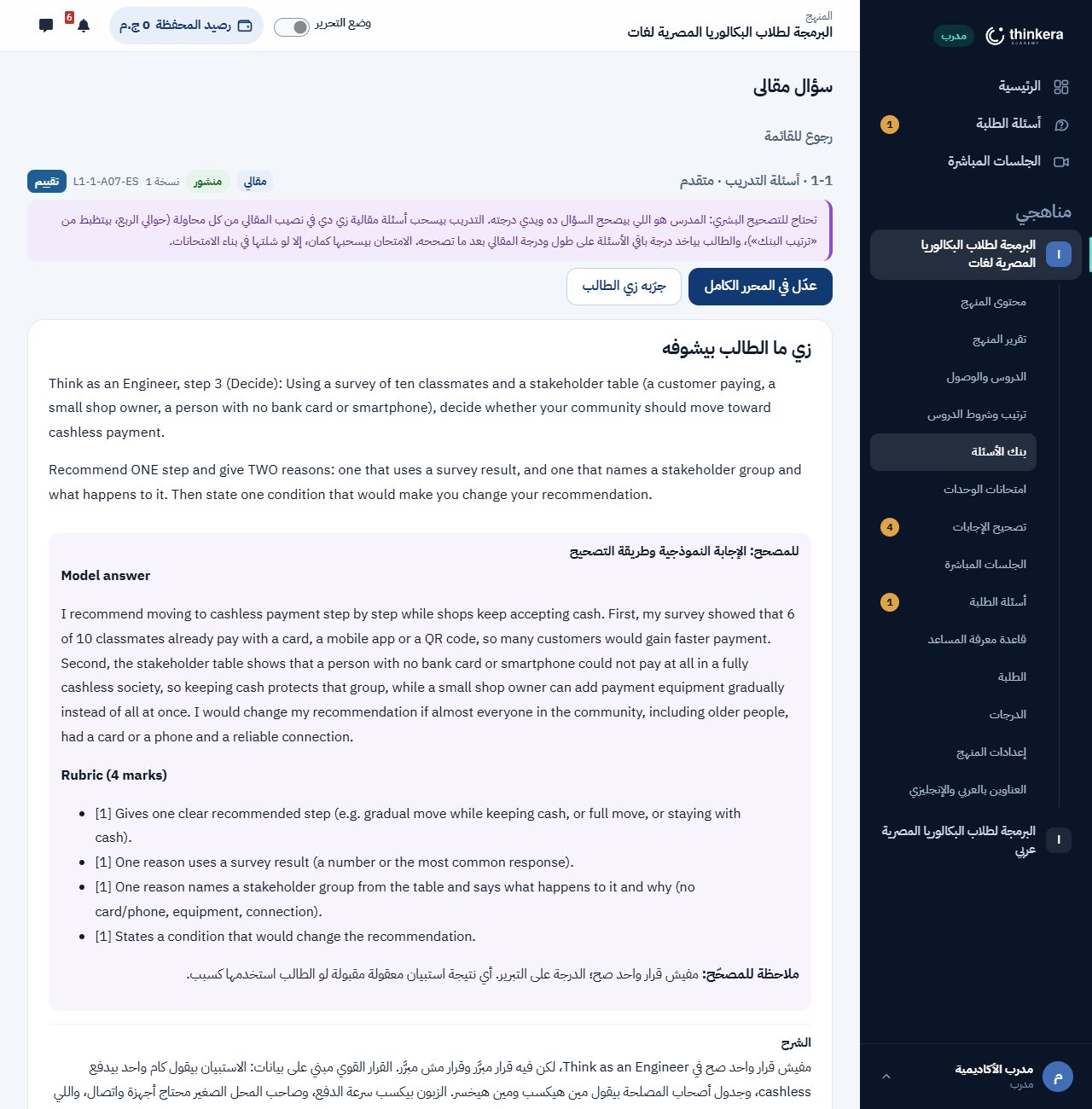
لكل درس بنكين: أسئلة التدريب وبنك الامتحانات، وكل واحد تلات مستويات: بسيط، ومتوسط، ومتقدم. وكل سؤال بيتسجّل عليه نوعه ومستوى التفكير المطلوب (بلوم)، فالتدريب مش بيطلع كله «افتكر».
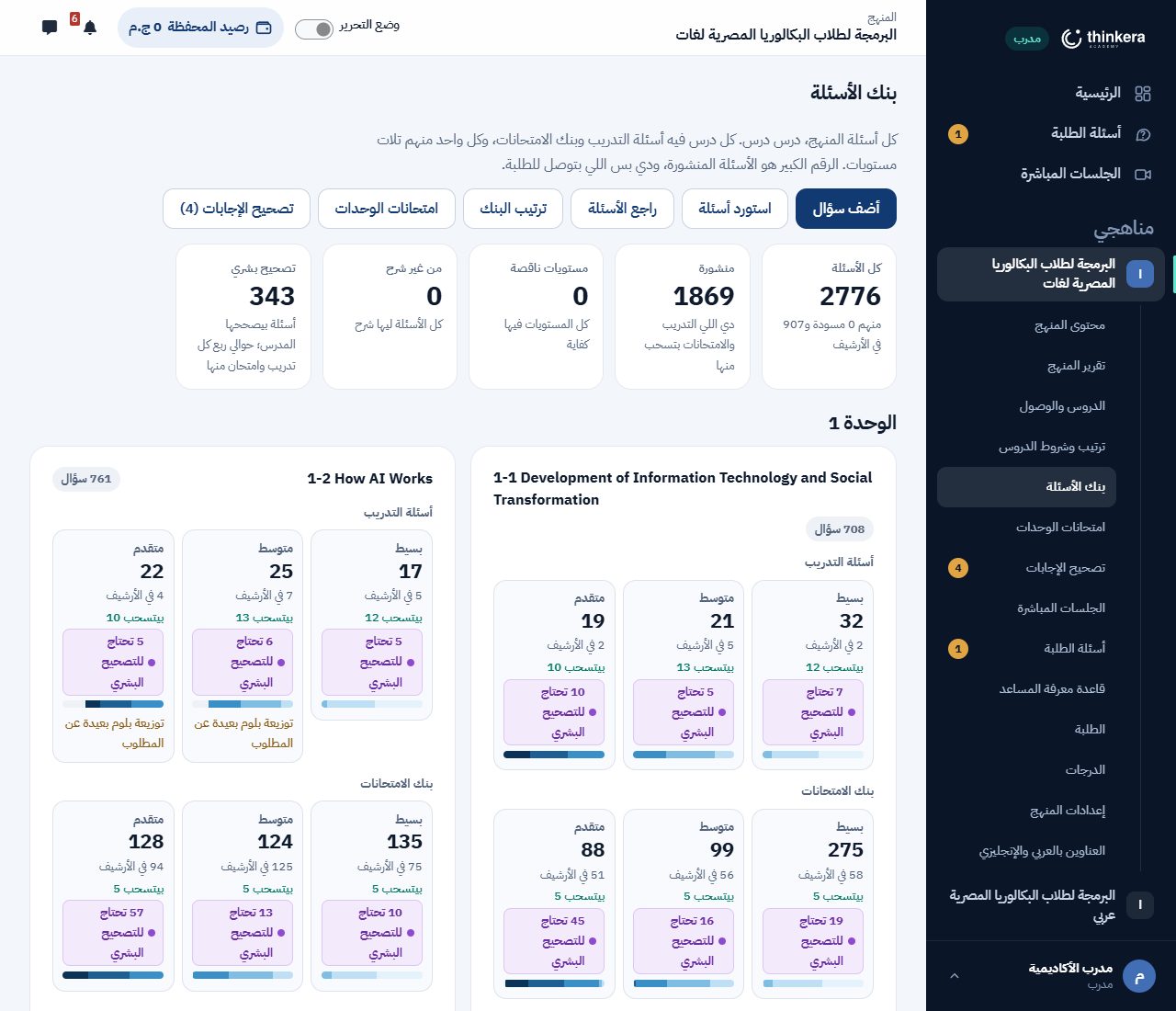
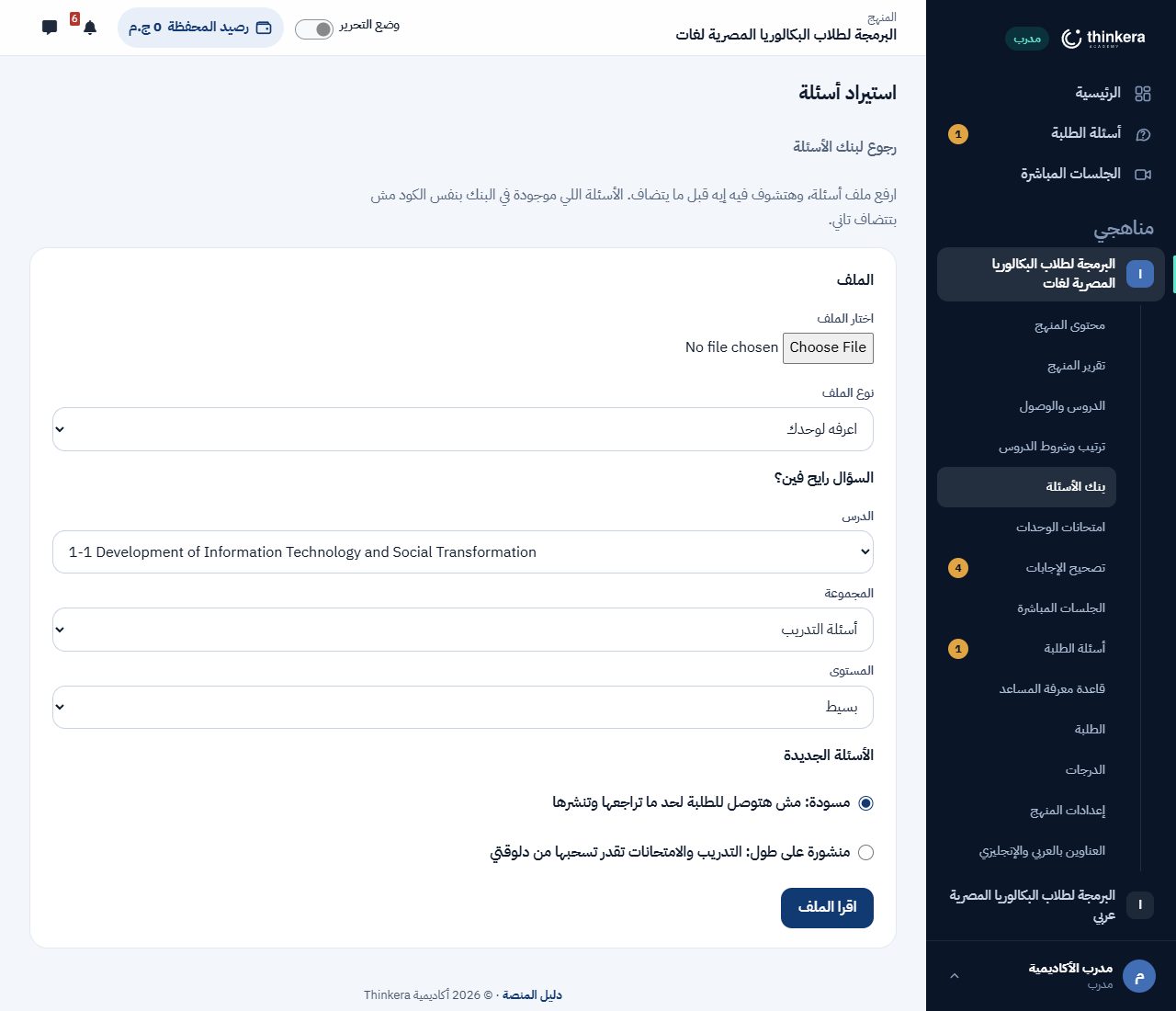
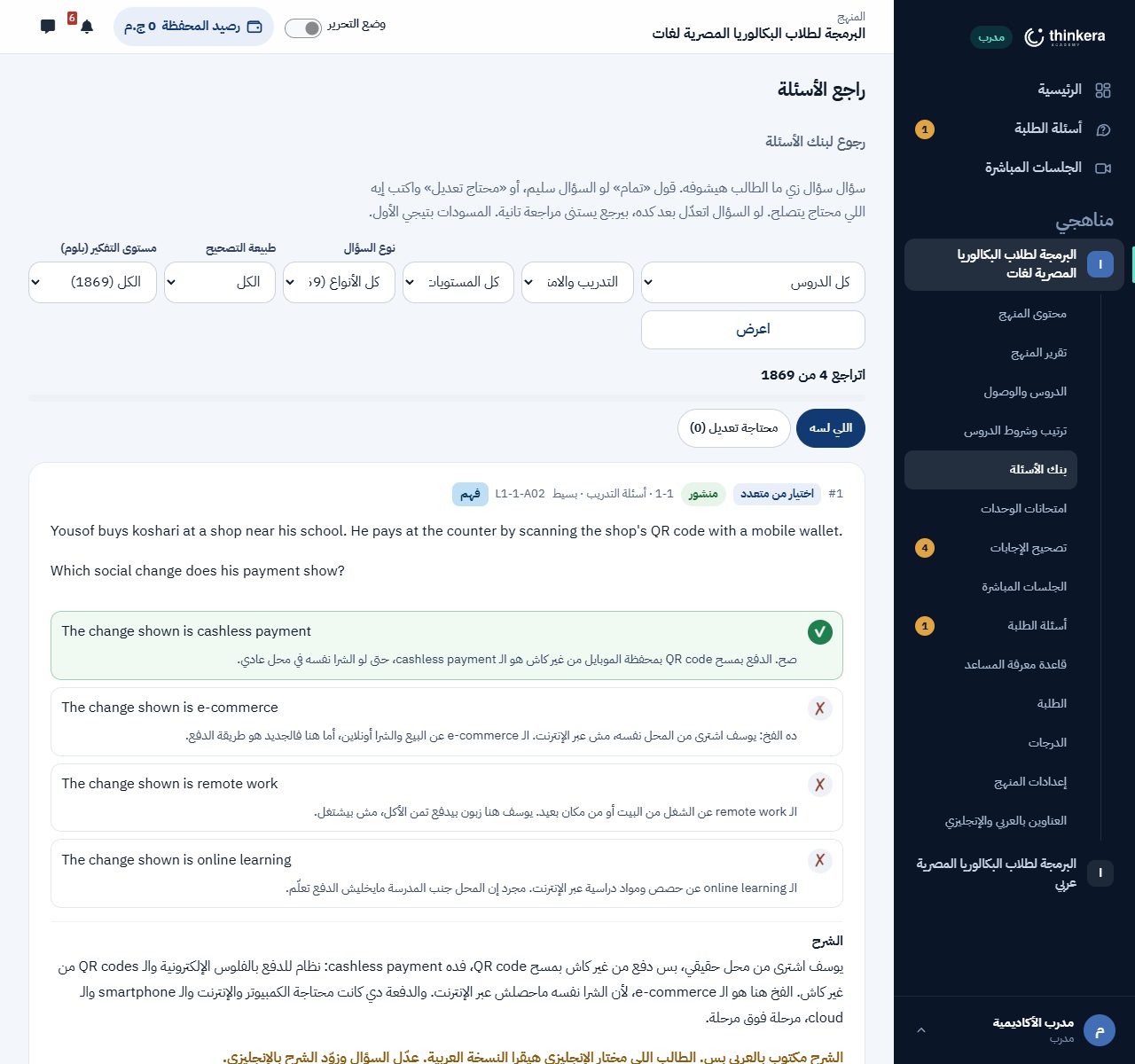
- الأسئلة الجديدة بتدخل مسودة لحد ما تراجعها وتنشرها، إلا لو اخترت «منشورة على طول» وإنت بتستورد.
- المقالي محتاج ملف XML: هو اللي بيشيل الإجابة النموذجية ومعيار التصحيح. GIFT وAiken للاختيار من متعدد والصح والغلط بس.
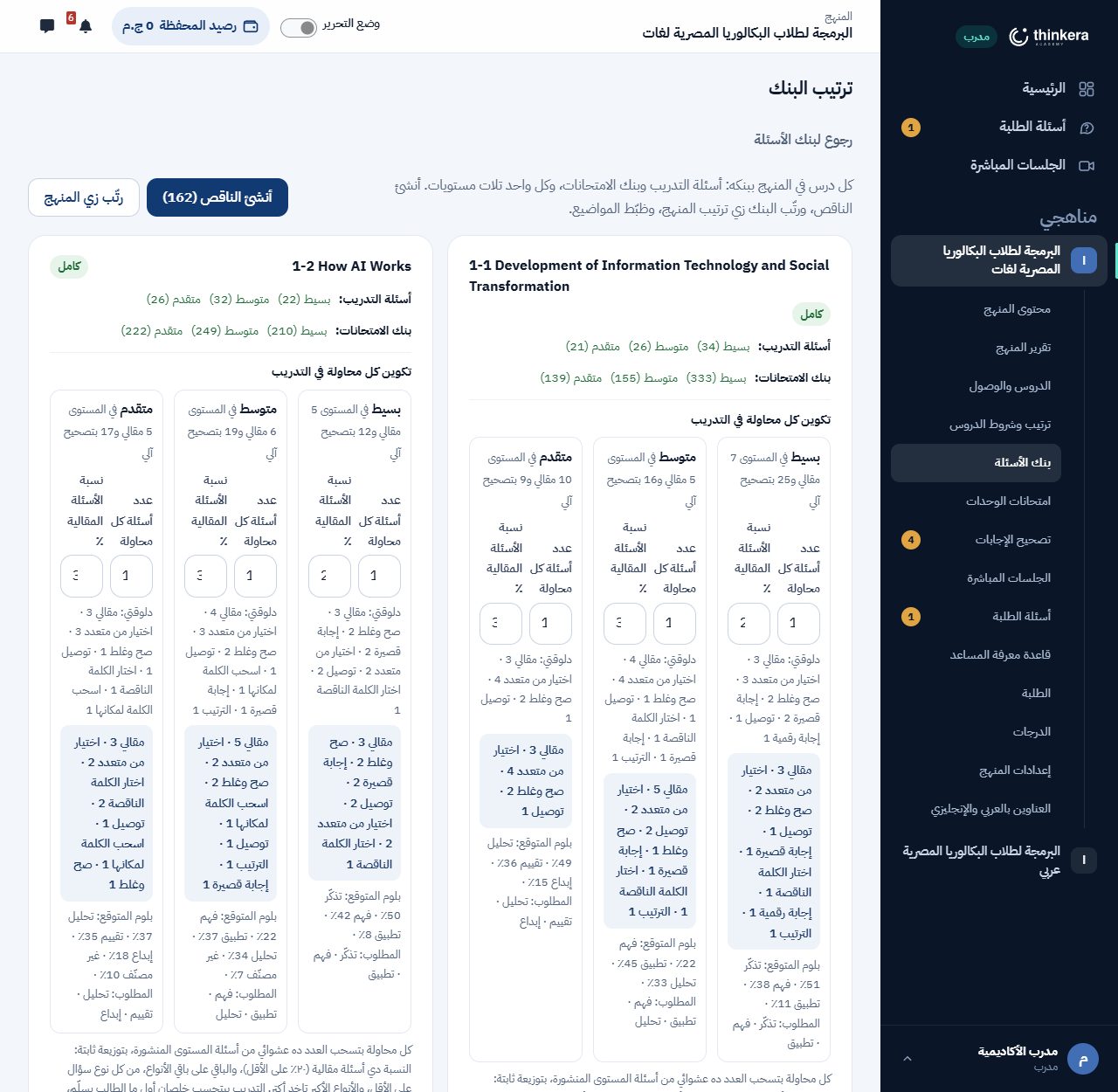
- «ترتيب البنك» بيعمل البنوك الناقصة لأي درس، وبيرتّب البنك زي ترتيب المنهج.
التدريب: تلات اختبارات لكل درس
اللي الطالب بيحلّه في خطوة «التدريب» مش البنك نفسه: هو تلات اختبارات، واحد لكل مستوى، كل واحد بيسحب أسئلته عشوائي من أسئلة التدريب المنشورة في مستواه، فكل محاولة بأسئلة وترتيب جديد. البنك المليان من غير الاختبارات دي ما بيوصلش للطالب بحاجة.
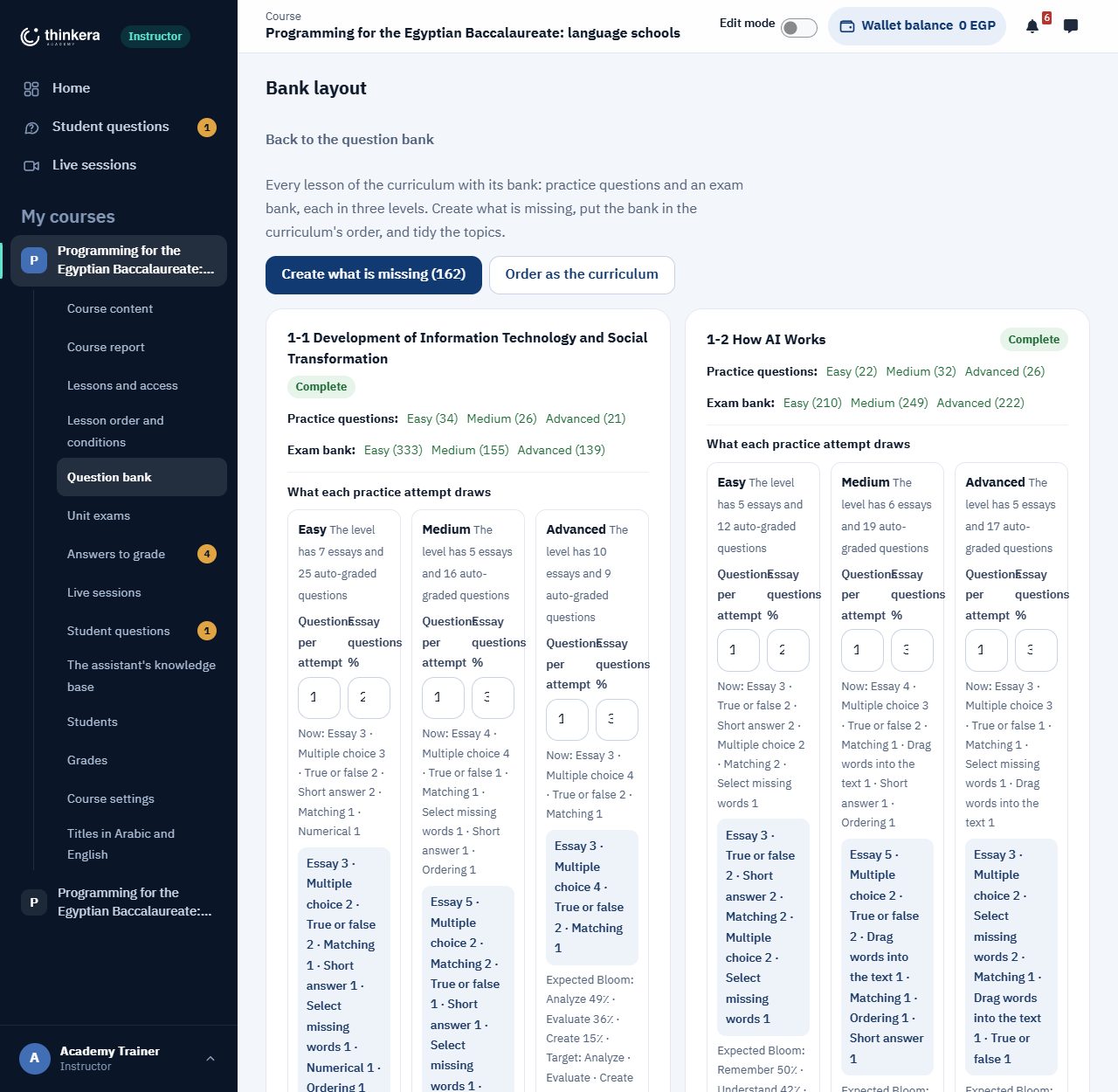
وتكوين المحاولة بتحدده من صفحة «ترتيب البنك»، لكل مستوى:
- عدد أسئلة كل محاولة.
- نسبة الأسئلة المقالية، وأقلها 20٪. والباقي بيتوزع على باقي الأنواع، من كل نوع سؤال على الأقل، والأنواع الأكبر في البنك تاخد أكتر.
- بلوم المتوقع جنب بلوم المطلوب للمستوى، فتشوف لو المحاولة بقت حفظ.
- التدريب بيتحسب خلصان أول ما الطالب يسلّم، حتى لو المقالي لسه ماتصححش.
- لو غيّرت التكوين والطلبة حلّوا قبل كده، بيتعمل اختبار جديد بالتكوين الجديد، والقديم بيستخبى ومحاولاتهم بتفضل زي ما هي.
5 · امتحانات الوحدات
امتحانات في آخر كل وحدة، بتلات مستويات، وكل طالب بأسئلة غير التاني.
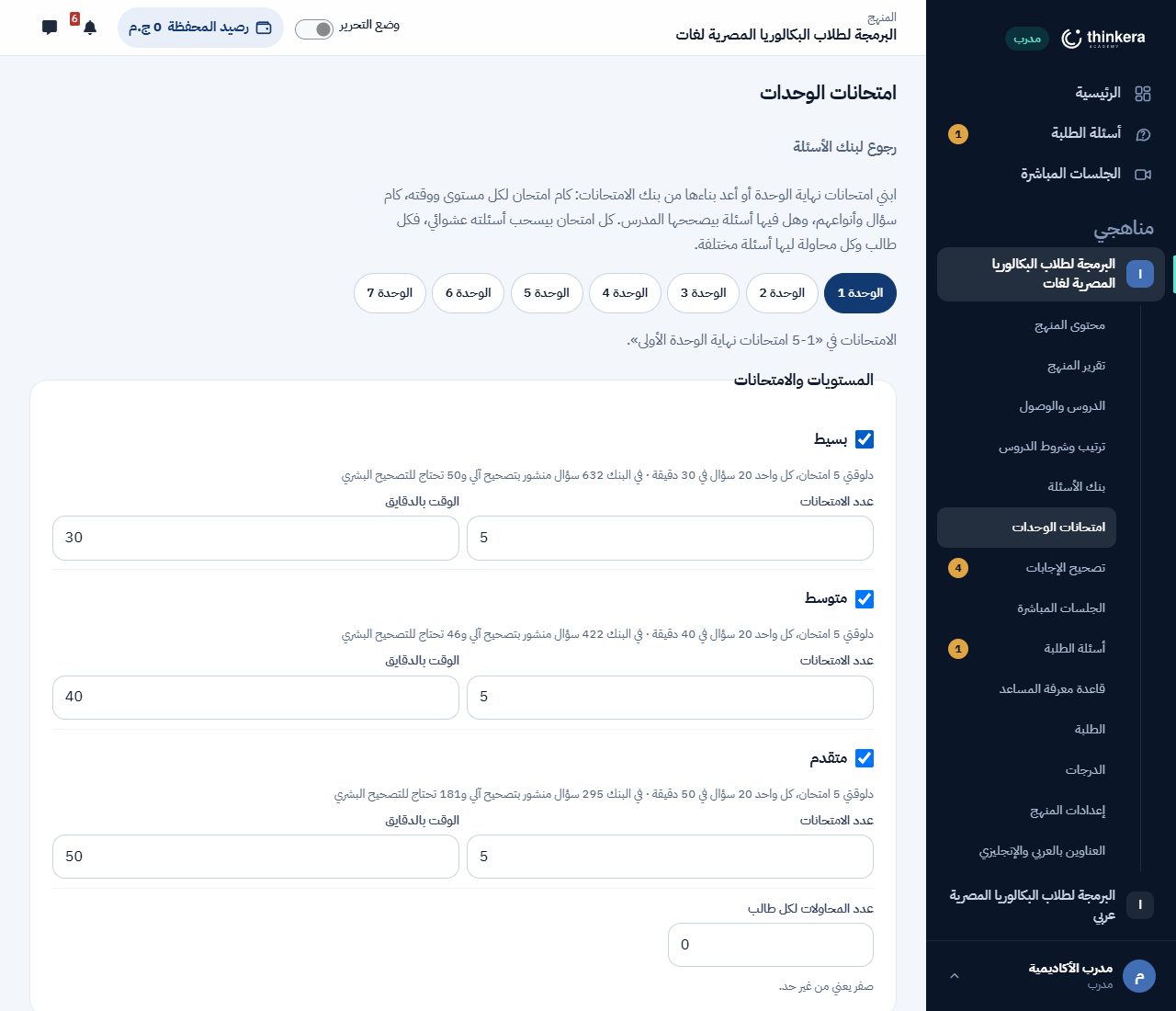
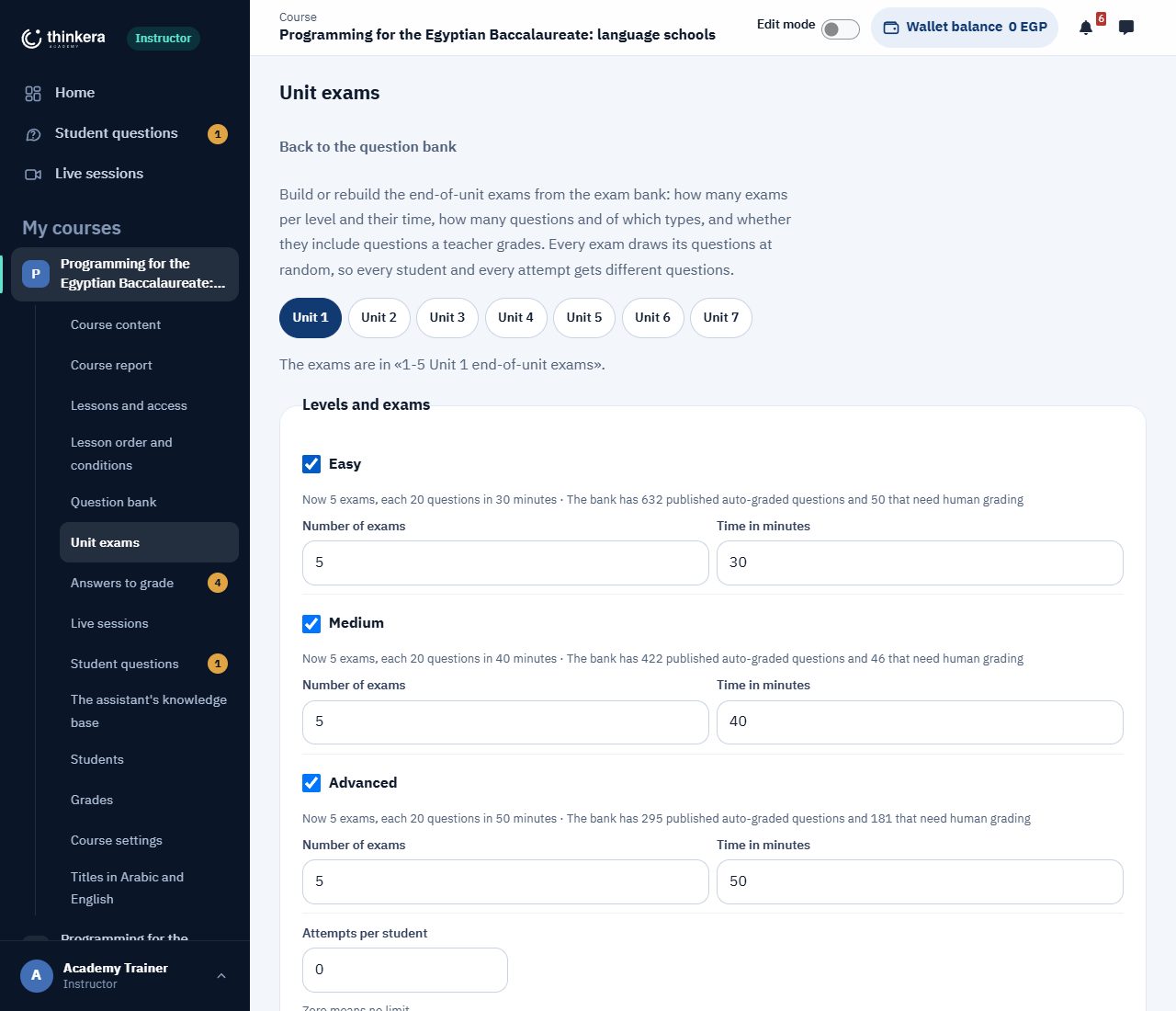
امتحانات نهاية الوحدة بتتبني من بنك الامتحانات، من صفحة «امتحانات الوحدات»، والامتحانات بتتحط في قسم «امتحانات نهاية الوحدة» في آخرها. بتختار الوحدة، وبعدين:
- لكل مستوى (بسيط، متوسط، متقدم): كام امتحان، ووقت كل واحد بالدقايق.
- عدد المحاولات لكل طالب. صفر يعني من غير حد.
- الأسئلة: عدد ثابت من كل درس، أو عدد كلي يتوزع على الدروس بالتساوي. وتقدر توزّع حسب بلوم، وحسب نوع السؤال بنسبة مقالي تحددها. «وزّع متوازن» بيملا الخانات من المتاح في البنك، وبيمسح أي رقم كتبته بإيدك.
- من غير الأسئلة اللي تحتاج للتصحيح البشري: علّم عليها لو عايز النتيجة تطلع فوراً. من غيرها، درجة الطالب النهائية بتظهر بعد ما المقالي يتصحح.
- مين يقدر يدخل الامتحانات: مدفوعة (للطالب اللي فتح المنهج كله)، أو مجانية لكل الطلبة.
- كل امتحان بيسحب أسئلته عشوائي، فكل طالب وكل محاولة ليها أسئلة مختلفة. والامتحان اللي محدش حلّه بيتبني من جديد في مكانه بنفس الاسم. و«راجع قبل البناء» بيوريك اللي هيتعمل قبل ما يتعمل.
قاعدة المنهج: فيه أسئلة مقالية في كل مستوى، مش في المتقدم بس. الامتحان اللي كله اختيار من متعدد بيقيس التعرّف، مش الفهم.
إقفال الوحدة بالامتحانات
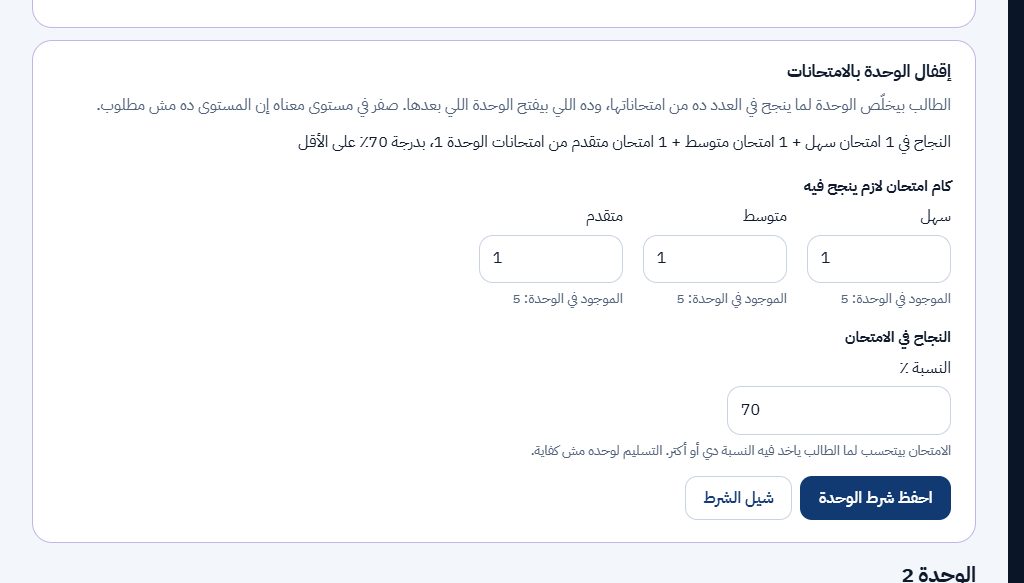
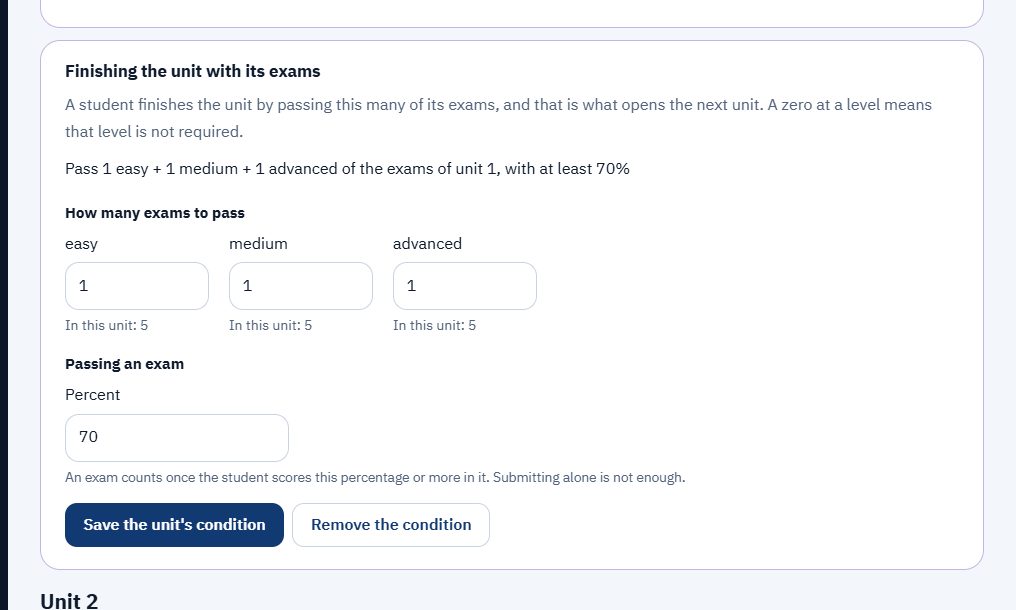
في صفحة «ترتيب وشروط الدروس»، تحت كل وحدة ليها امتحانات: الطالب بيخلّص الوحدة لما ينجح في عدد معيّن من امتحاناتها، وده اللي بيفتح الوحدة اللي بعدها. بتحدد كام امتحان من كل مستوى (صفر يعني المستوى ده مش مطلوب)، ونسبة النجاح. الامتحان بيتحسب لما الطالب ياخد النسبة دي أو أكتر؛ التسليم لوحده مش كفاية. والوحدة اللي لسه مافيهاش امتحانات ما ينفعش تتقفل بيها.
6 · التصحيح والمراجعة
الإجابة المقالية بتتصحّح بمعيارك، والآلي بيشيل عنك الواضح، والقرار في كل منهج بإيدك.
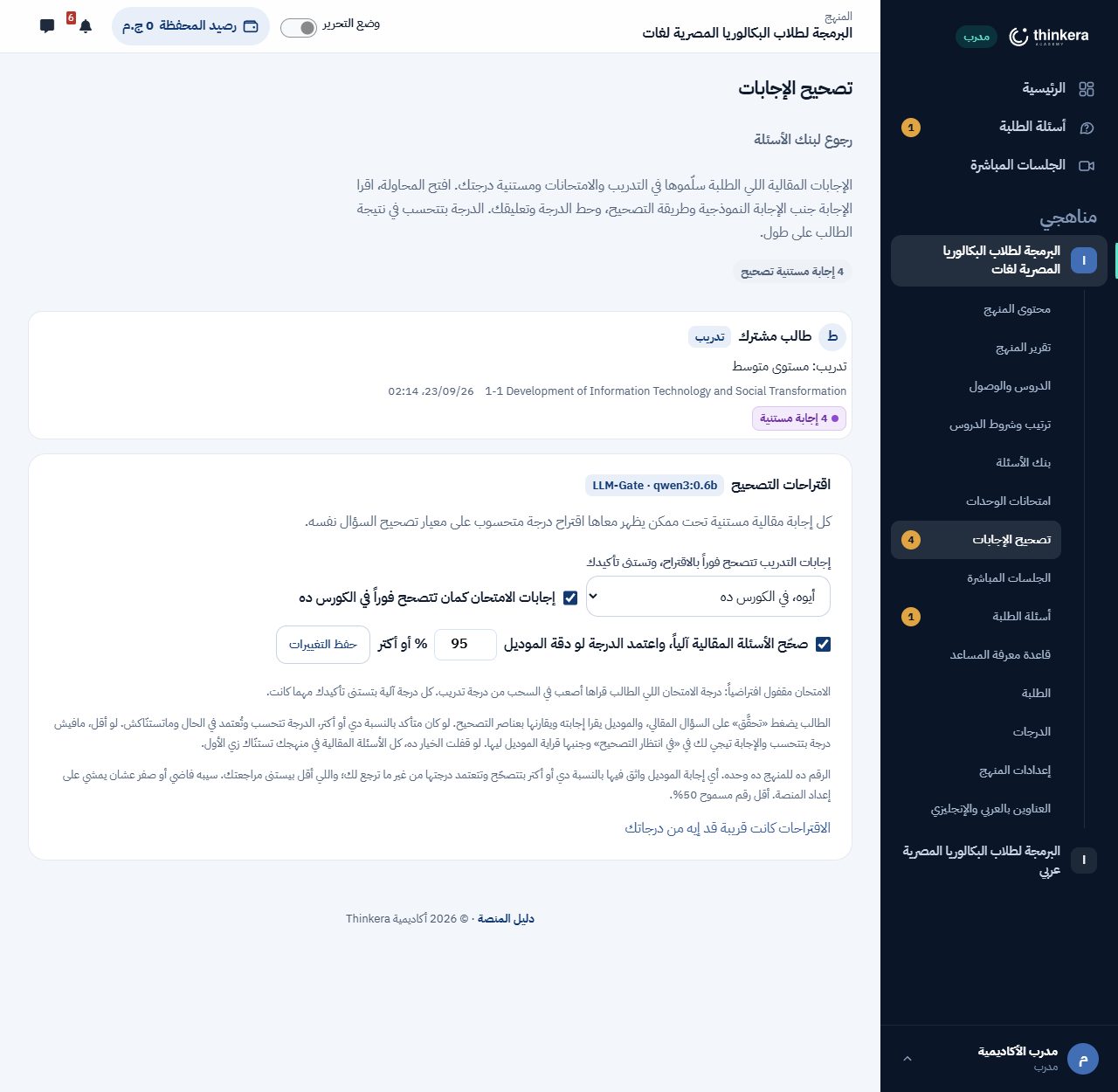
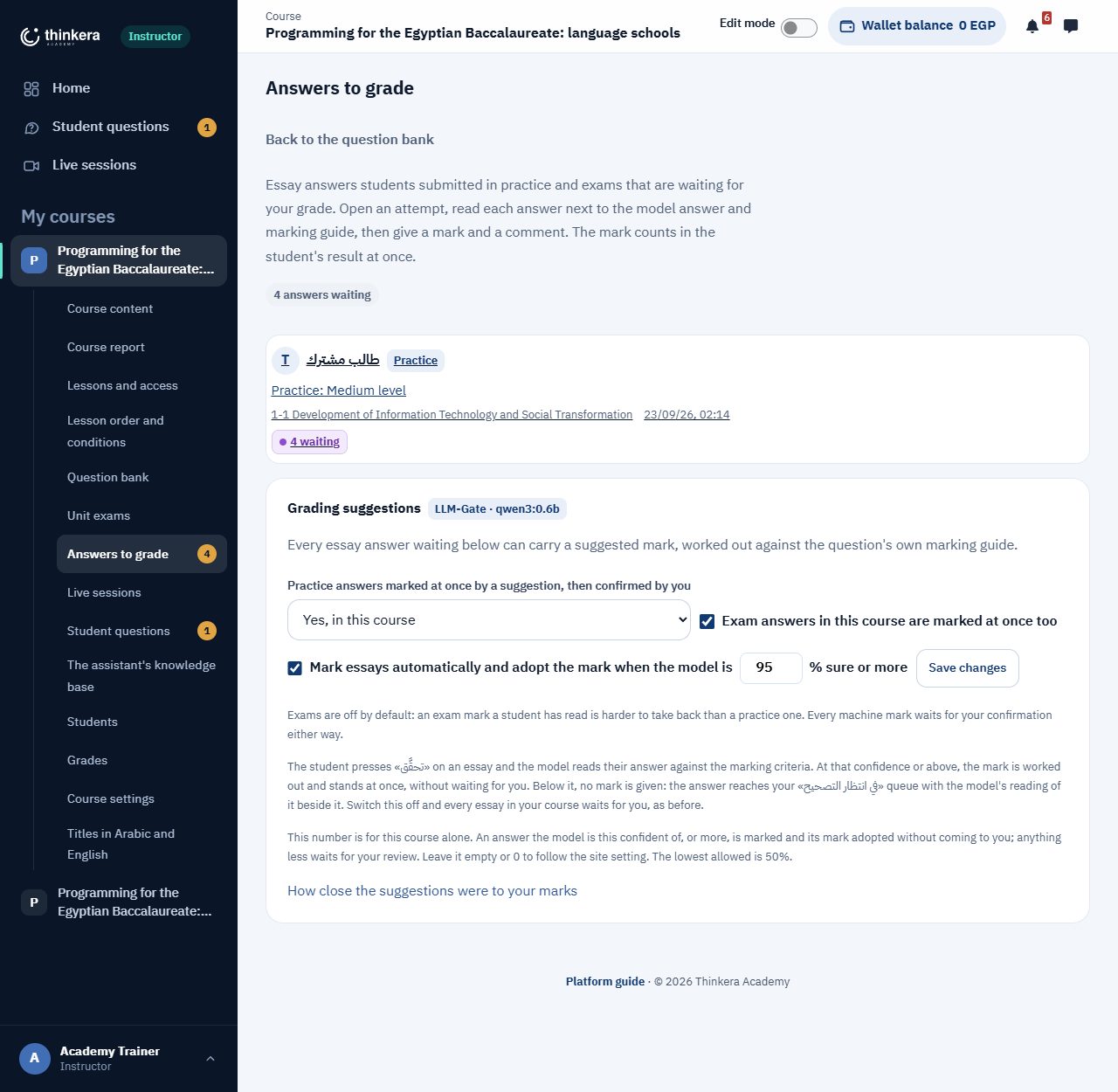
صفحة «تصحيح الإجابات» فيها الإجابات المقالية اللي الطلبة سلّموها في التدريب والامتحانات ومستنية درجتك. بتفتح المحاولة، وتقرا الإجابة جنب الإجابة النموذجية ومعيار التصحيح، وتحط الدرجة وتعليقك، والدرجة بتتحسب في نتيجة الطالب على طول. وفوقها كارت «اقتراحات التصحيح» فيه تلات اختيارات للمنهج ده:
إجابات التدريب: تتصحح فوراً بالاقتراح، وتستنى تأكيدك
تلات اختيارات: زي ما المنصة بتقول، أو «أيوه، في الكورس ده»، أو «لأ، أنا هصححها بنفسي». لما يكون شغّال، الإجابة بتاخد درجة الاقتراح على طول، وبتفضل عندك لحد ما تأكدها أو تغيّرها.
إجابات الامتحان: مقفولة افتراضياً
«إجابات الامتحان كمان تتصحح فوراً في الكورس ده» مقفول من الأول، لأن درجة امتحان الطالب قراها أصعب في السحب من درجة تدريب. ولو فتحته، كل درجة آلية بتستنى تأكيدك مهما كانت.
«تحقَّق» على السؤال المقالي: الدرجة تُعتمد لو الموديل متأكد
تحت السؤال المقالي في التدريب زرار «تحقَّق» زي أي سؤال تاني. الطالب يدوسه، فتتسلّم إجابته ويقراها الموديل قدّامه ويقارنها بعناصر التصحيح. لو ثقة الموديل في تصحيحه وصلت للنسبة المحددة أو أكتر، الدرجة تتحسب وتظهر للطالب في نفس اللحظة من غير ما تستنّاك، وما بتظهرش في طابورك لأنها معتمدة خلاص. وتقدر تفتح أي محاولة وتغيّر الدرجة في أي وقت.
لو أقل من النسبة، مافيش درجة بتتحسب أصلاً: الإجابة بتيجي لك في «في انتظار التصحيح» ومعاها قراية الموديل كاقتراح، والطالب بيشوف إنك إنت اللي هتقراها، من غير أي رقم.
النسبة بإيدك، والخيار كله بإيدك
الخيار ده مفعّل افتراضياً. النسبة للمنهج ده وحده: سيبها فاضية أو صفر عشان تمشي على إعداد المنصة (95٪ دلوقتي)، وأقل رقم مسموح 50٪. ولو قفلت الخيار، كل سؤال مقالي في منهجك يستنّى تصحيحك إنت.
المشكوك فيه بيطلع الأول
الاقتراح اللي ثقة الموديل فيه قليلة بيتعلّم عليه وبيطلع في أول طابورك، فأكتر إجابات ممكن تتصحح غلط هي أول اللي بتقراه.
لو غيّرت درجة، الطالب بيعرف ليه
تعديل الدرجة بيروح للطالب إشعار بالسبب. ده اللي بيخلّي الطالب يثق في الرقم بدل ما يتخانق عليه.
7 · المساعد الذكي
بيجاوب الطالب من دروس منهجك، وإنت اللي بتحدّد بيقرا منين.
المساعد بيدوّر على تلات مراحل: الدرس اللي الطالب فيه، وبعدين باقي دروس المنهج، وبعدين بيسأل الطالب لو يحب إجابة من برّه المنهج. المرحلتين الأولانيتين بيقروا من قاعدة معرفة المنهج، وهي اللي إنت بتتحكم فيها.
صفحة قاعدة المعرفة
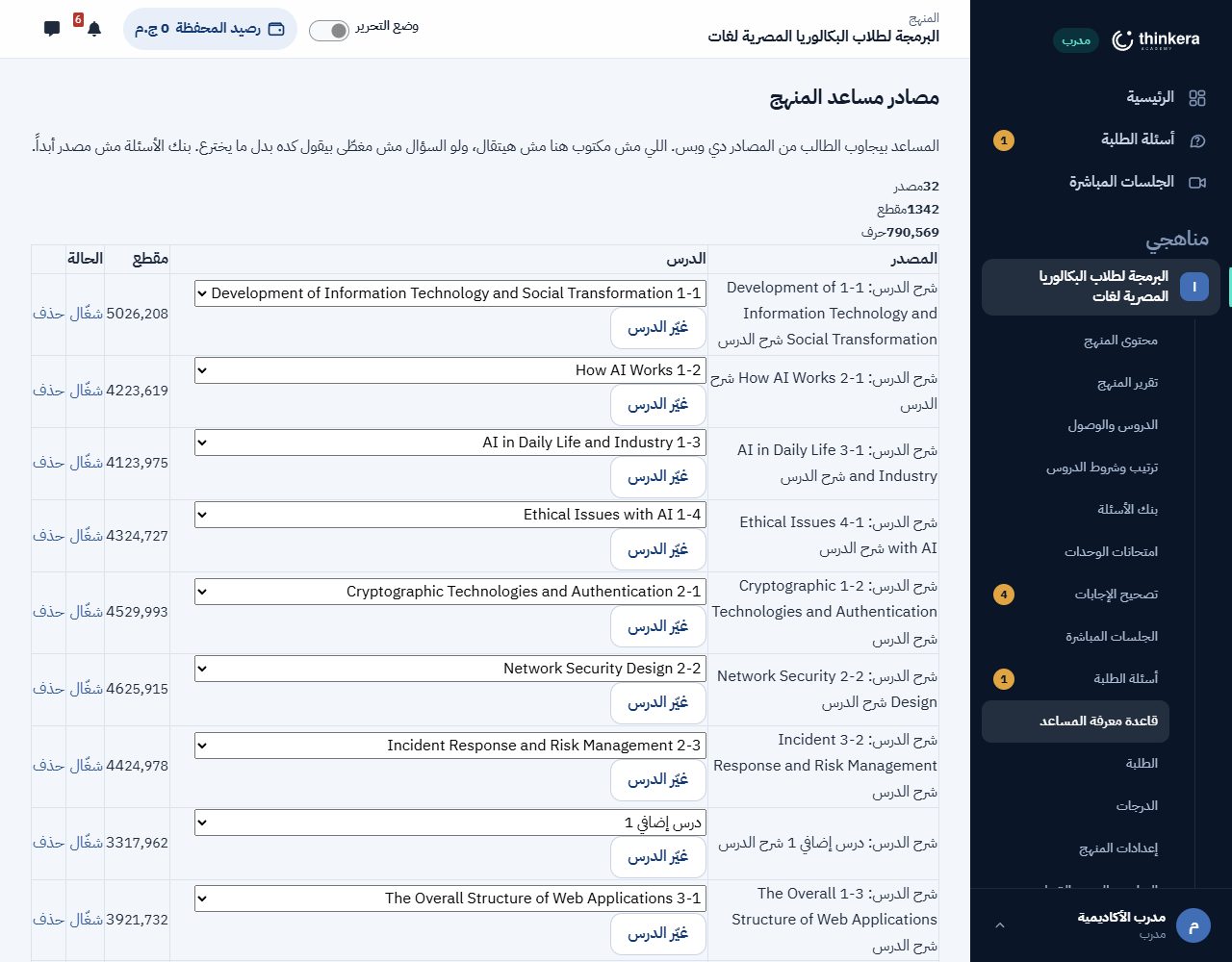
من القايمة الجانبية للمنهج، «قاعدة معرفة المساعد». فوقها عدد المصادر والمقاطع، وفيها:
- رفع ملفات بصيغة md أو PDF، وكل ملف بيتوسم بالدرس اللي بيخصّه، فالمساعد يعرف يرجّعه في مكانه.
- تشغيل وإطفاء كل مصدر لوحده من غير ما تمسحه. مصدر مطفّي المساعد ما بيقراش منه.
- حذف اللي ما بقاش صالح، ومراجعة إيه اللي اتستورد وإمتى.
- بنك الأسئلة مش مصدر أبداً، عشان المساعد ما يحلّش للطالب أسئلة تدريبه.
القاعدة اللي وراه: المساعد بيقول مصدر إجابته من الدرس، ولو ما لقاش بيقولها صريح بدل ما يألّف. والخروج برّه المنهج بيحصل بموافقة الطالب نفسه، والإجابة دي بتيجي عليها علامة إنها من برّه. يعني الطالب دايماً عارف هو بيقرا كلام مين.
الذكاء الاصطناعي في المنصة: مهمتين، مش «ذكاء» عام
المنصة ما بتشغّلش موديل عشان تقول إنها بتشغّل موديل. في مهمتين بالظبط، كل واحدة ليها موديلها المختار من إعدادات المنصة:
مساعد المنهج
بيجاوب من قاعدة معرفة المنهج اللي فوق دي، بمراحله التلاتة، وبيقول مصدره. ده اللي بيشيل عنك الأسئلة اللي إجابتها مكتوبة في الدرس أصلاً، فاللي بيوصلك في «أسئلة الطلبة» بيبقى اللي فعلاً محتاجك.
اقتراح درجة
بيقارن إجابة الطالب بالإجابة النموذجية ومعيار التصحيح، ويرجّع درجة مقترحة ومعاها تعليلها ونسبة ثقته. هو اللي ورا «تحقَّق» عند الطالب، وورا الاقتراح اللي بتشوفه جنب كل إجابة في التصحيح. الشغل بيكمّل على السيرفر حتى لو قفلت الصفحة.
الاعتماد بقواعدك
الاقتراح ما بيبقاش درجة غير بالقواعد اللي في القسم 6، وإنت اللي بتحددها لمنهجك. وأي درجة تقدر تغيّرها وتكتب سبب، والسبب بيوصل للطالب.
وإزاي تعرف تثق في الاقتراح؟
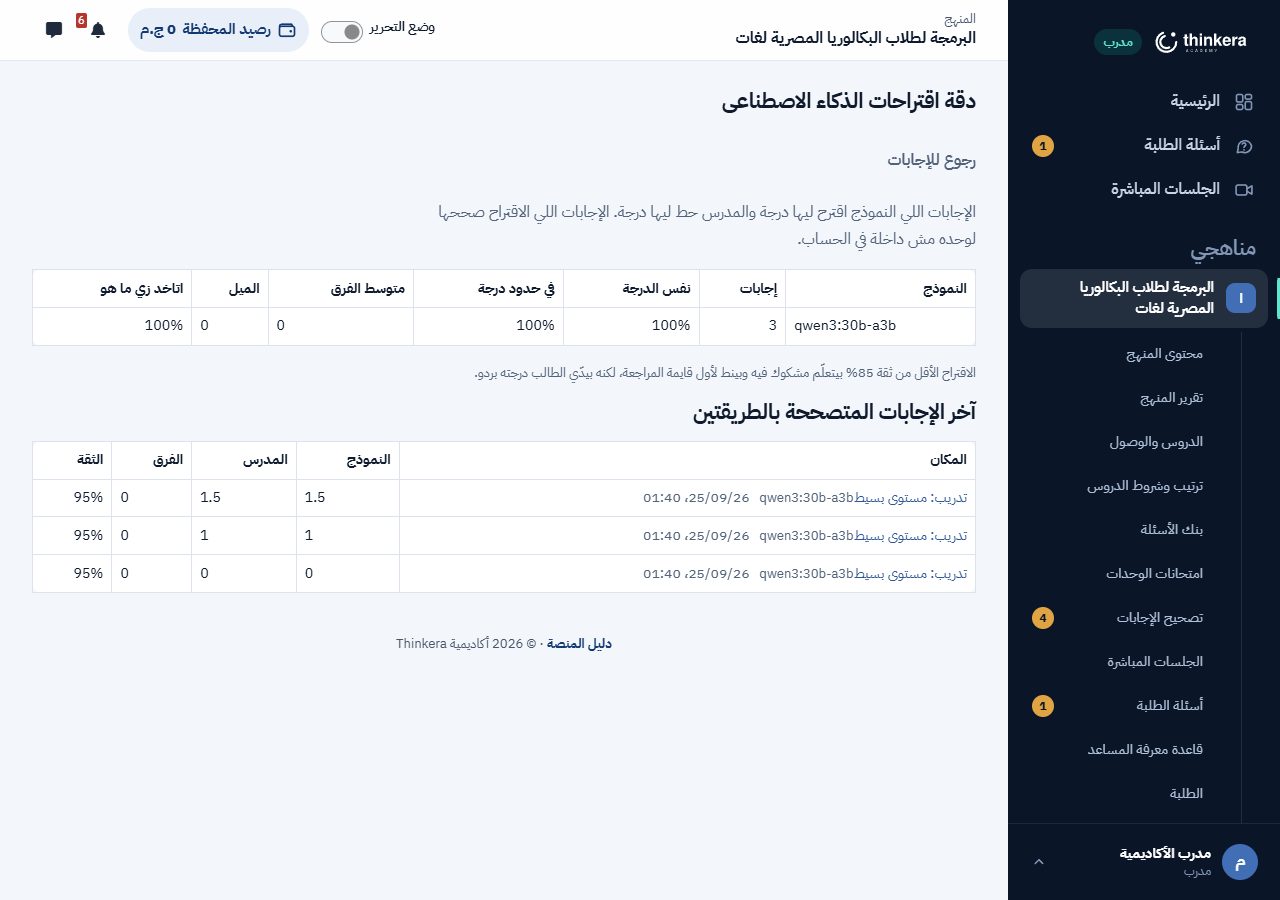
في صفحة اسمها «دقة اقتراحات الذكاء الاصطناعي»، ولينكها «الاقتراحات كانت قريبة قد إيه من درجاتك» في صفحة التصحيح. بتقارن اقتراحات كل موديل بالدرجات اللي المدربين حطّوها بنفسهم، على الإجابات اللي فيها الاتنين، وبتعرض آخر الإجابات اللي اتصححت بالطريقتين. والإجابات اللي الاقتراح صحّحها لوحده مستبعَدة من الحساب، لأنها هتتفق مع نفسها. يعني قرار «أثق فيه لحد كام» مبني على رقم، مش على انطباع.
واللي بيتسجّل
- سجل استخدام فيه سطر لكل طلب: الموديل، وحجم الطلب، والمدة، ونجح ولا لأ.
- مش بيتكتب فيه ولا كلمة من اللي الطالب كتبه، ولا أي مفتاح.
- الموديل شغّال على سيرفر الأكاديمية، فلا إجابات الطلبة ولا محتوى منهجك بيخرج لخدمة برّه.
8 · أسئلة الطلبة والجلسات
اللي المساعد ما بيغنيش عنه.
أسئلة الطلبة
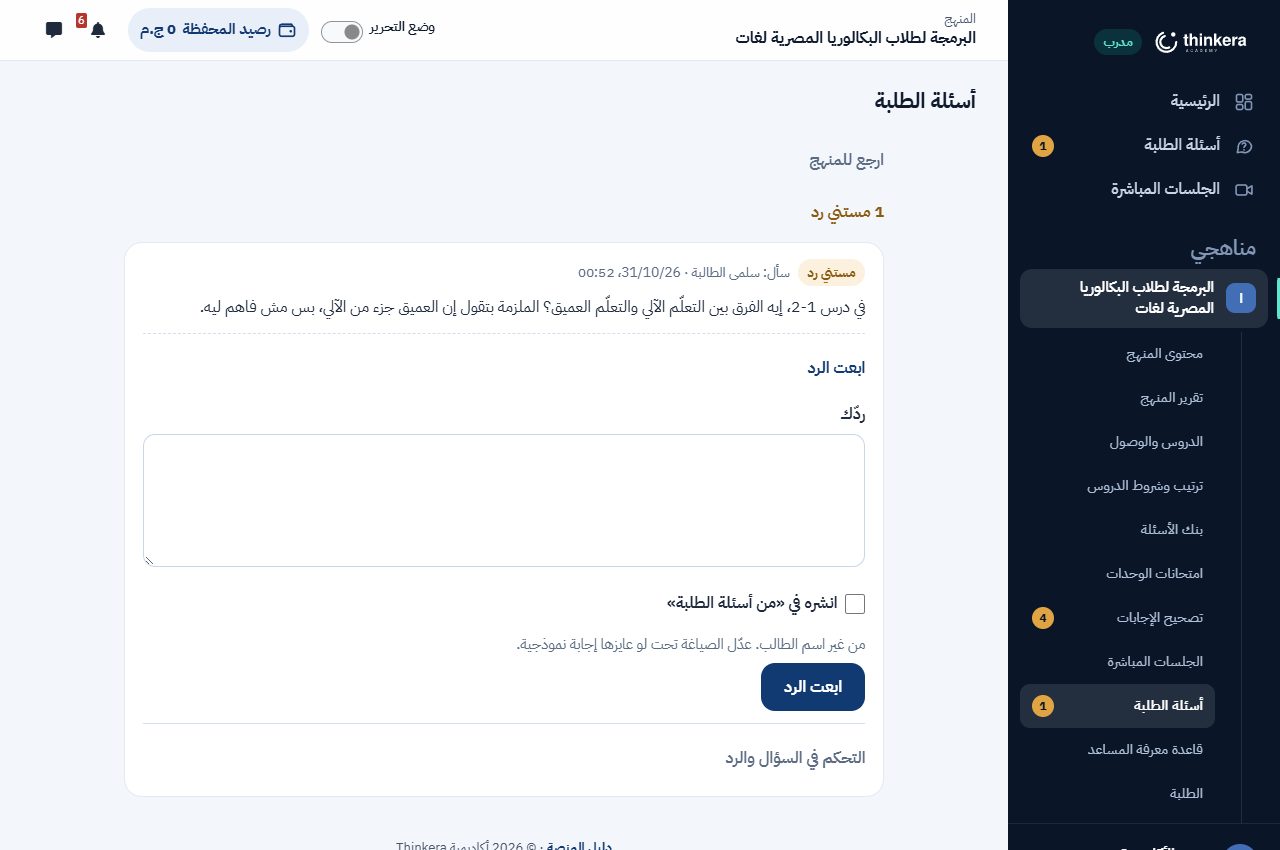
كل أسئلة المنهج في صفحة واحدة، اللي مستني رد الأول، وبترد على كل سؤال في مكانه. ولو السؤال ينفع يفيد غيره، علّم على «انشره في «من أسئلة الطلبة»»، فيظهر لكل طلبة المنهج بإجابته، من غير اسم الطالب، وتقدر تعيد صياغته قبل النشر. ومن غير منهج، الصفحة بتجمع لك أسئلة كل المناهج اللي بتدرّسها.
الجلسات المباشرة
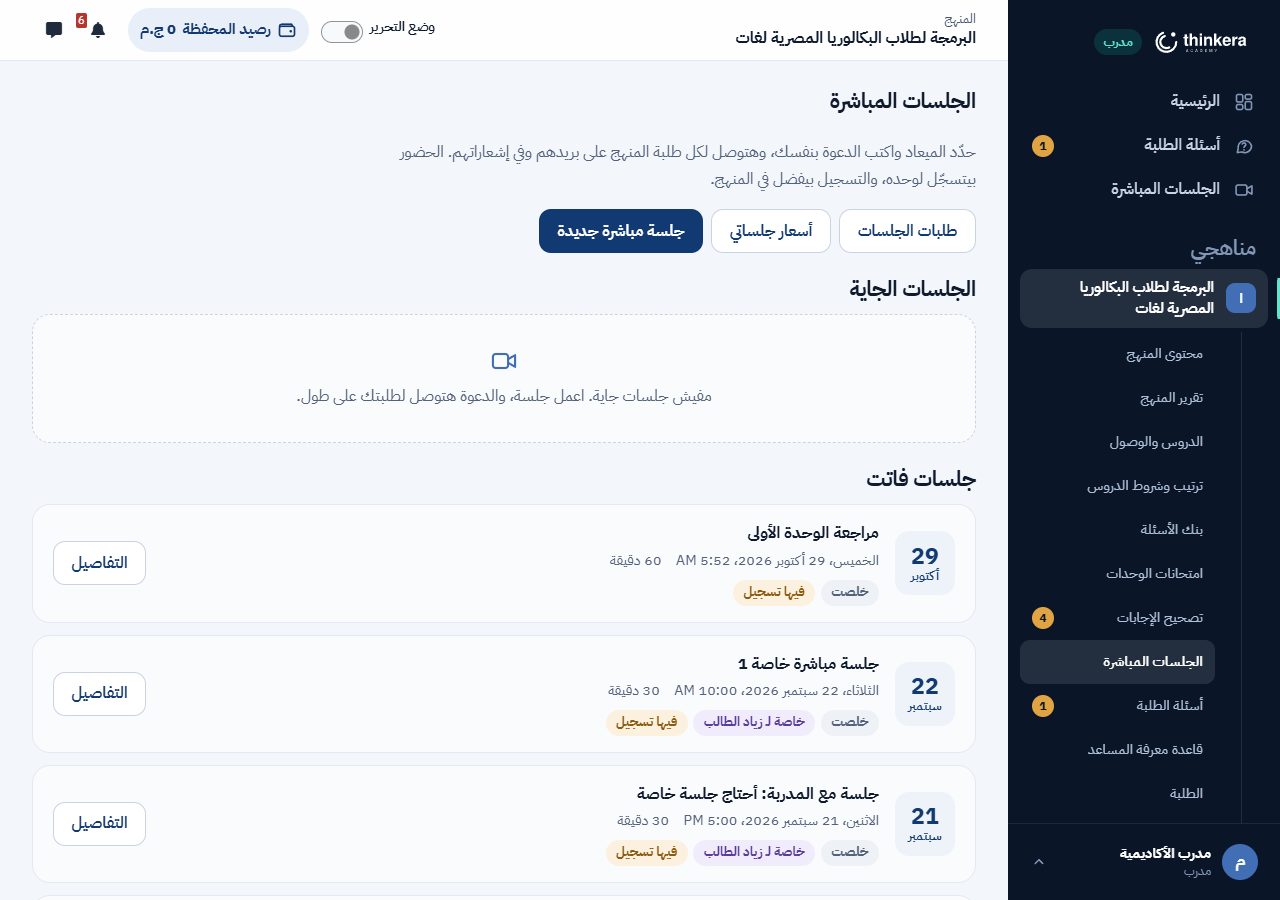
من «الجلسات المباشرة» بتعمل جلسة لكل طلبة المنهج: الميعاد والمدة، والدعوة بكلامك إنت وبتوصلهم على بريدهم وفي إشعاراتهم، وهتتسجّل ولا لأ، ومين يشوف التسجيل. الحضور بيتسجّل لوحده، والتسجيل بيفضل في المنهج. وتقدر تغيّر الجلسة أو تلغيها من صفحتها.
الجلسات الخاصة: طلبات وأسعار
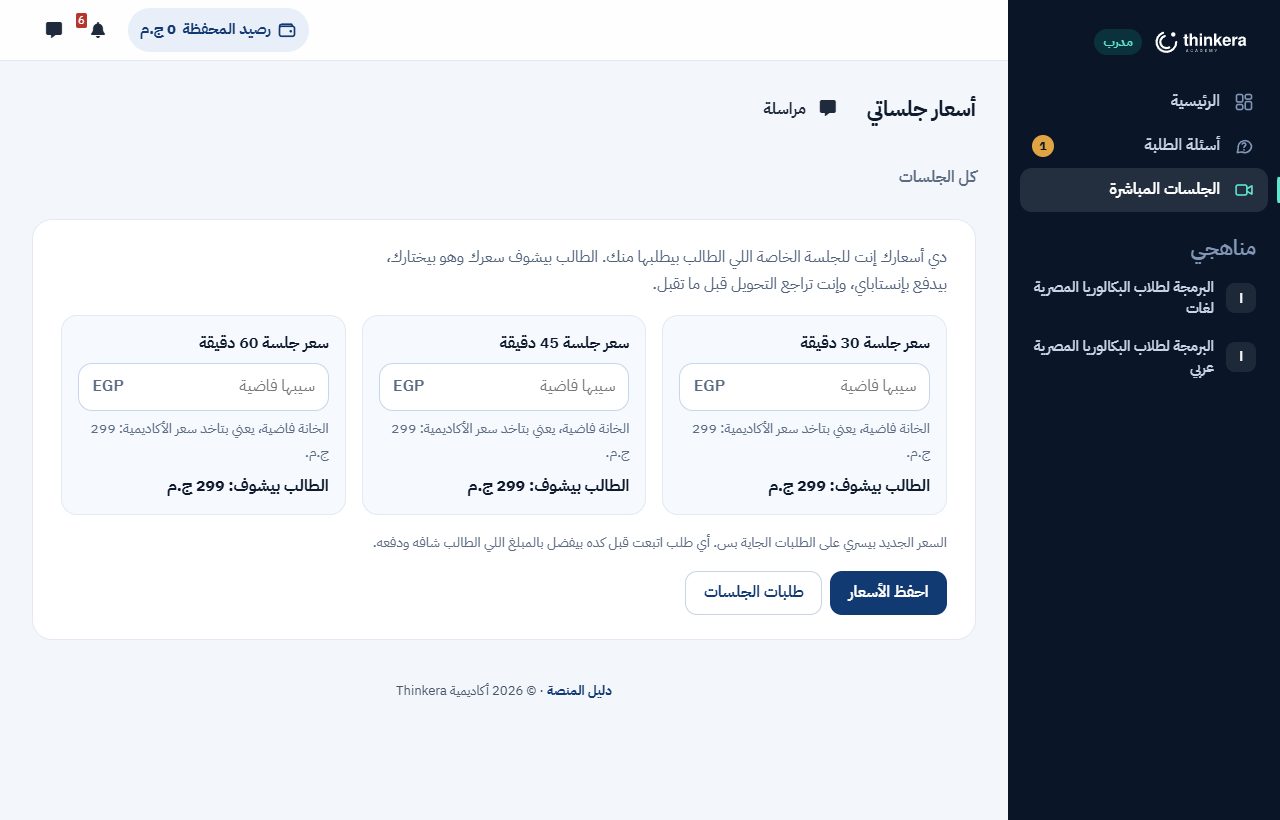
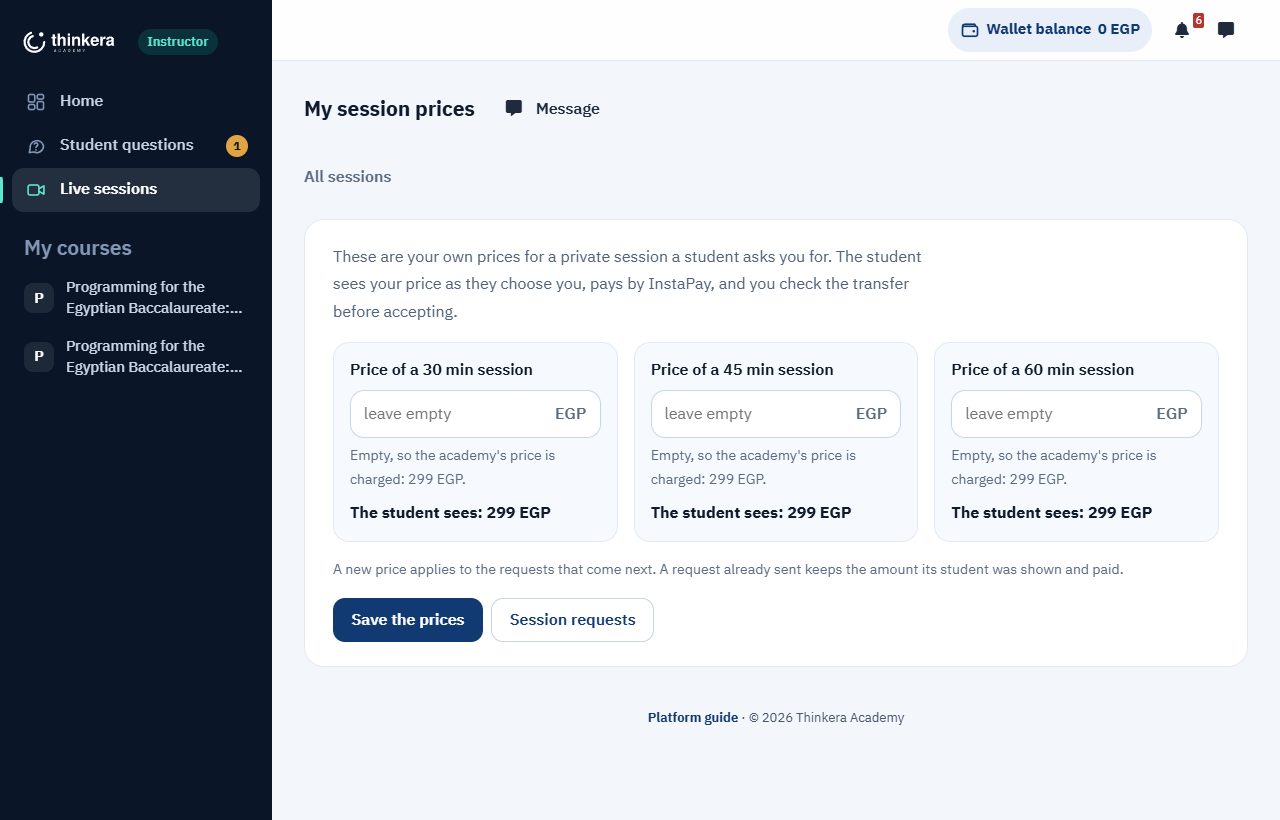
- «أسعار جلساتي»: سعرك إنت للجلسة الخاصة، لكل مدة (30 و45 و60 دقيقة). الخانة الفاضية معناها سعر الأكاديمية. والسعر الجديد بيسري على الطلبات الجاية بس؛ الطلب اللي اتبعت بيفضل بالمبلغ اللي الطالب شافه ودفعه.
- الطالب بيطلب: بيختار المدرب والموضوع والميعاد والمدة، وبيشوف سعرك، ويدفع من محفظته، أو بتحويل بطريقة من طرق الدفع اللي الأدمن مفعّلها (إنستاباي، وفودافون كاش لما تتفعّل) ويرفع الإيصال.
- «طلبات الجلسات»: بتشوف المبلغ، وطريقة التحويل ورقم العملية والإيصال لو كان تحويل. بتراجع التحويل، وتقدر تغيّر الميعاد أو المدة، وبعدين تقبل، أو ترفض بسبب. والطلب اللي اتدفع من المحفظة واترفض، فلوسه بترجع للمحفظة قبل ما الطالب يعرف إنه اترفض.
9 · المتابعة
مين شغّال، ومين واقف، وفين وقف.
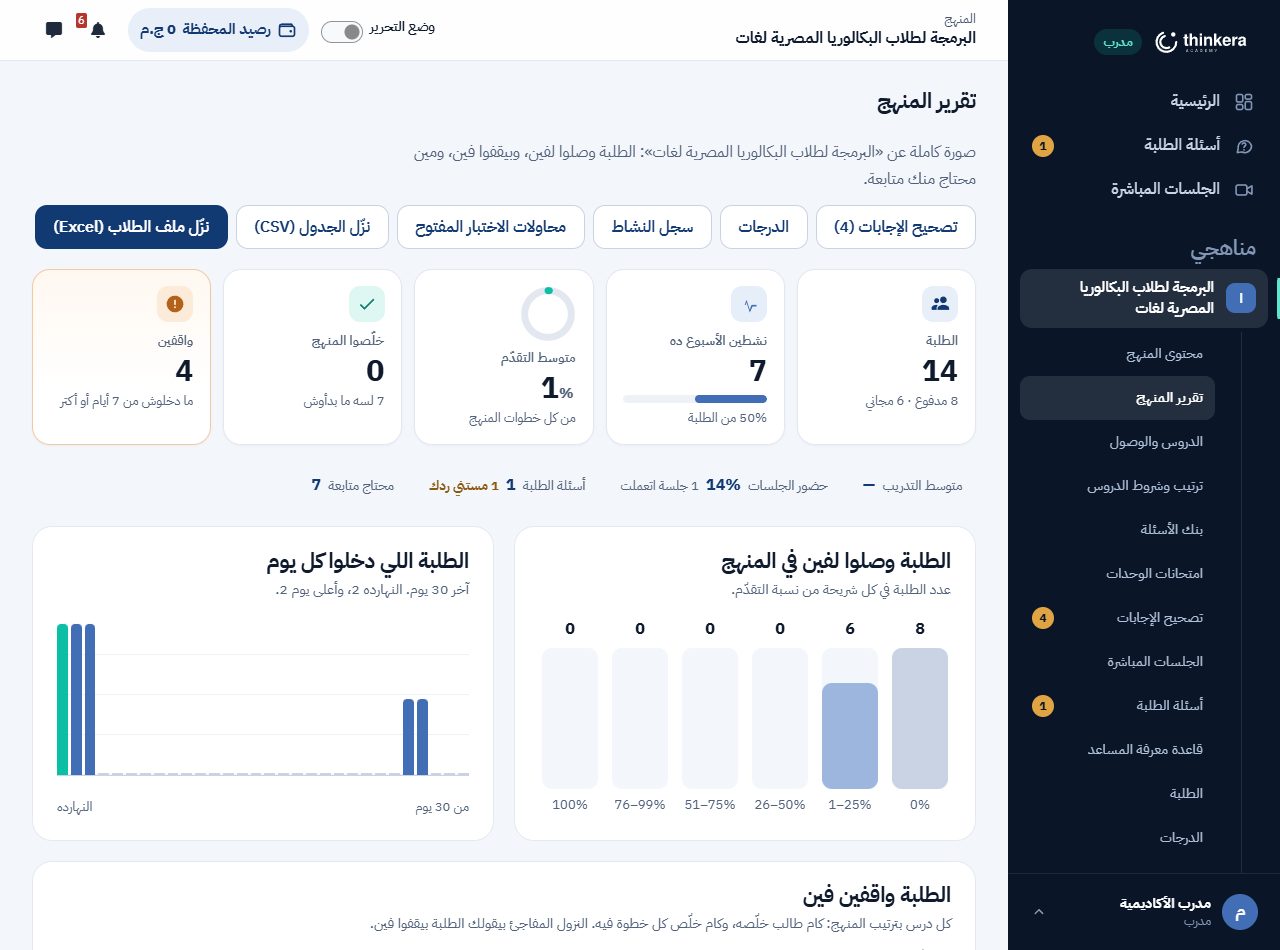
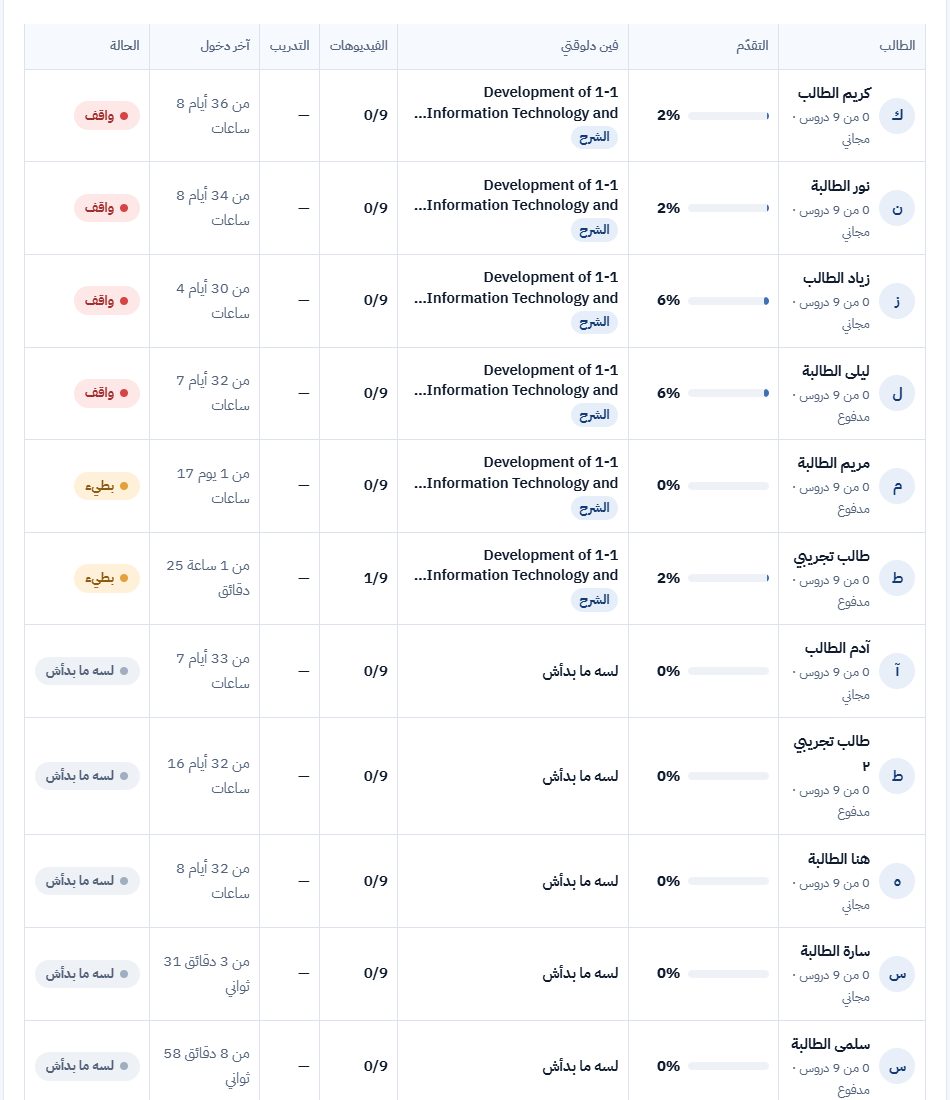
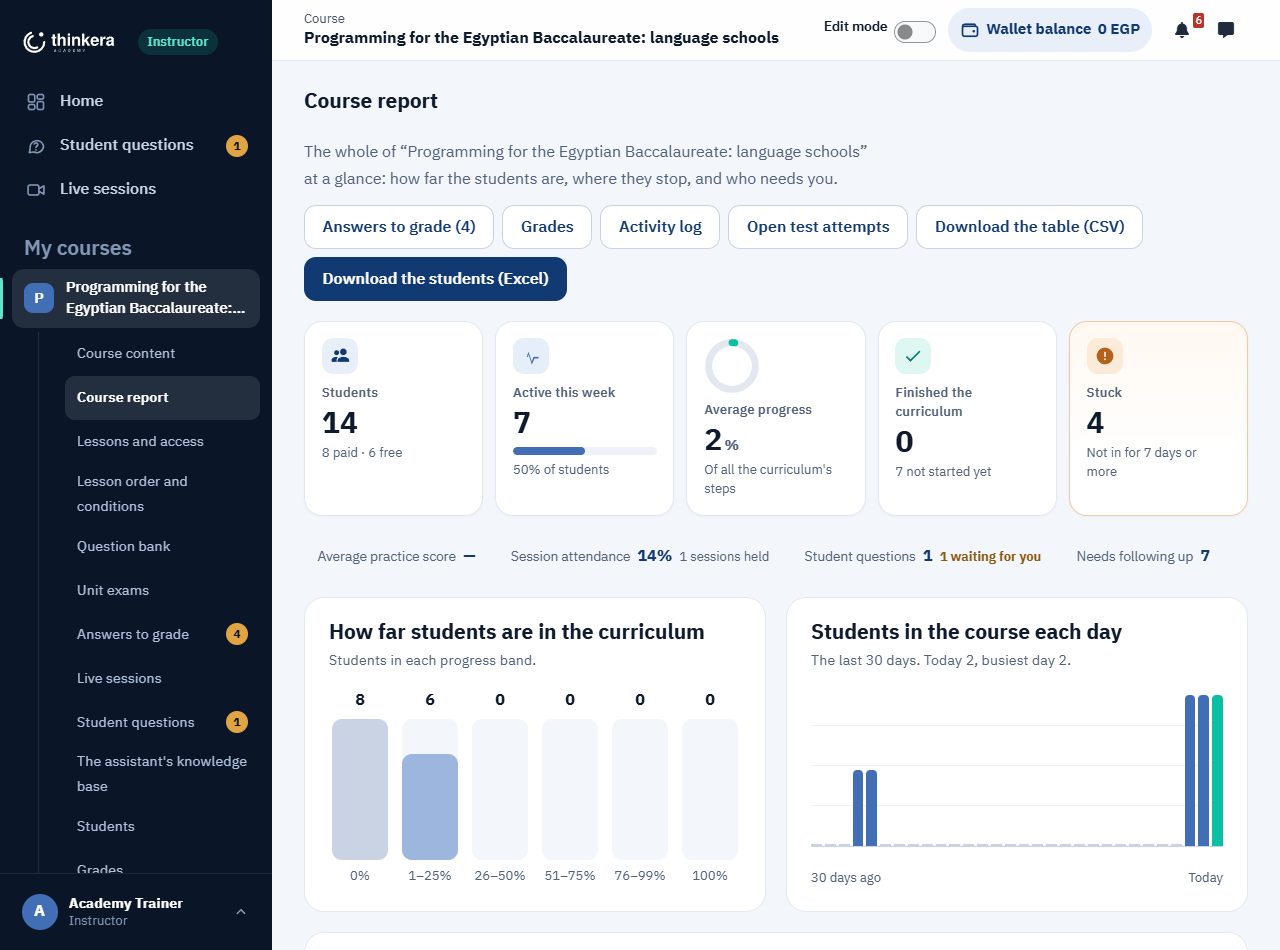
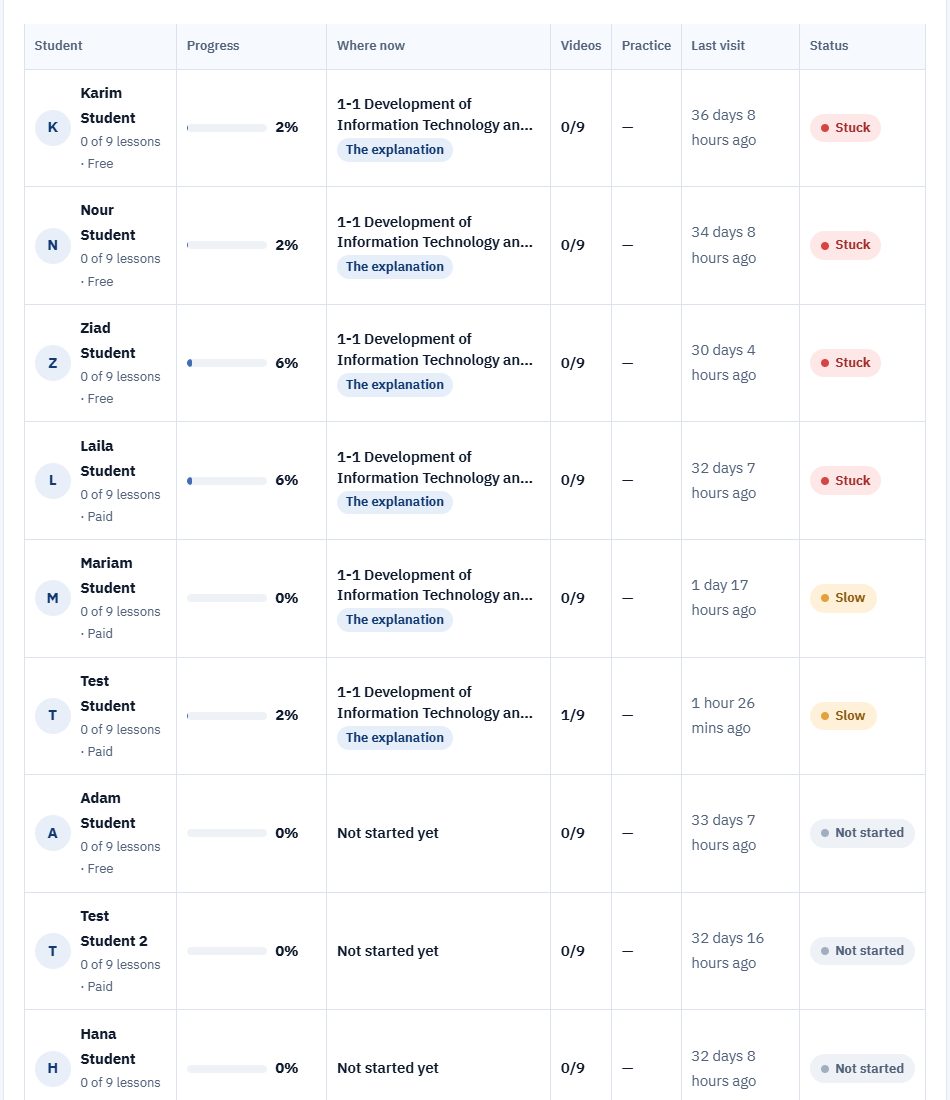
«تقرير المنهج» فيه الأرقام (الطلبة، والنشطين، ومتوسط التقدّم، والواقفين)، وتوزيع التقدّم، والنشاط اليومي، وجدول الطلبة: كل طالب واقف فين بالظبط، وفيديوهاته وتدريبه، وآخر دخول، وحالته (ماشي كويس، بطيء، واقف، لسه ما بدأش). ومن اسم الطالب بتفتح تقريره: كل درس بخطواته، وأحسن نتيجة له في كل مستوى تدريب. وتقدر تنزّل الجدول، وتبعت رسالة لمجموعة طلبة مرة واحدة.
مين يشوف إيه: مدرب الأكاديمية بيشوف كل طلبة المنهج. المدرب المشارك ومدرب شريك المحتوى بيشوفوا طلابهم بس، ومن غير إيميل ولا موبايل (القسم 13).
10 · إعدادات المنهج
آخر حاجة، ومرة واحدة غالباً.
- إعدادات المنهج: «ترتيب أول خمسة» (مقفول افتراضياً، والنقط بتتحسب في الحالتين)، والشارات: 7 شارات للمنهج، تقدر تعدّل اسم كل واحدة ووصفها ورقمها أو تقفلها، والشارة اللي الطالب كسبها بتفضل معاه. ومنها كمان «بيانات المنهج الأساسية»: الاسم والوصف والتواريخ والصورة.
- العناوين بالعربي والإنجليزي: أسماء الوحدات والدروس والأنشطة باللغة التانية، عشان الطالب يبدّل من تفضيلاته.
- الأسعار: سعر المنهج وطرق التسجيل ونشره على الموقع للأدمن. اللي بإيدك: المجاني والمدفوع من «الدروس والوصول»، وأسعار جلساتك الخاصة من «أسعار جلساتي». والوحدة الأولى بتفضل مفتوحة مجاناً.
11 · أنواع المدربين على Thinkera وأدوارهم
تلات أدوار، لكل واحد صلاحياته وفلوسه وطريقة دخوله.
من فريق Thinkera نفسه، والأدمن هو اللي بيعيّنه بدور «المدرب» في المنهج. بيبني المنهج ويديره كامل بكل اللي في الأقسام العشرة الأولى: الدروس، وترتيبها وشروطها، وبنك الأسئلة، والامتحانات، والتصحيح، والمساعد الذكي، وأسئلة كل الطلبة، والجلسات المباشرة. ليه واجهته الغامقة بالقايمة الجانبية، وما بتطلبش منه اتفاقية المدرب.
مدرب مستقل معتمد على المنصة، بيشرح محتوى المنهج زي ما هو لطلاب بيختاروه بنفسهم، في جلسات مباشرة على المنصة: فردية أو لمجموعة. بيشوف طلابه هو بس، وما بيعدّلش في المحتوى. ودخله من الجلسات، ومن أول دفعة لطالب جديد جه من رابطه.
أعلى درجة: كل اللي للمدرب المشارك، وزيادة عليه تعديل محتوى المنهج من «أدوات المحتوى»: «افتح المنهج» و«إدارة الدروس». واللي بيضيفه بيتراجع قبل ما يوصل للطلبة. أما ترتيب الدروس وبنك الأسئلة والامتحانات فهي لمدرب الأكاديمية بس.
| الصلاحية | مدرب الأكاديمية | مدرب مشارك | مدرب شريك محتوى |
|---|---|---|---|
| الطلبة اللي بيشوفهم | كل طلبة المنهج | طلابه التابعين له بس | طلابه التابعين له بس |
| الجلسات المباشرة | لكل طلبة المنهج، وجلسات خاصة بأسعاره | لطلابه ومجموعاته، بأسعار الأدمن | لطلابه ومجموعاته، بأسعار الأدمن |
| فتح المنهج وإدارة الدروس | أيوه | لأ | أيوه، والجديد بيتراجع الأول |
| ترتيب الدروس وبنك الأسئلة والامتحانات | أيوه | لأ | لأ |
| التصحيح وأسئلة كل الطلبة وقاعدة المعرفة | أيوه | لأ | لأ |
| نصيب من سعر جلسات البرنامج | لأ | أيوه | أيوه |
| نصيب من أول دفعة لطالب جديد جابه | لأ | أيوه | أيوه |
| اتفاقية المدرب | مش مطلوبة | لازم يوافق عليها | لازم يوافق عليها |
| الواجهة | «مدرب الأكاديمية»: غامقة بقايمة جانبية | ثيم المدرب: شريط فوق و«لوحة المدرب» | ثيم المدرب، ومعاه «أدوات المحتوى» |
ممكن يبقى ليك أكتر من دور
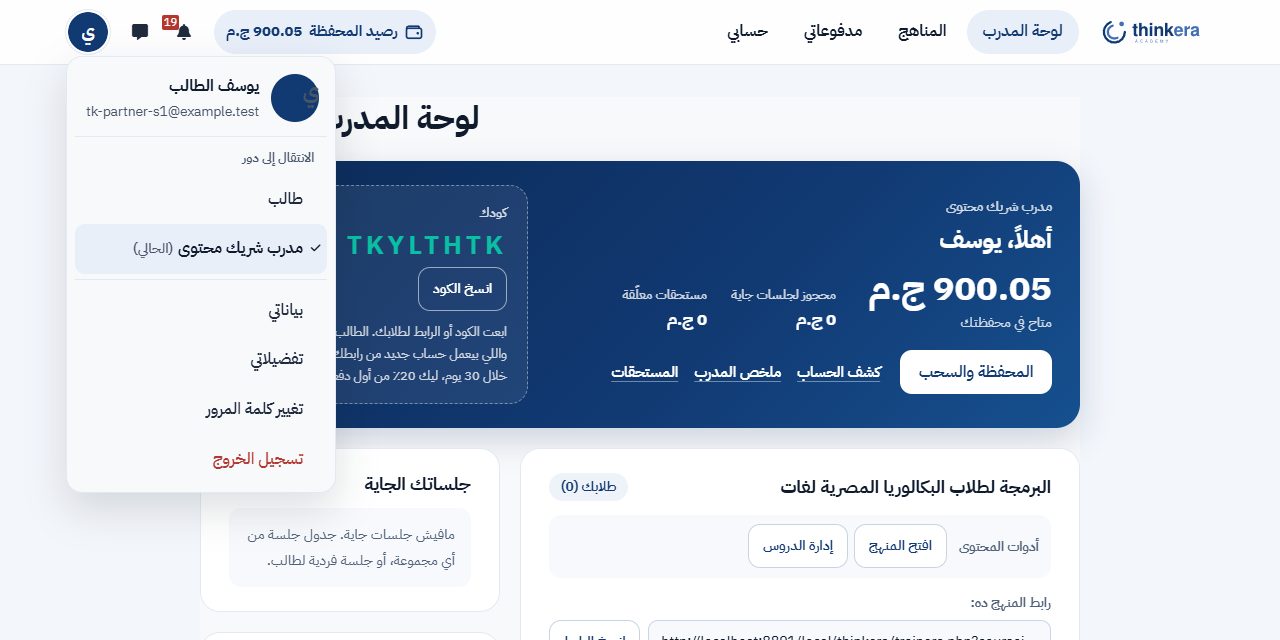
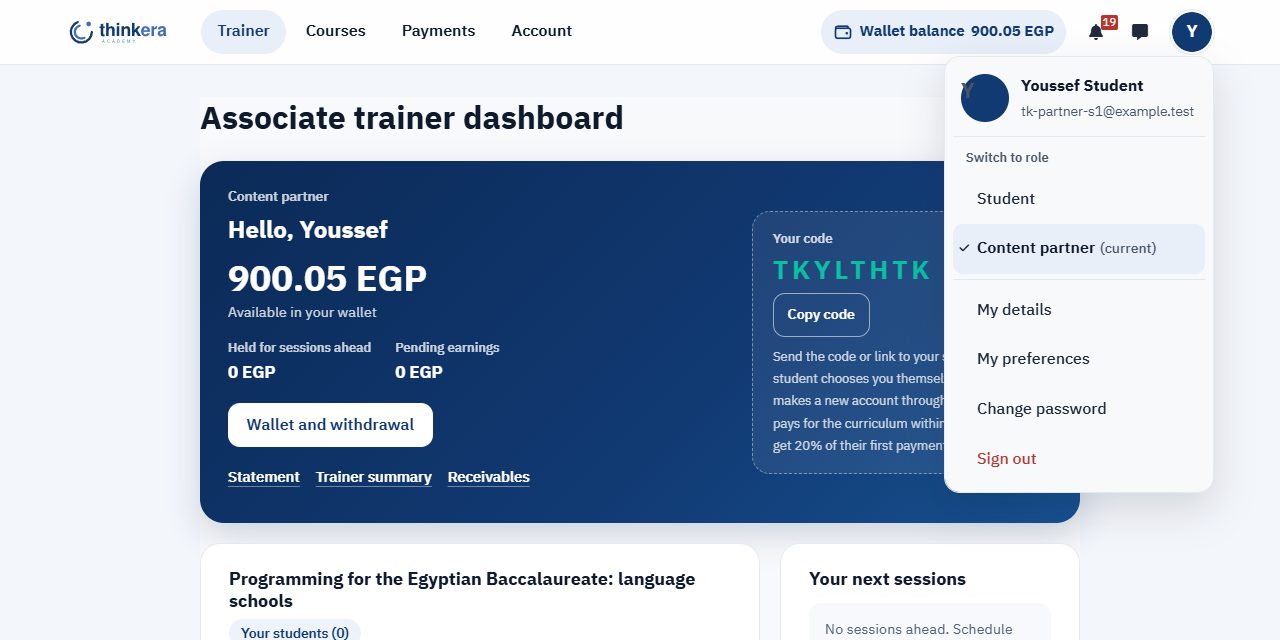
الطالب اللي اتعتمد مدرب بيفضل طالب في مناهجه لو حب، وبيتنقّل بين الدورين من قائمة الحساب ← «الانتقال إلى دور»، وجنب الدور الحالي كلمة «الحالي». وفي المنهج اللي هو فيه طالب ومدرب، بيشتغل بدور واحد في كل مرة: الدور اللي اختاره هو اللي بيتحسب، فما يقدرش يتبع نفسه ولا يدفع لنفسه. ومدرب الأكاديمية اللي اتسكّن كمان مدرب شريك محتوى بيفتح على ثيم المدرب، وفي «أدوات المحتوى» عنده الخمس أدوات (افتح المنهج، وإدارة الدروس، وترتيب وشروط الدروس، وبنك الأسئلة، والامتحانات)، وبيتنقّل لـ«مدرب الأكاديمية» بنفس الطريقة، وفي آخر قايمته الجانبية «لوحة المدرب» عشان يرجع.
تسكين الأدمن: الأدمن يقدر يسكّن أي عضو في منهج طالب، أو مدرب مشارك، أو مدرب شريك محتوى، أو مدرب وطالب في نفس الوقت. التسكين ده اعتماد مباشر من غير المراحل. ولو دور المدرب اتغيّر لطالب، طلابه في المنهج ده بيتفكّوا منه ويتقال لهم يختاروا مدرب تاني، وجلساته اللي ما اتعملتش بتتلغي وفلوسها بترجع، ومستحقاته اللي معلّقة أو متاحة بتفضل زي ما هي. وكل تغيير بيتسجّل، والعضو بيتبلّغ.
12 · الانضمام والاتفاقية
من حسابك كطالب لحد ما تبقى مدرب معتمد، ومن مدرب مشارك لشريك محتوى.
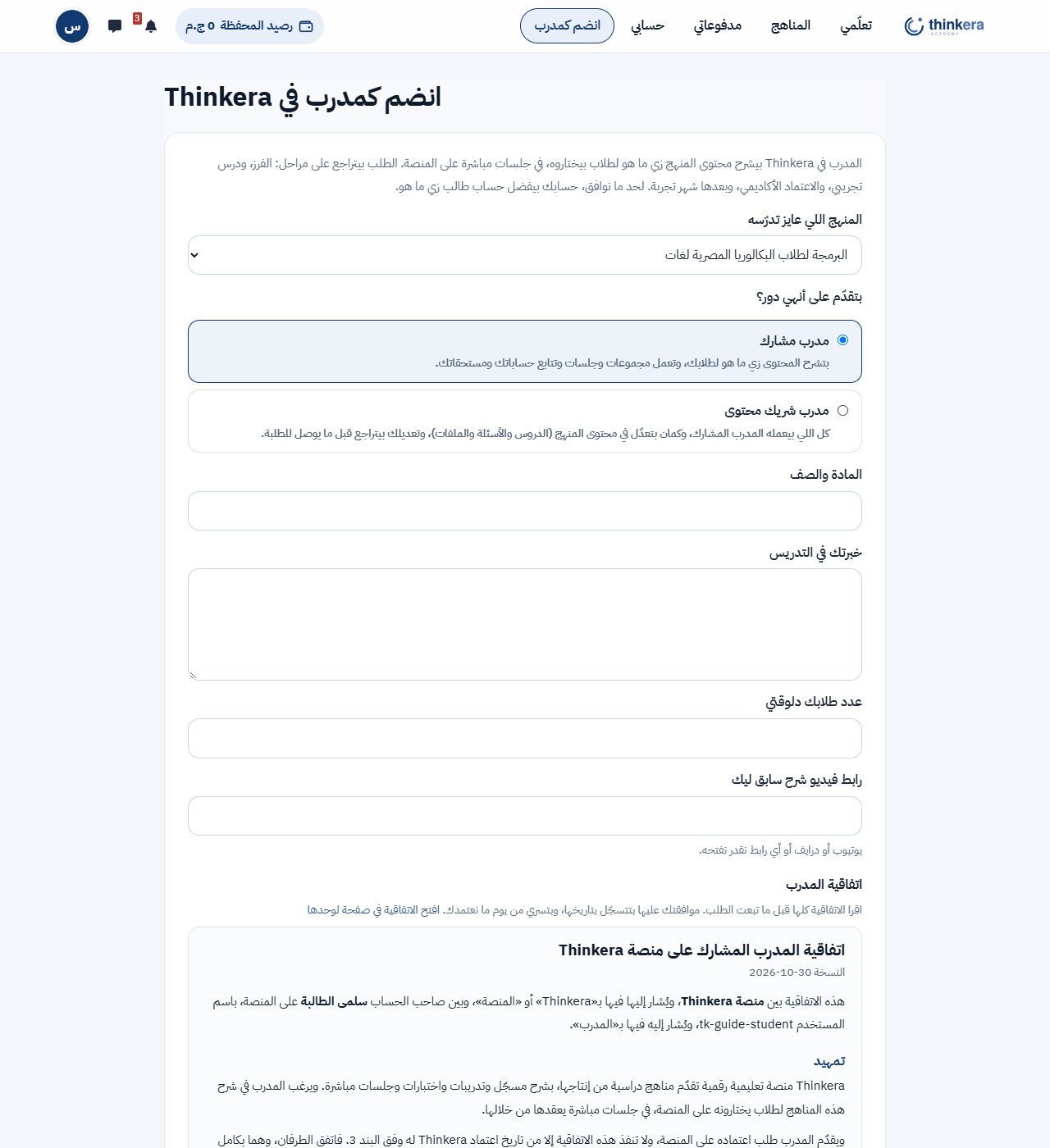
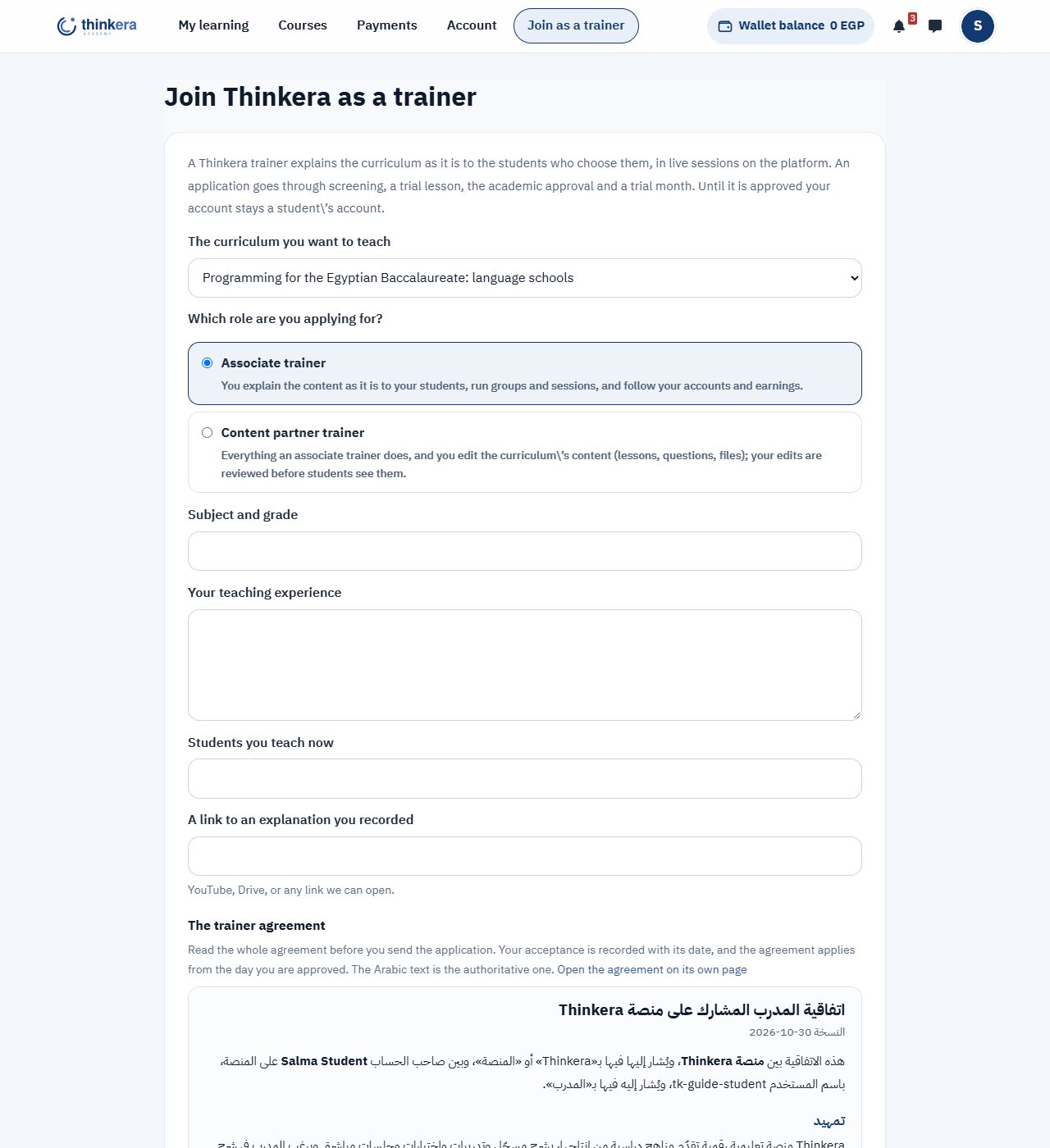
«انضم كمدرب»
رابط ثابت في الشريط اللي فوق جنب «حسابي»، من عرض اللابتوب وأكبر. وعلى الموبايل والشاشات الأصغر في قائمة الحساب. وكمان في صفحة «اختر مدربك» جوّه أي منهج: «عايز تبقى مدرب في المنهج ده؟». والرابط بيظهر للطالب بس: مدرب الأكاديمية والأدمن والمدرب الموقوف ما بيشوفوهوش. ولو اخترت «انضم كمدرب مشارك» وإنت بتكمّل حسابك أول مرة، المنصة بتوديك لصفحة الطلب كل ما تدخل لحد ما تكمّله.
اختار المنهج والدور
الدور يا «مدرب مشارك» يا «مدرب شريك محتوى»، وتحت كل واحد شرحه. واكتب مادتك وصفّك، وخبرتك في التدريس، وعدد طلابك دلوقتي، ولينك فيديو شرح سابق ليك.
اقرا اتفاقية المدرب كاملة
الاتفاقية بتظهر كاملة في صندوق في نفس الصفحة، ومعاها لينك يفتحها في صفحة لوحدها، وأولها اسمك واسم المستخدم بتاعك. ومش هتقدر تبعت الطلب غير لما تعلّم على الموافقة، اللي بتقول صراحة إن أي مخالفة لقواعد المنصة بتوقف حسابك نهائياً. ولو بعت من غيرها، الطلب ما بيتبعتش واللي كتبته بيفضل زي ما هو. والاتفاقية مكتوبة بالعربي في النسختين.
الطلب بيروح للأدمن
المنصة بتسجّل موافقتك بنسخة الاتفاقية، وتاريخها ووقتها، وعنوان الجهاز، والمتصفح، ونص الاتفاقية بالظبط زي ما ظهر لك. وبعد الإرسال بتشوف «طلبك قيد المراجعة» بالدور والمنهج، والرد في خلال 3 أيام عمل. ولحد ما الأدمن يعتمدك، حسابك بيفضل حساب طالب وبتكمّل دراستك عادي.
الطلب تحت المراجعة بيفضل مفتوح
لو فتحت «انضم كمدرب» وطلبك لسه تحت المراجعة، بتلاقي صفحة الطلب نفسها والاتفاقية كاملة. ولو ما وافقتش على النسخة الحالية من الاتفاقية، بتوافق عليها من نفس الصفحة، لأن الأدمن ما يقدرش يعتمد طلب من غير موافقة.
الاعتماد
الطلب بيمر بمراحل: الفرز، ودرس تجريبي، والاعتماد الأكاديمي، وبعدها شهر تجربة. الأدمن بيعتمدك لمناهج بعينها وبدور بعينه (ممكن يغيّر الدور اللي طلبته)، ولو كنت طالب في المنهج ده بتفضل طالب فيه. ويوصلك إشعار.
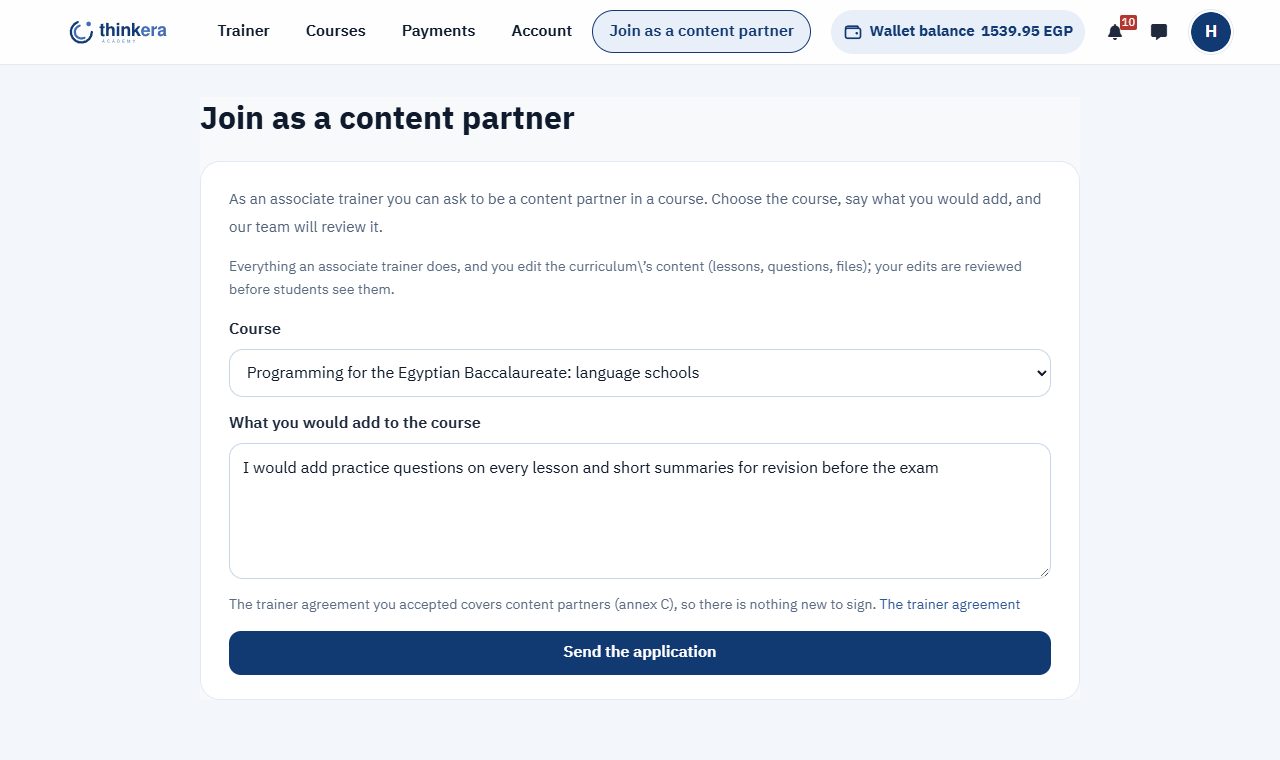
من مدرب مشارك لشريك محتوى: «انضم كشريك محتوى»
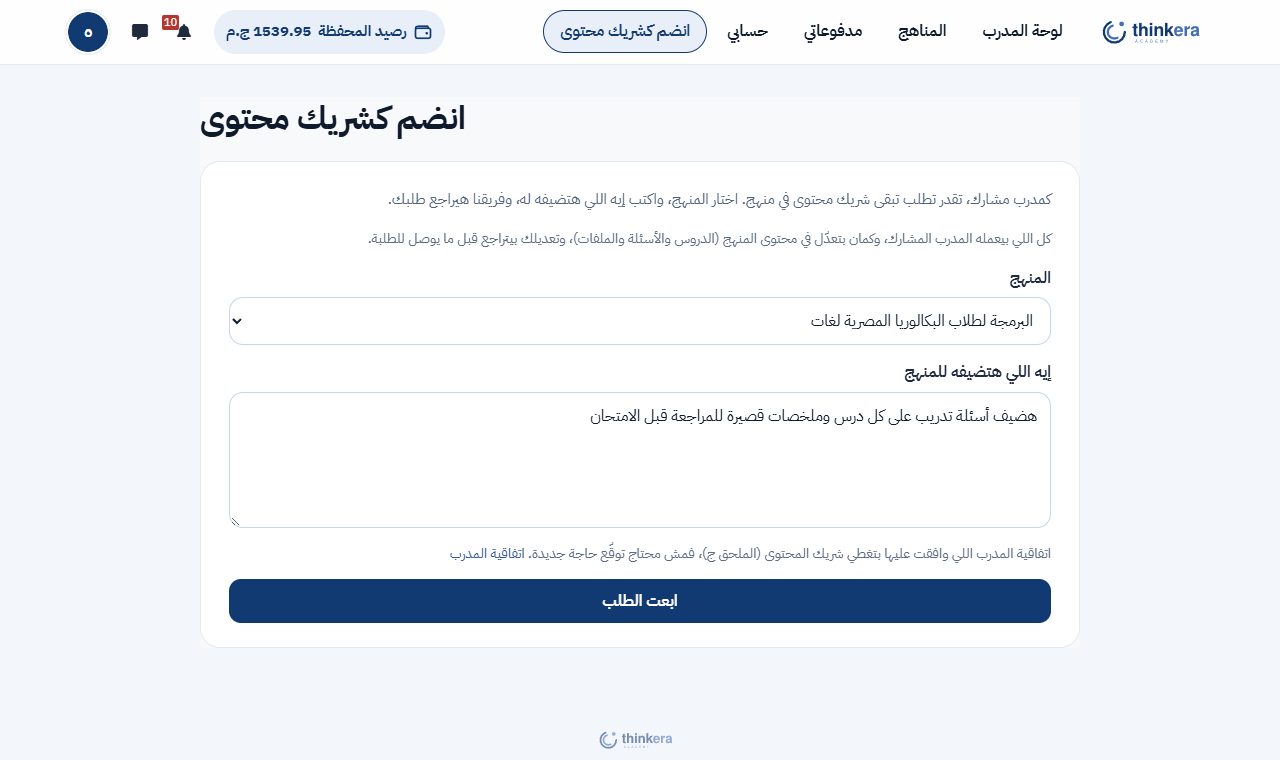
المدرب المشارك المعتمد بيلاقي مكان «انضم كمدرب» في الشريط: «انضم كشريك محتوى». بيختار المنهج، ويكتب في سطرين على الأقل إيه اللي هيضيفه له. ومش محتاج يوقّع حاجة جديدة: الاتفاقية اللي وافق عليها بتغطي شريك المحتوى (الملحق ج). الأدمنز بيوصلهم إشعار، والطلب بيظهر عندهم في «المدربون» بزرارين: «وافق» (فيتسكّن شريك محتوى في المنهج ده) و«ارفض»، والمدرب بيوصله إشعار في الحالتين، والرد في خلال 3 أيام عمل. وهو مستني، الصفحة بتقوله إن طلبه تحت المراجعة من إمتى.
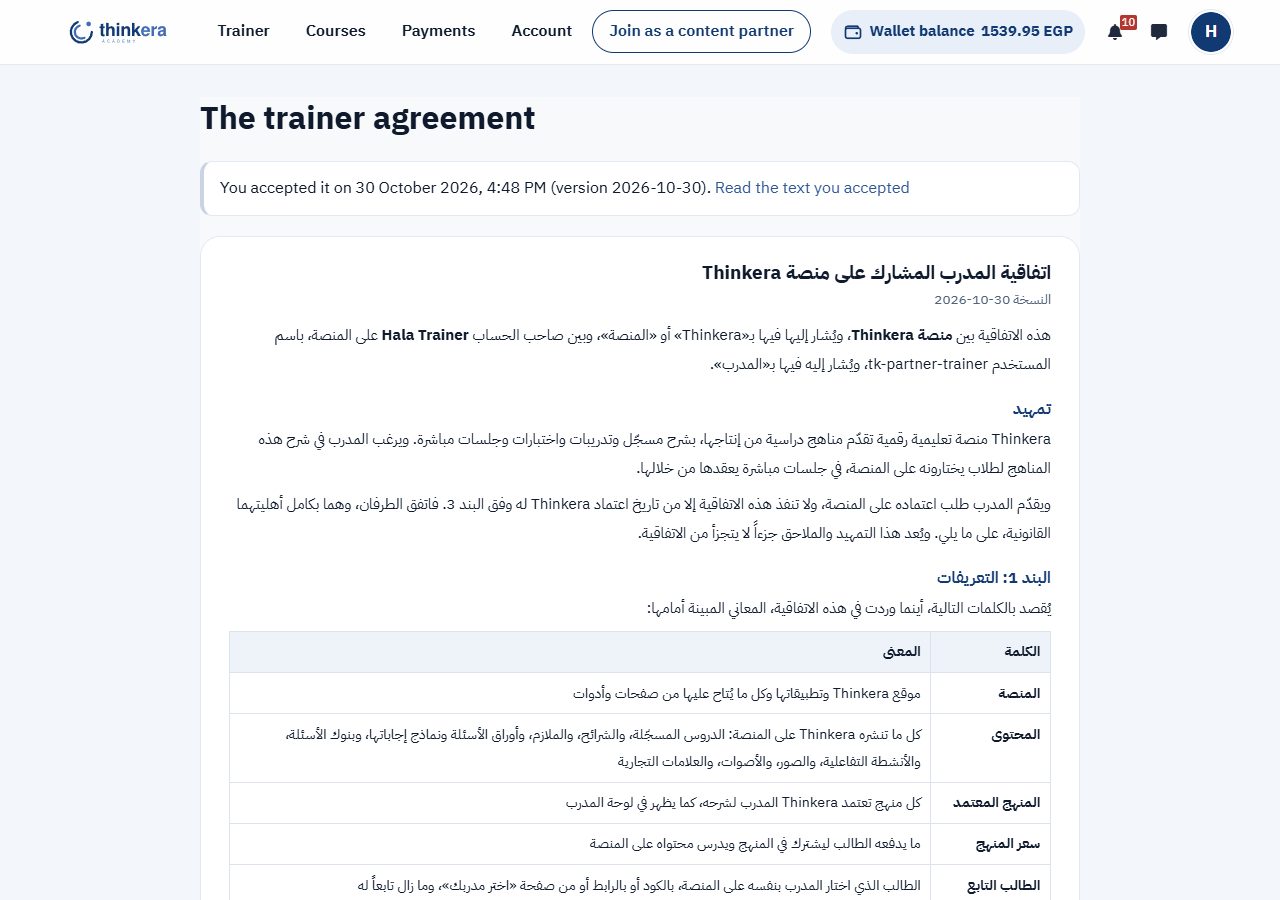
الاتفاقية في أي وقت
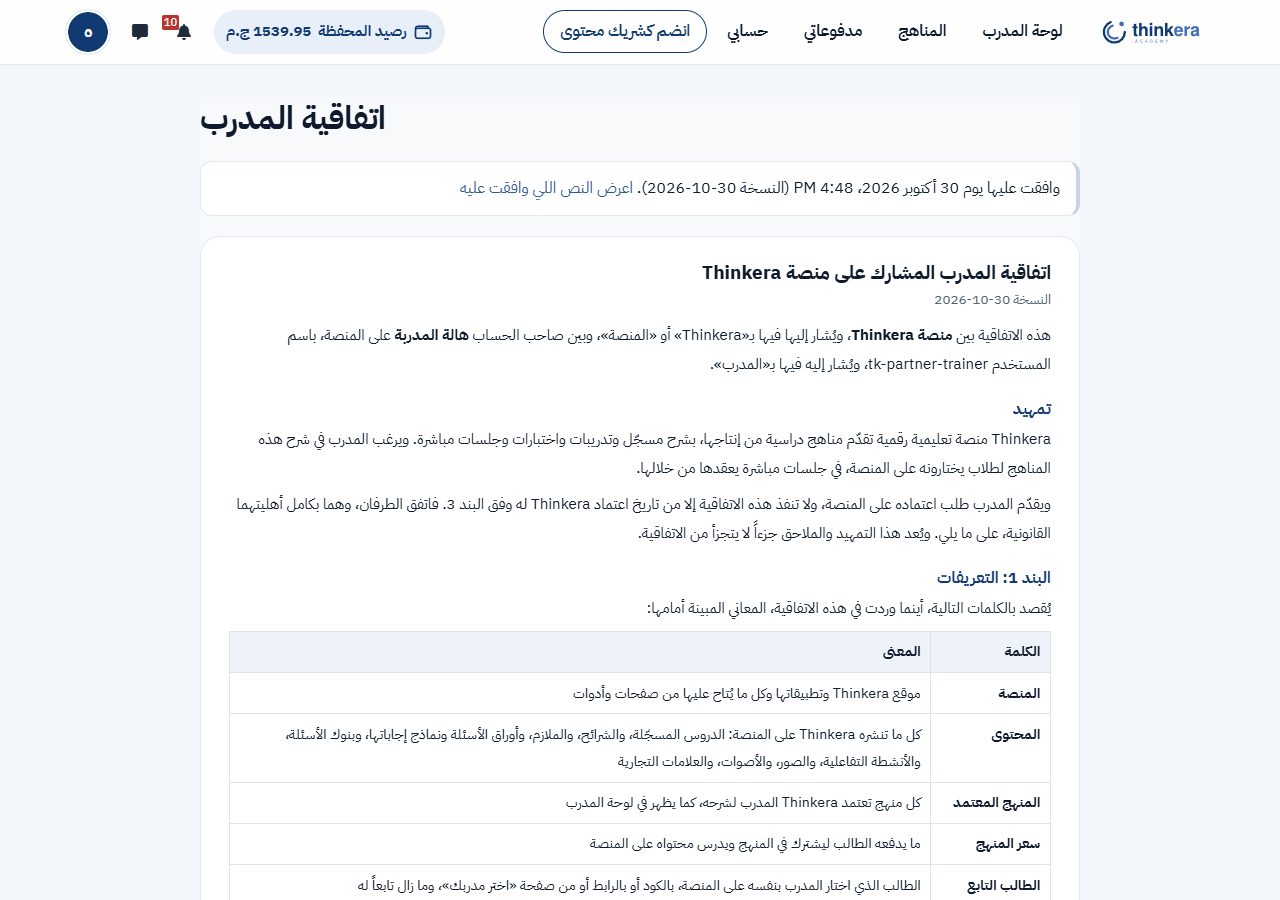
أي مدرب، أو أي حد قدّم طلب، بيلاقي في «حسابي» لينك «اتفاقية المدرب». فوقها تاريخ موافقتك ونسختها، ولينك «اعرض النص اللي وافقت عليه» بيفتح النص زي ما وافقت عليه بالظبط، حتى لو الاتفاقية اتغيّرت بعدها.
وفي آخرها الملحق (أ): القيم المضبوطة على المنصة دلوقتي، زي عمولة المنصة، ومهلة الإلغاء، ورسوم السحب ووسيلته، وأقصى عدد في جلسة المجموعة، وأحجام جلسة المجموعة (دلوقتي حتى 10، وحتى 20، وحتى 30 طالب) بقاعدتها: بتختار الحجم وانت بتجدول فتتحجز تكلفته، والجلسة ما بتاخدش أكتر منه، وبعد ما تنعقد بتتخصم تكلفة أصغر حجم يكفي اللي حضروا والباقي بيرجعلك. الملحق بيقرا القيم دي من المنصة، فلما الأدمن يغيّر حاجة منها بيتغيّر معاها. والتغيير ده بيوصلك إشعار بيه قبلها بـ14 يوم على الأقل (البند 15)، وما بيسريش على جلسة اتجدولت قبله، ومش محتاج توافق تاني.
لما الاتفاقية تتغير: المنصة بتنشر النسخة الجديدة برقم نسخة جديد (دلوقتي 2026-10-30). وأول ما المدرب المعتمد يفتح لوحته، بيلاقي الاتفاقية الجديدة وتحتها «أوافق»، وما يقدرش يكمّل شغله غير لما يوافق عليها. موافقتك القديمة بتفضل محفوظة بنصها. ومدرب الأكاديمية مستثنى، لأنه من فريق المنصة.
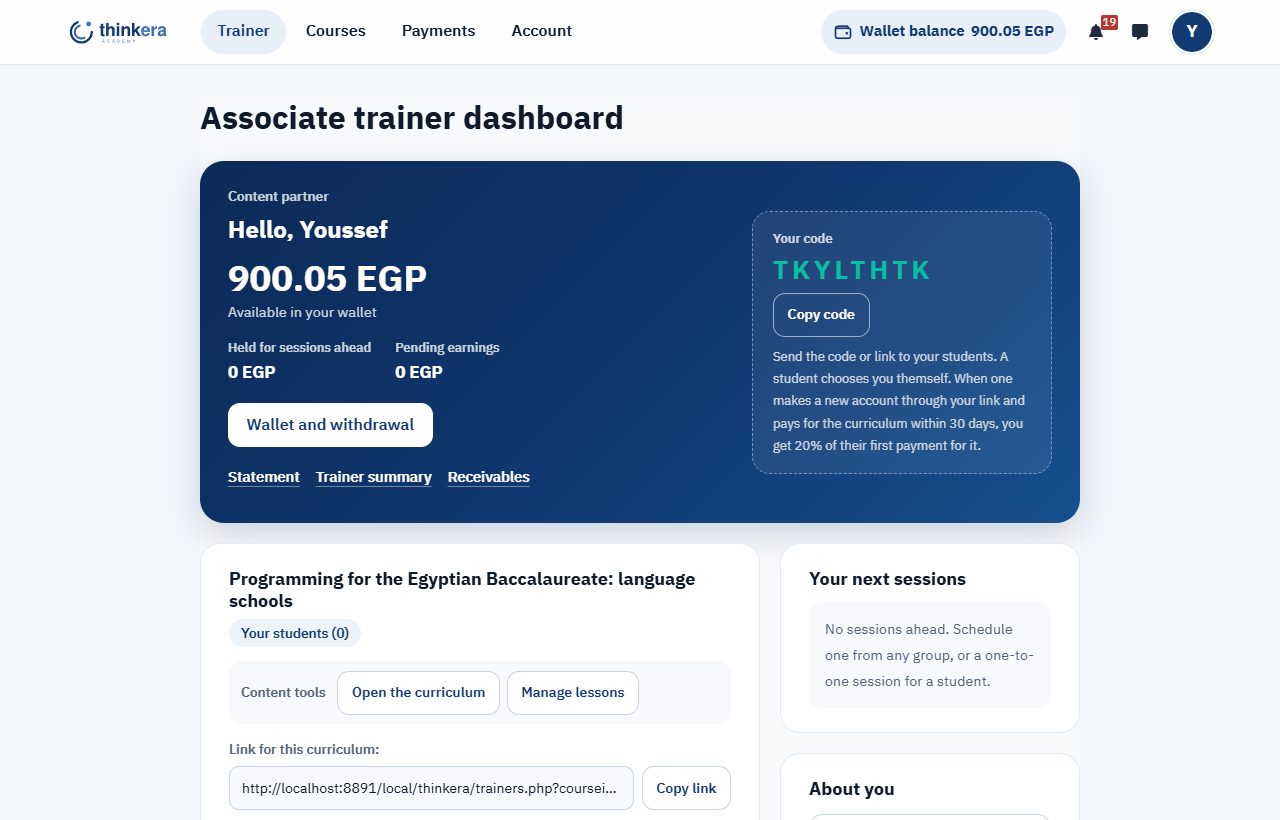
13 · لوحة المدرب وطلابه
الطالب هو اللي بيختارك، وإنت بتشتغل مع اللي اختاروك.
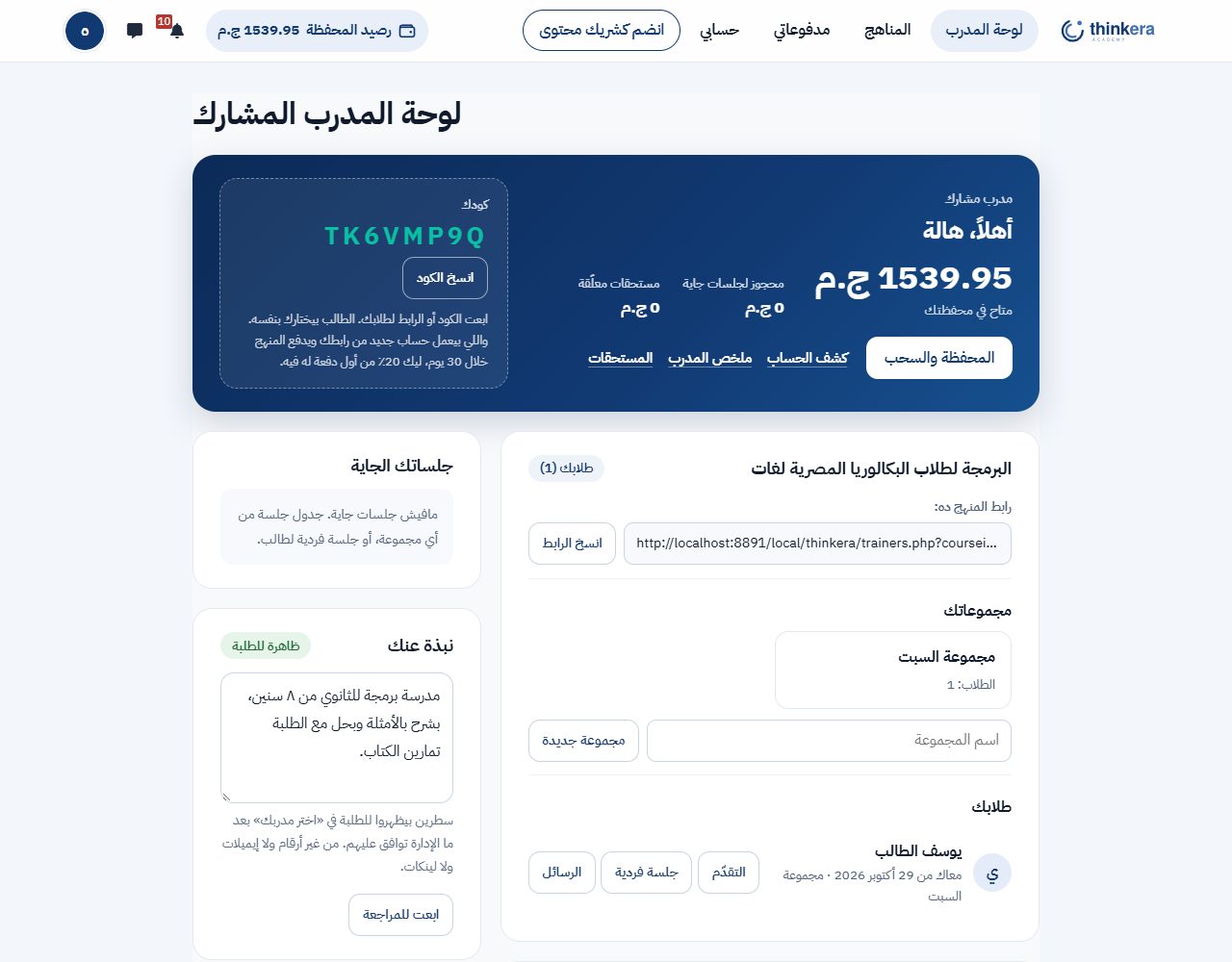
| في اللوحة | بيعمل إيه |
|---|---|
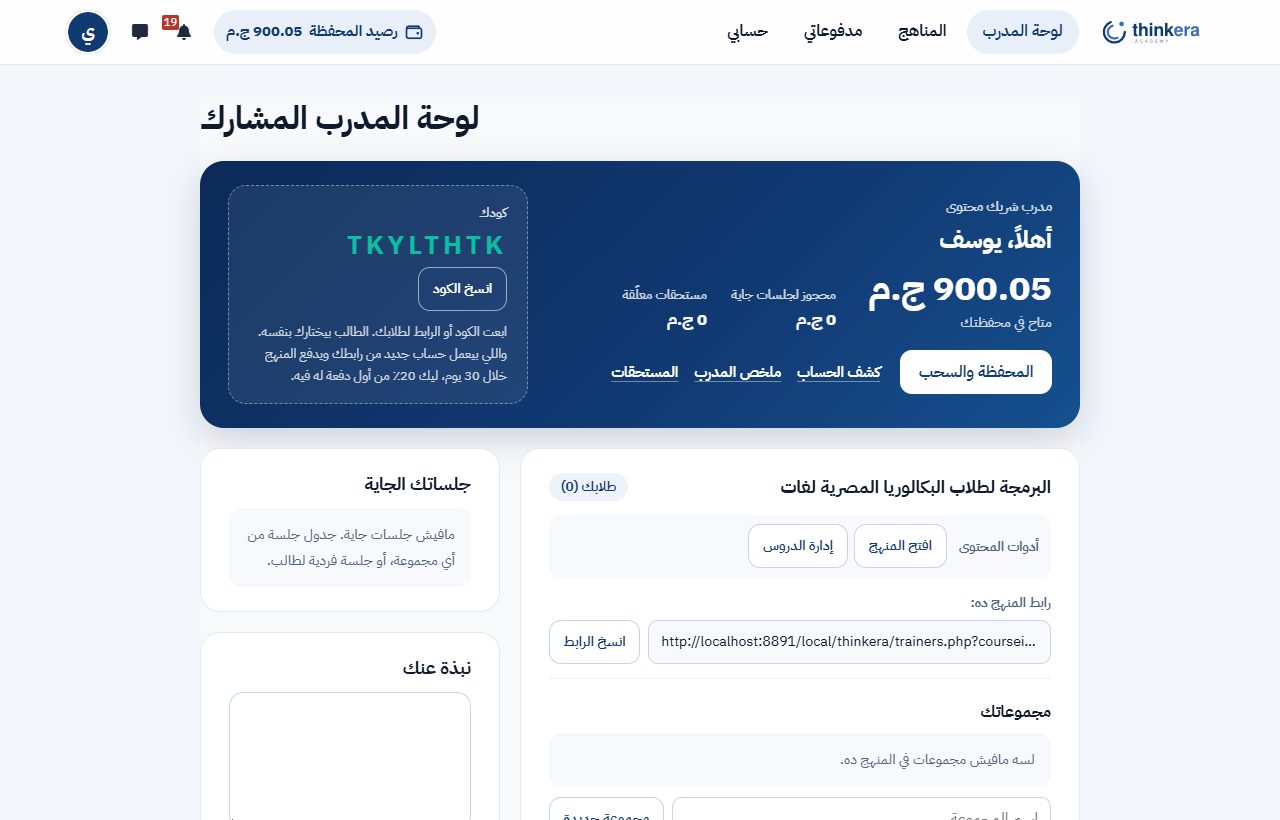
| كودك ورابطك | كود واحد ليك، ورابط لكل منهج. الطالب يكتب الكود أو يفتح الرابط، أو يختارك من المدربين المعتمدين في صفحة «اختر مدربك». |
| طلابك في كل منهج | اسم الطالب، ومن إمتى معاك، ومجموعته، وزراير «التقدّم» و«جلسة فردية» و«الرسائل». ما بيظهرلكش موبايله ولا إيميله ولا بيانات ولي أمره، والطالب بيوافق على ده قبل ما ينضم لك. |
| التقدّم | نفس تقرير الطالب عن نفسه: الدروس المكتملة، ومتوسط التدريب، وآخر دخول، وفين دلوقتي، وكل درس بخطواته. من غير الإيميل وبيانات التواصل، وللي تابعين لك بس. |
| المجموعات | بتعمل مجموعة بالاسم من اللوحة، وتحط فيها طلابك. صفحة المجموعة فيها جلساتها، وطلابها (والتقدّم، وتشيل)، و«رسالة لكل المجموعة». |
| الرسائل | بتراسل الطالب جوّه المنصة بس، طول ما هو تابع لك. محدش فيكم بيشوف موبايل أو بريد التاني. وفريق Thinkera بيراجع الرسائل، وأي رسالة فيها رقم تليفون أو إيميل أو لينك أو كلام عن دفع أو تواصل برّه المنصة بتتعلّم وتطلع للأدمن الأول. |
| الجلسات | جلسة فردية لطالب واحد، أو جلسة لمجموعة. المدد وأسعارها وتكلفتها بيحددها الأدمن (القسم 14). |
| نبذتك | سطرين بيظهروا للطلبة في «اختر مدربك» بعد ما الإدارة توافق عليهم، وحالتها ظاهرة جنبها («مستنية المراجعة» أو «ظاهرة للطلبة»). النبذة اللي فيها رقم موبايل أو إيميل أو لينك بتترفض، ولو الإدارة رفضت نبذة بيظهرلك السبب. |
| التقييمات | الطالب اللي حضر جلسة انعقدت بيقيّمها من نجمة لخمسة، مرة واحدة، في خلال 14 يوم من آخرها. التقييم بيوصل لإدارة Thinkera بس، وإنت ما بتعرفش مين قيّم. ونجمتين أو أقل بتنبّه الأدمن. |
| التقارير | «كشف الحساب»، و«ملخص المدرب»، و«المستحقات»، على الشاشة أو Excel أو PDF، لأي فترة. |
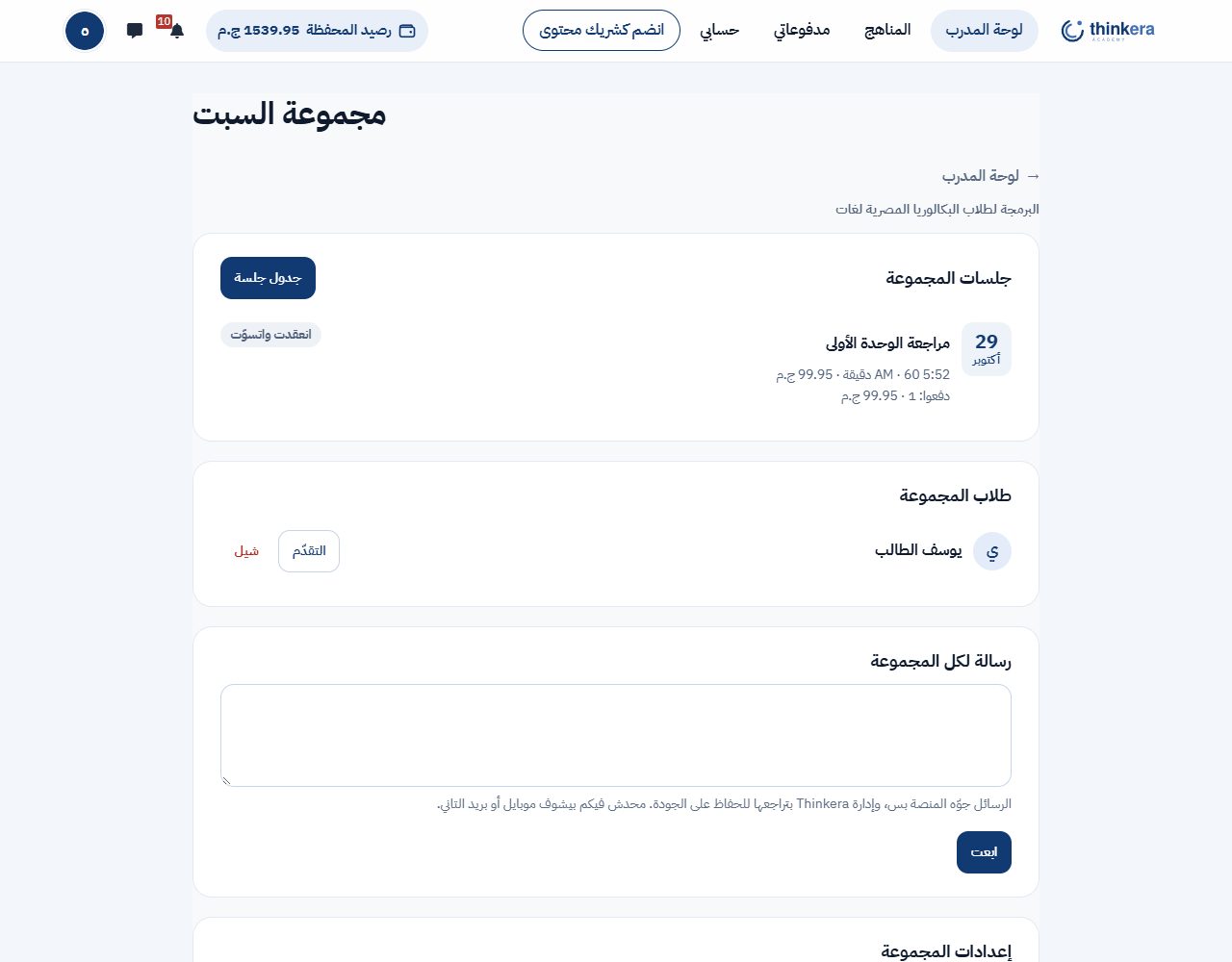
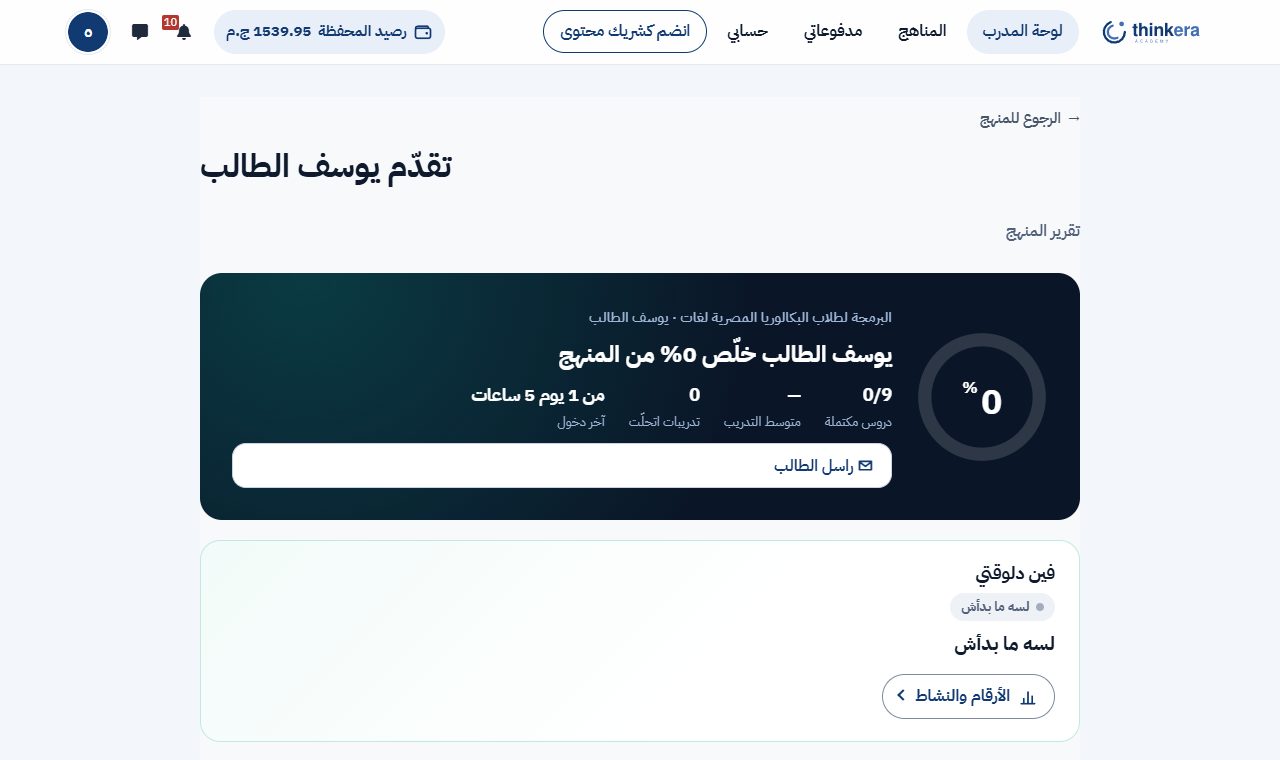
- الطالب حر: مش لازم يختار مدرب أصلاً؛ يقدر يذاكر لوحده مع جلسة Thinkera الأسبوعية. ويقدر يسيبك في أي وقت، ويغيّر مدربه مرة كل 14 يوم. ولو ساب، الجلسات المدفوعة اللي باقي عليها المهلة أو أكتر بترجعله فلوسها.
- «اختر مدربك» بتعرض كل مدرب بنبذته المعتمدة، وعدد طلابه، وسعر الجلسة من كام، وعلى كل كارت «مدرب مستقل معتمد على منصة Thinkera». والصفحة بتقول للطالب إن المدربين المشاركين مستقلين ومش من فريق Thinkera، وإن أي اتفاق أو دفع برّه المنصة مش مسؤوليتها.
- طلابك وافقوا على «إرشادات الطالب وولي الأمر» أول ما دخلوا المنصة (الطالب أو ولي أمره). إنت كمدرب معتمد مش بتتسأل عليها؛ لكن لو طلبك اترفض أو شراكتك انتهت، بترجع طالب وبتتسأل.
- غرفة الجلسة بتتقفل لما مدة الجلسة تخلص، وقبلها بـ5 دقايق بيظهر تنبيه. الجلسات بتتسجّل، وفريق Thinkera بيراجع التسجيلات والرسائل والتقييمات.
- صفتك على المنصة «مدرب مستقل معتمد على منصة Thinkera»، ومش من فريقها.
14 · فلوس المدرب ودفع الطلبة
سعر المنهج غير سعر الجلسة، وكل رقم بيحدده الأدمن من صفحة واحدة: «نسب وأسعار المدربين».
المنهج بفيديوهاته وشرحه وتقييماته وبنوك أسئلته شغل فريق الأكاديمية، فسعره للأكاديمية. ما عدا حاجة واحدة: الطالب الجديد على المنصة اللي بيعمل حسابه من رابطك ويدفع المنهج خلال 30 يوم من تسجيله، ليك 20٪ من أول دفعة له في المنهج ده، مرة واحدة. والطالب بيدفع السعر كامل من غير خصم. الطالب اللي كان عنده حساب قبل كده وانضم لك ما بيدّيش نصيب.
لكل نوع جلسة (فردية أو مجموعة) ولكل مدة، الأدمن بيحدد سعر على الطالب وتكلفة عليك. الطالب بيدفع السعر من محفظته. المنصة بتاخد نسبتها من اللي دفعه كل طالب، والنسبة دي بيحددها الأدمن، والباقي كله ليك. والتكلفة بتتخصم من محفظتك للمنصة لما الجلسة تنعقد.
وتكلفة جلسة المجموعة بالحجم: لكل حجم (زي «حتى 10» و«حتى 20» و«حتى 30» طالب) تكلفة، وبتدفع تكلفة الحجم اللي حضر فعلاً. والأحجام دي وقاعدتها مكتوبة في اتفاقيتك، في الملحق (أ)، في سطر «أحجام جلسة المجموعة».
وإنت بتجدول
من المجموعة («جدول جلسة») أو من الطالب («جلسة فردية»): بتختار العنوان والميعاد والمدة، وتكتب الدعوة. وفي جلسة المجموعة بتختار كمان حجم الجلسة: أقصى عدد طلبة يدخلوها. وجنبها جدول فيه لكل مدة: التكلفة عليك (لكل حجم في جلسة المجموعة)، والسعر على الطالب، ونصيبك من كل طالب، وصافيك المتوقع. التكلفة بتتحجز من محفظتك أول ما تجدول، وفي جلسة المجموعة بيتحجز تكلفة الحجم اللي اخترته، والأرقام بتتثبّت على الجلسة، فما يغيّرهاش أي تعديل في الأسعار بعد كده. والمدة اللي الأدمن ما حطّلهاش سعر ما بتظهرش.
الطالب بيحجز
الطالب بيحجز مكانه ويدفع من محفظته. جلسة المجموعة ليها أقصى عدد بيحدده الأدمن، ودلوقتي 30 طالب، والغرفة ما بتدخلش طلبة أكتر من الحجم اللي اخترته. وفيه كمان أقصى مدة للجلسة، ودلوقتي 90 دقيقة.
لما الجلسة تنعقد
التكلفة بتروح للمنصة، وسعر كل طالب بيتقسم: نسبة المنصة، ونصيبك بيتسجّل «مستحقات معلّقة».
وفي جلسة المجموعة المنصة بتعدّ الطلبة اللي دخلوا فعلاً، وبتخصم تكلفة أصغر حجم يكفيهم، والباقي من المحجوز بيرجع لمحفظتك على طول. يعني لو اخترت «حتى 20» وحضر 7، بتدفع تكلفة «حتى 10» بس. وصفحة الجلسة بتوريك كام حضر، واتخصم كام، ورجعلك كام.
بعد مهلة الاعتراض
بعد 7 أيام، المعلّق بيدخل محفظتك كرصيد متاح، ما لم يكون فيه اعتراض أو شكوى على الجلسة. ونفس الكلام لنصيبك من سعر المنهج، وبيوصلك إشعار بيه.
السحب
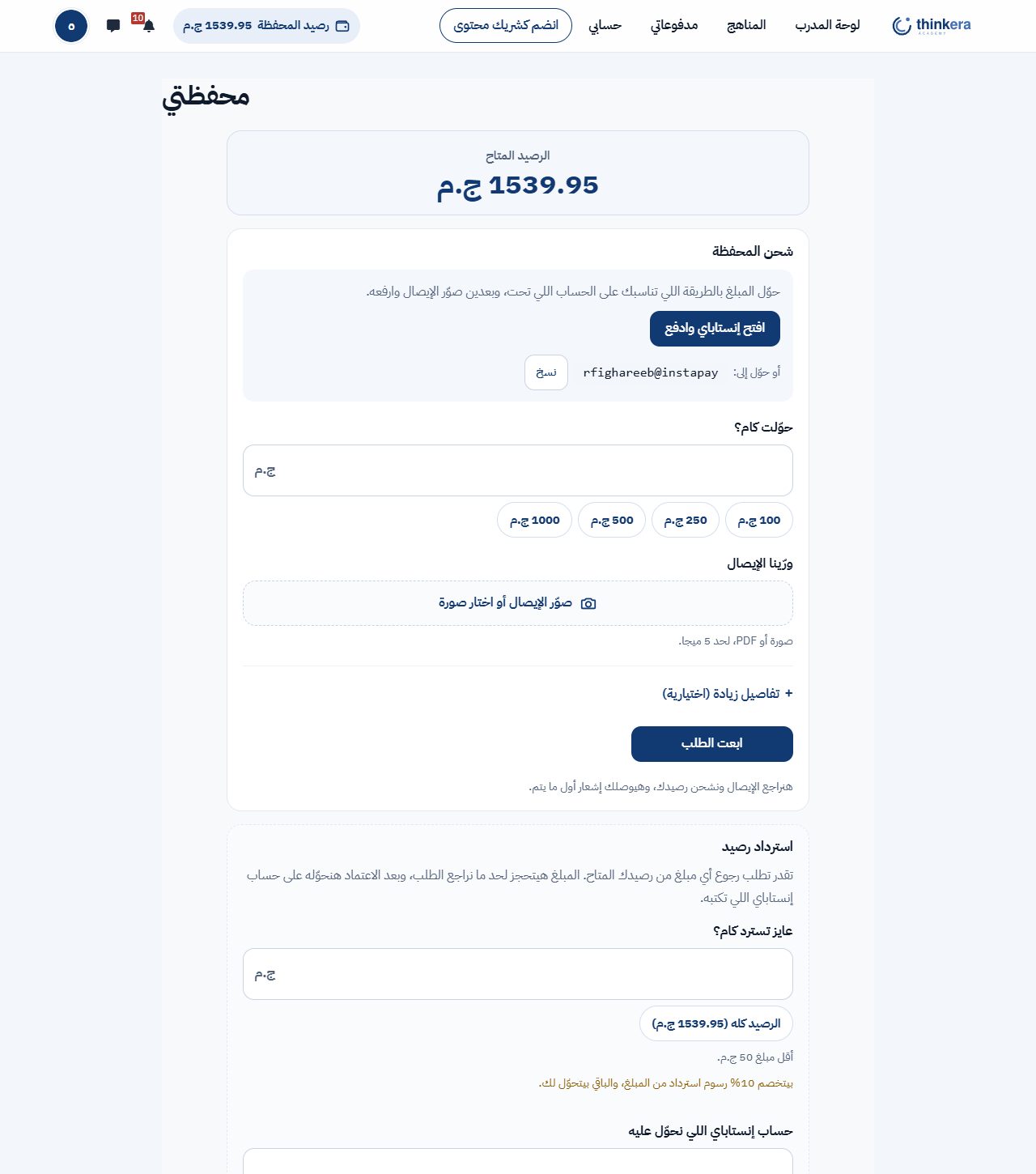
من «المحفظة والسحب» ← «استرداد رصيد»: بتكتب المبلغ (أقل مبلغ 50 ج.م)، والحساب اللي نحوّل عليه، والاسم المسجّل عليه، ورقم الموبايل. المبلغ بيتحجز من رصيدك لحد ما الإدارة تراجع الطلب، وبعدها بيتحوّل بعد خصم رسوم السحب، ودلوقتي 10٪ من المبلغ. والصفحة بتوريك الرسوم قبل ما تبعت.
السحب بيتحوّل بنفس طرق الدفع اللي الأدمن مفعّلها، والصفحة بتعرض المفعّل بس:
- إنستاباي: بتكتب عنوان إنستاباي بتاعك.
- فودافون كاش: بتكتب رقم فودافون مفعّل عليه فودافون كاش، 11 رقم بيبدأ بـ010. ولو كتبته بـ+20 أو بأرقام عربي، الصفحة بتظبطه لوحدها.
لو الطريقتين مفعّلين، بتختار في أول الطلب «نحوّلك على» إنستاباي أو فودافون كاش، والخانة اللي تحتها بتتغيّر على حسب اختيارك. ولو طريقة واحدة بس مفعّلة، بنحوّل عليها من غير ما تختار. الطريقة اللي اخترتها بتتسجّل مع طلبك، والإدارة بتشوفها وهي بتراجع وبتحوّل عليها. ودي نفس الطرق اللي مكتوبة في اتفاقيتك، في الملحق (أ). ودلوقتي المفعّل إنستاباي، وفودافون كاش جاهزة تتفعّل.
| لو حصل | الطالب | إنت |
|---|---|---|
| لغيت قبل الميعاد بـ24 ساعة أو أكتر | فلوسه بترجع كاملة | التكلفة بترجعلك |
| لغيت بعد كده، أو ما حضرتش | فلوسه بترجع كاملة | التكلفة بتتخصم منك، وفي جلسة المجموعة تكلفة الحجم اللي حضر، أو أصغر حجم لو محدش حضر |
| الطالب لغى قبل الميعاد بـ24 ساعة أو أكتر | فلوسه بترجع كاملة | مافيش حاجة |
| الطالب لغى بعد كده، أو ما حضرش | ما بيرجعلوش حاجة | الجلسة بتتحسب كأنها انعقدت |
| عطل من المنصة منع الجلسة | فلوسه بترجع كاملة | التكلفة بترجعلك |
| الأدمن رجّع للطالب اشتراك المنهج كله | الفلوس بترجع لمحفظته والاشتراك بيتقفل | نصيبك من المنهج ده بيتلغي: من المعلّق، أو من محفظتك لو كان دخلها |
| الأدمن رجّع جزء من الاشتراك | الجزء ده بيرجع لمحفظته | بترجّع نفس نسبتك من الجزء اللي رجع |
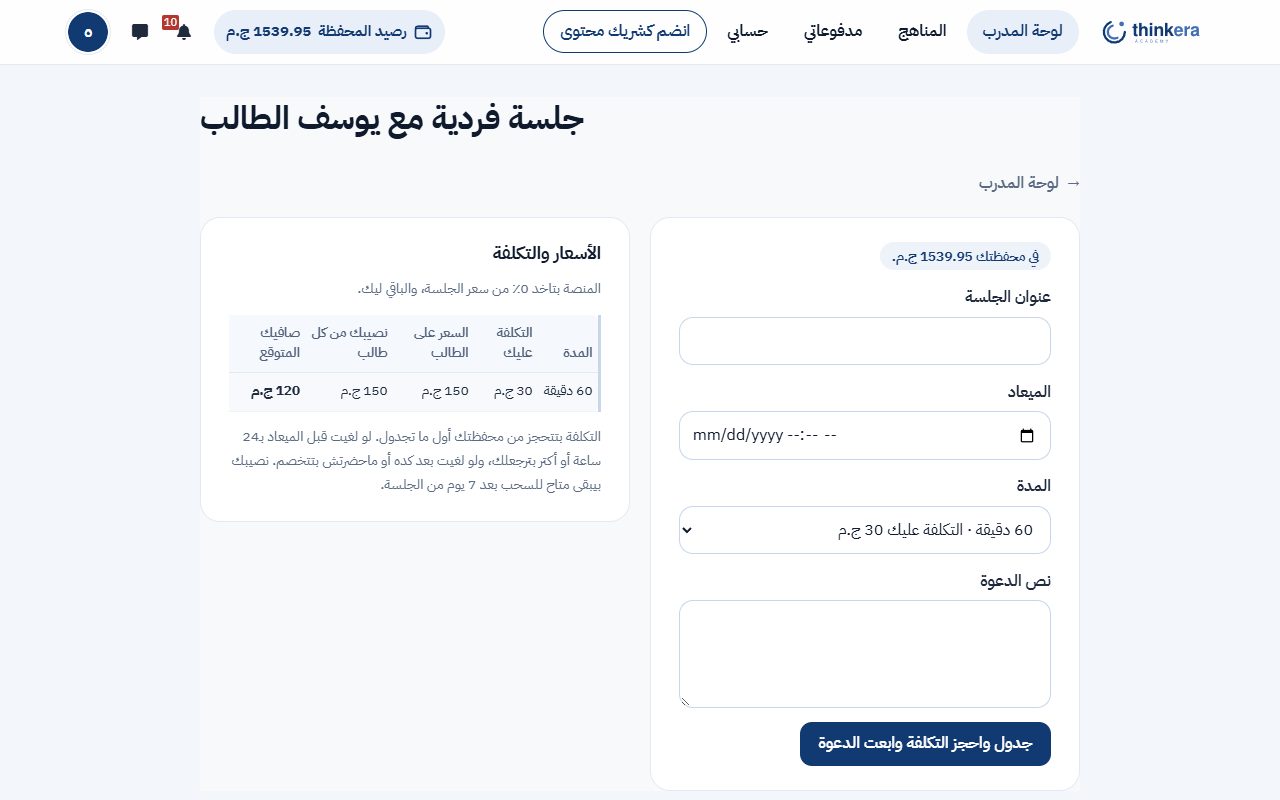
الطالب بيدفع إزاي
الدفع اليدوي واحد في كل مكان: الطالب بيحوّل ويرفع الإيصال، والإدارة بتراجع وتقبل أو ترفض. الأدمن بيختار طرق التحويل المتاحة ويكتب بياناتها، والطريقة ما بتظهرش للطالب غير لما تبقى متعلّم عليها وبياناتها مكتوبة. دلوقتي إنستاباي، وفودافون كاش جاهزة تتفعّل. ولو فيه أكتر من طريقة، الطالب بيختار، والطريقة اللي اختارها بتتسجّل مع طلبه.
| المكان | الطالب بيدفع إزاي | يخصّك إزاي |
|---|---|---|
| شحن المحفظة | تحويل بطريقة من الطرق المتاحة، وإيصال | رصيد المحفظة هو اللي بيحجز بيه مقاعد جلساتك |
| اشتراك المنهج | من المحفظة، أو بتحويل وإيصال | نصيبك 20٪ بيتحسب في كل الحالات، والتحويل بعد ما الأدمن يعتمده |
| جلسات برنامج المدربين | من المحفظة بس | نصيبك بيتسجّل معلّق لما الجلسة تنعقد |
| جلسة خاصة من مدرب الأكاديمية | من المحفظة، أو بتحويل وإيصال | مدرب الأكاديمية بيراجعها في «طلبات الجلسات» (القسم 8) |
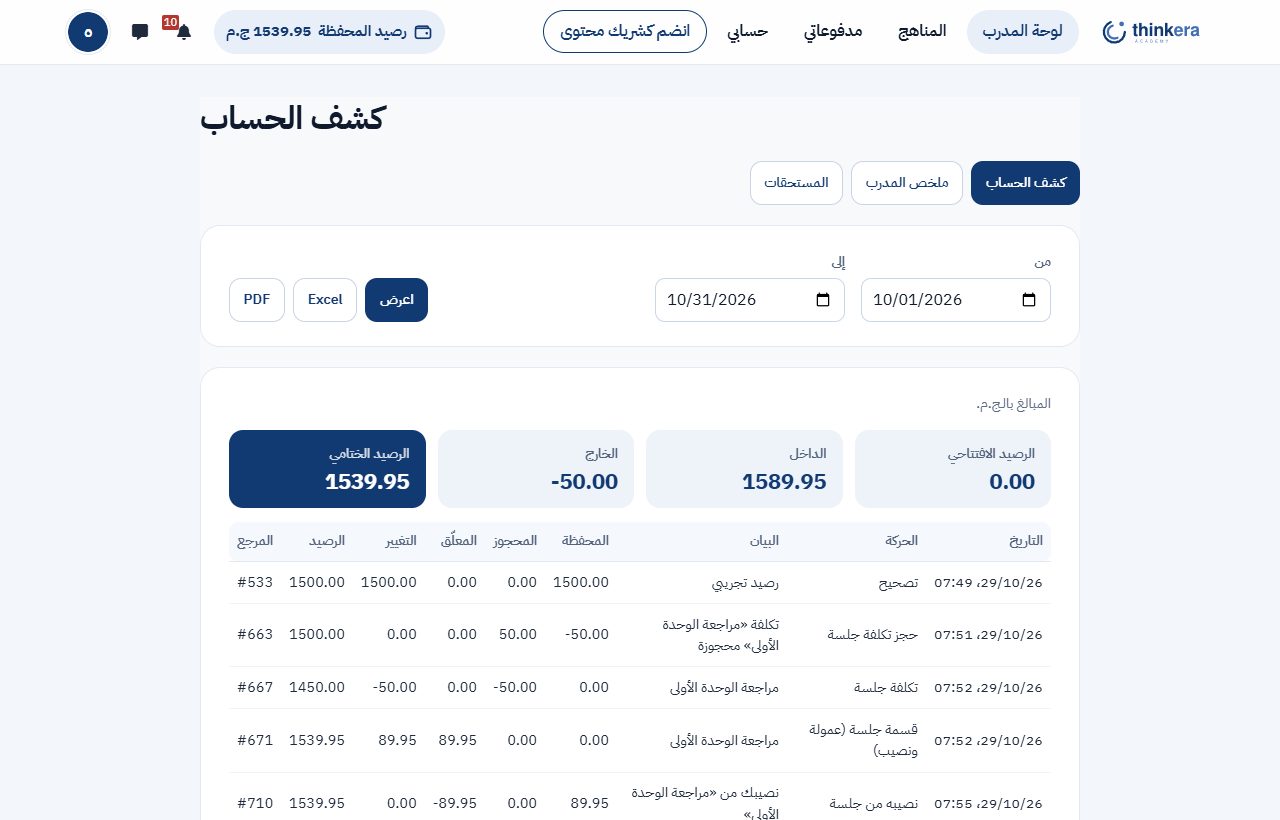
كل جنيه في الدفتر. كل حركة فلوس بتتقيّد قيد مزدوج ما بيتمسحش ولا بيتعدّل، وأي غلط بيتصلّح بقيد عكسي ليه سبب مكتوب. وكل يوم فيه فحص آلي بيقارن الدفتر بالمحافظ، ولو لقى اختلاف في حسابك بيوقف السحب منه لحد المراجعة. كشف حسابك موجود في أي وقت من اللوحة.
15 · مدرب شريك محتوى
كل اللي للمدرب المشارك، ومعاه تعديل المحتوى.
- «أدوات المحتوى» بتظهر على كارت كل منهج في لوحتك: «افتح المنهج» و«إدارة الدروس». منها بتعدّل الدروس وملفاتها وأنشطتها. وكل أداة بتظهر بس لو الصفحة اللي وراها هتفتح لك.
- اللي مش من صلاحياتك: ترتيب الدروس وشروطها، وبنك الأسئلة، والامتحانات، وصفحة المشاركين والدرجات والتقارير. دي لمدرب الأكاديمية بس، لأنها بتكشف بيانات كل طلبة المنهج.
- حدودك مع الطلبة زي المدرب المشارك بالظبط: طلابك التابعين لك بس. صلاحية التعديل ما بتديكش أي اطلاع على باقي الطلبة.
- المراجعة: أي درس أو نشاط جديد بتضيفه بيفضل مستخبي عن الطلبة لحد ما فريق Thinkera يراجعه ويوافق عليه، ولو أظهرته بنفسك بيرجع يستخبى. تعديلك على محتوى موجود بيظهر على طول، وبيتراجع بعدها. ولو اترفض أو اتخبّى بيوصلك السبب، وأول ما تعدّله بيرجع للمراجعة. والحذف بيتسجّل. وعدد إضافاتك اللي مستنية المراجعة بيظهرلك جنب «أدوات المحتوى».
- ملكية التعديلات: اللي بتضيفه أو تعدّله في محتوى مناهج Thinkera بيبقى ملك Thinkera، وهي بتذكر اسمك حيث جرى العرف. وأجرك على المحتوى بيتحدد في الملحق (ج) من الاتفاقية.
16 · قواعد السلوك والإيقاف
قواعد قليلة وواضحة، ومخالفة أي واحدة منها بتوقف الحساب نهائياً.
ما تاخدش فلوس عن منهج أو جلسة أو درس برّه المنصة.
ما تطلبش رقم تليفون أو بيانات تواصل أي طالب أو ولي أمر، وما تدّيش رقمك، وما تنقلش التواصل برّه المنصة.
ما تنشرش تسجيل جلسة، وما تنسخش أي حاجة من المحتوى أو تنشرها.
ما تقدّمش نفسك على إنك من فريق Thinkera، وما تتكلمش باسمها، وما تستخدمش اسمها أو شعارها في إعلان من غير موافقة مكتوبة.
اشرح المحتوى زي ما هو، بدقة علمية وبمصطلحات المنهج، وبلّغ عن أي غلط تلاقيه.
احترم طلابك، وأغلبهم تحت 18 سنة، والتزم بحدود العلاقة التعليمية.
احضر جلساتك في مواعيدها، وما تلغيش غير لعذر، وفي المهلة على قد ما تقدر.
التقصير في الجودة بس (حضور أو تقييم أقل من الحد): إنذار، وبعده إيقاف الجدولة.
الإيقاف النهائي (البند 10، فقرة 4 من الاتفاقية): أي مخالفة لقواعد المنصة أو قواعد السلوك أو بنود الاتفاقية بتوقف الحساب على المنصة كلها، كمدرب وكطالب، والاتفاقية بتنتهي فوراً، وممنوع فتح حساب تاني. طلابك بيتفك ارتباطهم بيك، وجلساتك اللي ما اتعقدتش بتتلغي وفلوسها بترجع للطلبة، ومستحقاتك المعلّقة بتقف لحد المراجعة. والسبب بيوصلك مكتوب، ولو عندك اعتراض ابعت على info@thinkera.academy.
غير كده الأدمن ممكن يوقف الجدولة والانضمام مؤقتاً لحد مراجعة، أو ينهي الشراكة وفق الاتفاقية.
The instructor guide
How a course is built and run on Thinkera
This guide explains the platform's method, not one particular course. Every course here (programming, English, management, any field) is built the same way and run from the same workspace, so what is on this page applies to whichever course you work on. Sections 1 to 10 are for the academy trainer who builds the course. Sections 11 to 16 cover the associate trainer and the content partner trainer: from “Join as a trainer” and the agreement to students, sessions, money and the rules of conduct.
The official syllabus is the base; additions come on top of it where they are needed.
What is in this guide
1 · The method
The principle every screen in the workspace is built on.
A course on the platform starts from the official syllabus: its lessons, its order, its terms. That is the base and it does not change, because the student is examined on it, and a term translated to taste costs them a mark. On top of that base, two things are added:
The syllabus lessons
Each lesson becomes a full lesson: an explanation, files, assessments and practice. The order is the syllabus's order.
Extra lessons
For a part the syllabus passes over quickly, or a practical skill it assumes and never teaches. It goes in as its own lesson, named “Extra lesson”, and is marked as such, so the student knows it is an addition and not examinable material.
What is separate stays separate
Material from outside the syllabus is never merged into a syllabus lesson. Merging it makes examinable something nobody was ever examined on.
2 · Building the course
From a syllabus to a course that runs.
Divide the syllabus into units
One subject per unit, with its lessons in the syllabus's order and an “end-of-unit exams” section at the end. Unit 1 stays open and free in full. That is the platform's way in every course, not a temporary offer.
Put in the syllabus lessons
One lesson for each, with the same name and the same order. Each takes the four steps in the next section.
Add the extra lessons
After reading the whole syllabus and knowing where the gaps are. An extra lesson goes into its place in the sequence and carries its own mark.
Set the order and the conditions
From “Lesson order and conditions”: whether lessons open in sequence or all at once, and what opens each one. It has “Preview as a student”: choose a student and see which lessons they can open now, and why the rest are locked.
The default condition is one stated thing: a lesson counts as finished when the student scores 75% or more on its “Practice: Advanced level”, and the next lesson opens on that, not on opening every file or completing every activity. You can change it per lesson on the same page: choose other activities to count, raise or lower the percentage, or leave a lesson open with no condition at all.
A lesson opens in one of four ways: after the lesson before it (the default), after one or more lessons you choose, after a whole unit, or always open. “After a whole unit” is kept as the unit itself, not as the lessons it held when you saved it: add a lesson to that unit later and the waiting lesson waits for it too, without your going back to the page. The units offered are those whose lessons all come before the lesson you are editing.
And “what counts as finishing this lesson” has three choices: every activity in the lesson, only the activities chosen below (all of them), or any one of the activities chosen below. The third is the one to use when the student may choose their road: watch the video or read the booklet. Under them sit a lowest practice mark (optional) and “Opens from” (optional), for a lesson that must not open before a given date.
And the unit itself is closed by its exams: on the same page, under each unit, “Finishing the unit with its exams” sets how many exams a student must pass for the next unit to open. The details are in section 5.
Place the activities on the steps, and decide free or paid
The “Lessons and access” page shows a lesson's activities in one table: for each one its step (The explanation · Lesson files · Assessments · Practice, or “automatic”, which puts it where it is expected), and its access, free or paid. Both are yours: open a whole lesson as a sample, or leave a single activity open; the student sees the change at once. What stays with the administrator is the course price, the enrolment methods and publishing it on the site.
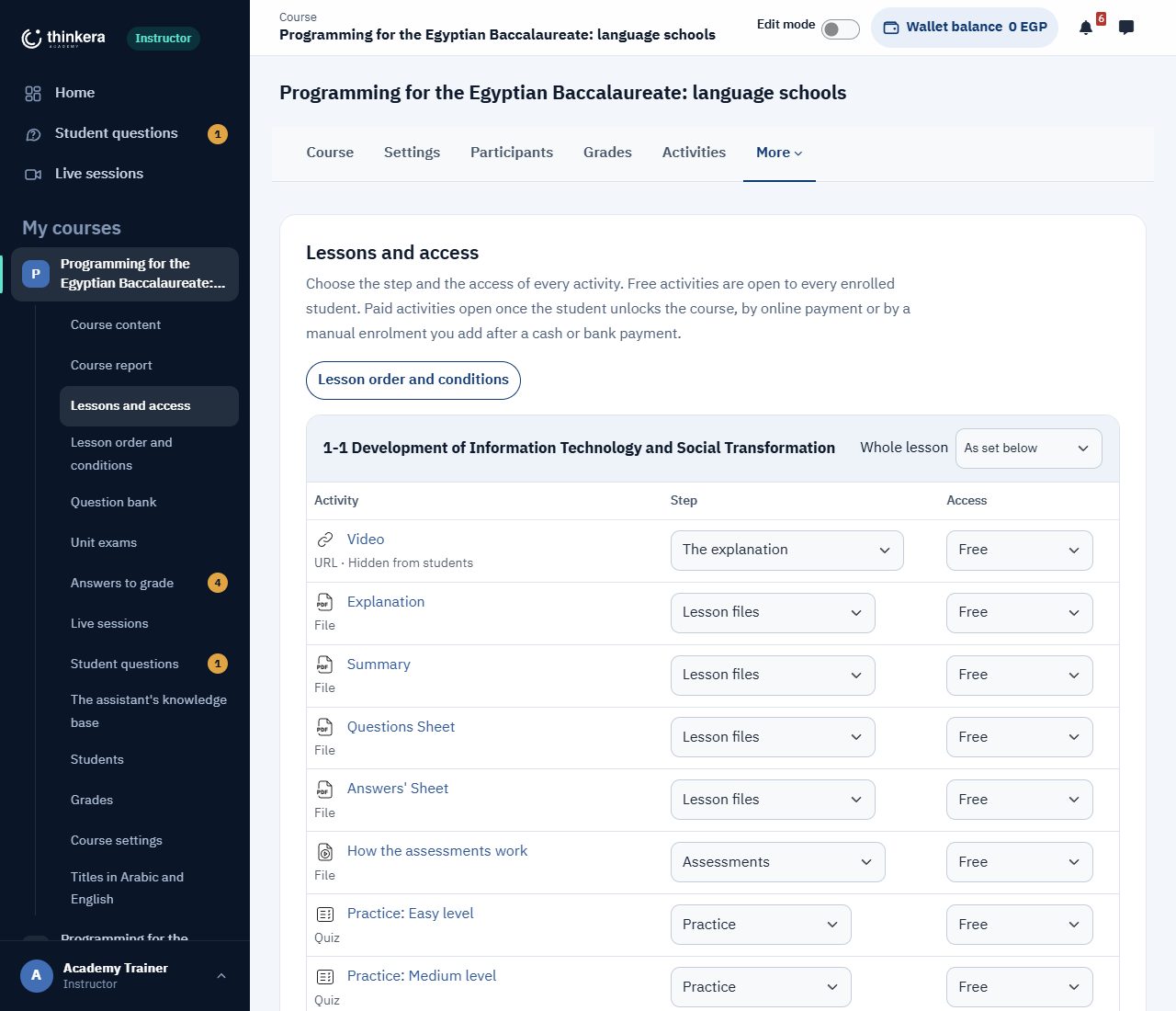
“Lessons and access”: every activity with its step and its access, in one table per lesson. And as you build: the page tells you where you are
The course's own home page shows you numbers a student does not see. At the top, the lesson count split into its two kinds, the syllabus lessons and the extra ones, rather than one figure that mixes them. In the ring, how much of the content is built: how much of the course exists, not how much of it you have opened. And under it, how many are finished, of each kind.
The measure is the shape of a finished lesson itself: an explanation (interactive and plain) + the lesson files + the assessments + practice (three levels and the interactive set), with every unit ending in its exams. The lessons not written yet are already in the outline, shown as “coming soon”, and that is what gives the figure a denominator. So the percentage tells you how much is left, and the line under it tells you where.
It counts pieces; it does not judge them. A lesson with a booklet has its booklet. Read it as an estimate of the work still to do.
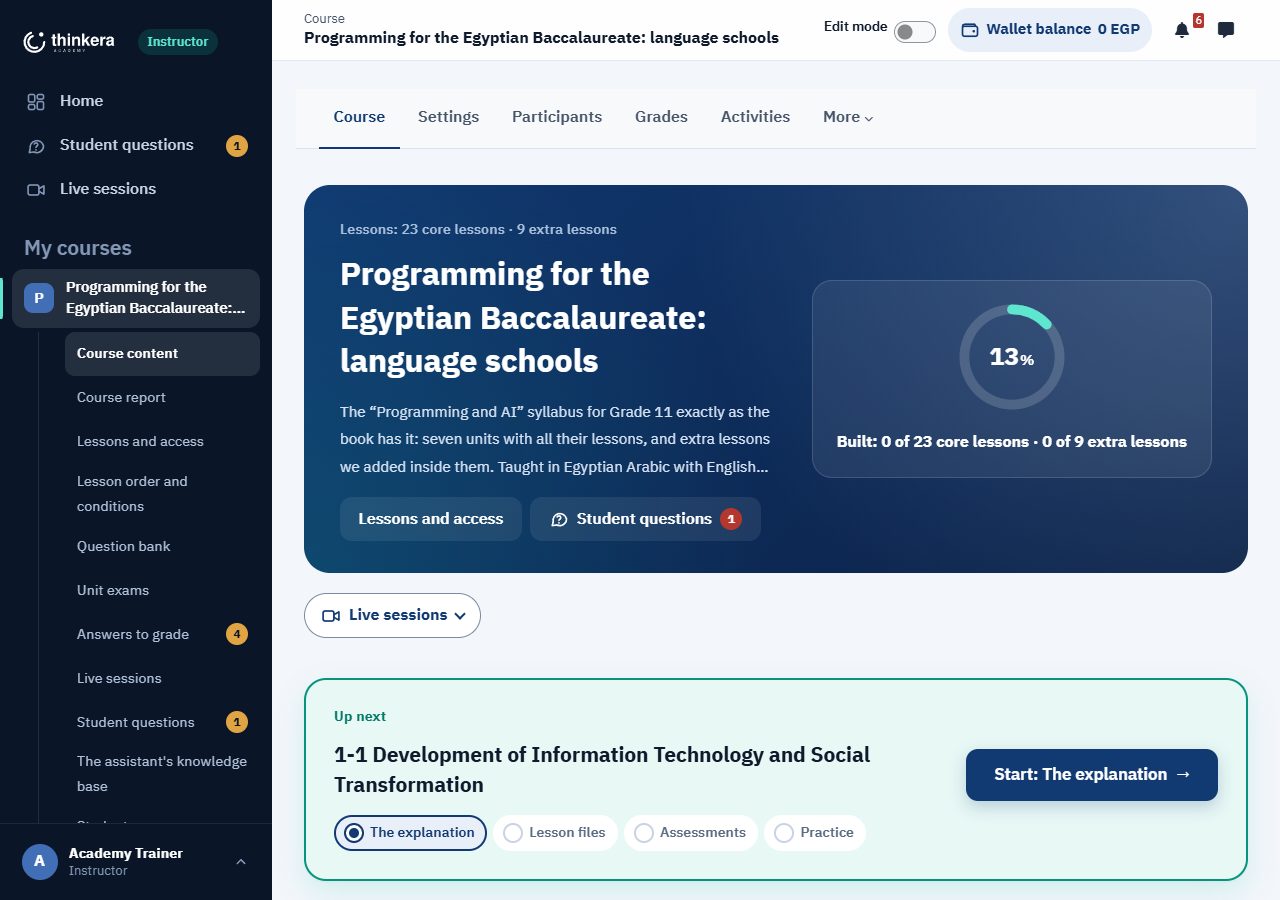
Through your eyes: the ring is how much of the content is built, not how far you have got through it, and under it how many lessons of each kind are finished. Every course tool is in the sidebar.
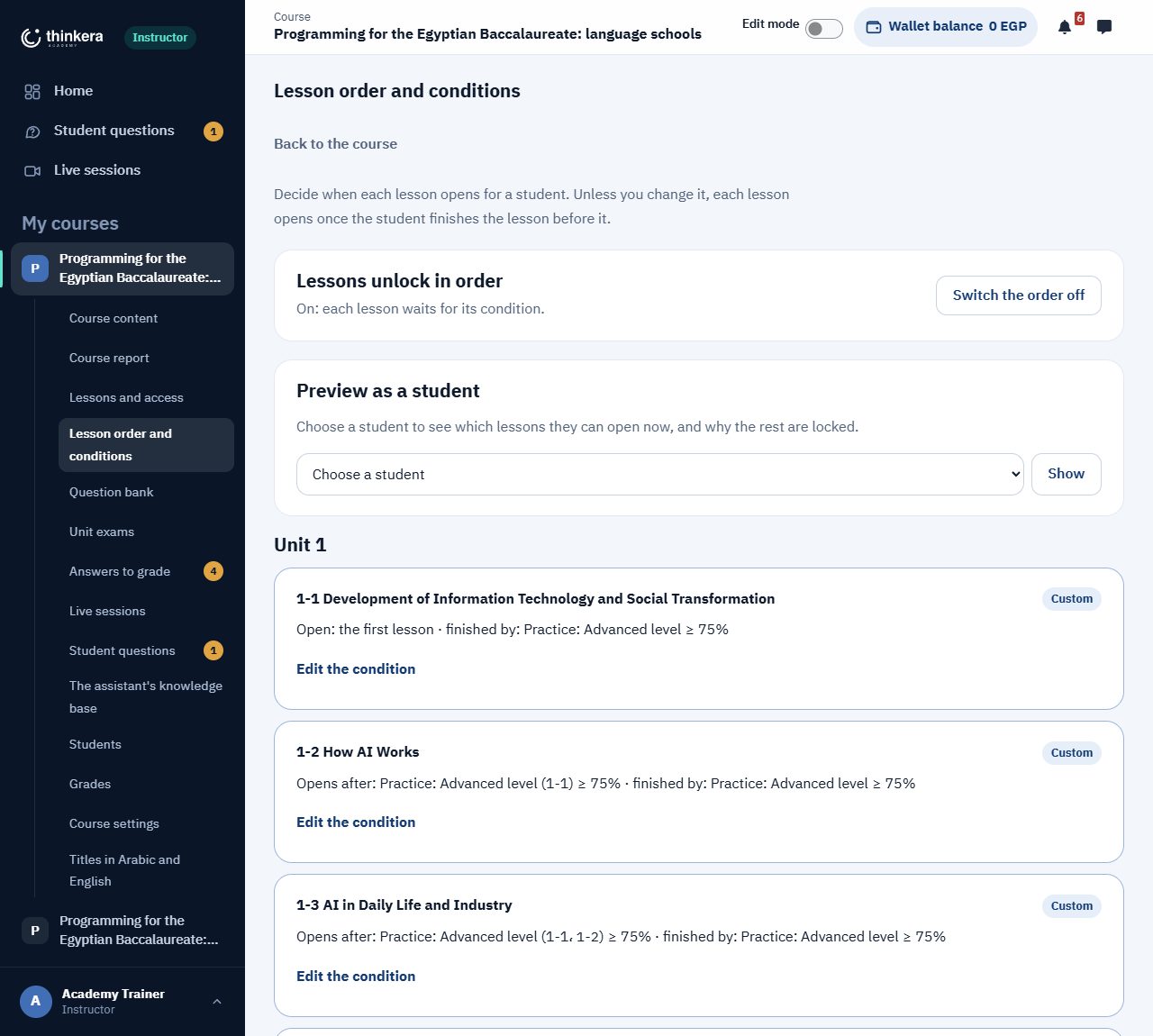
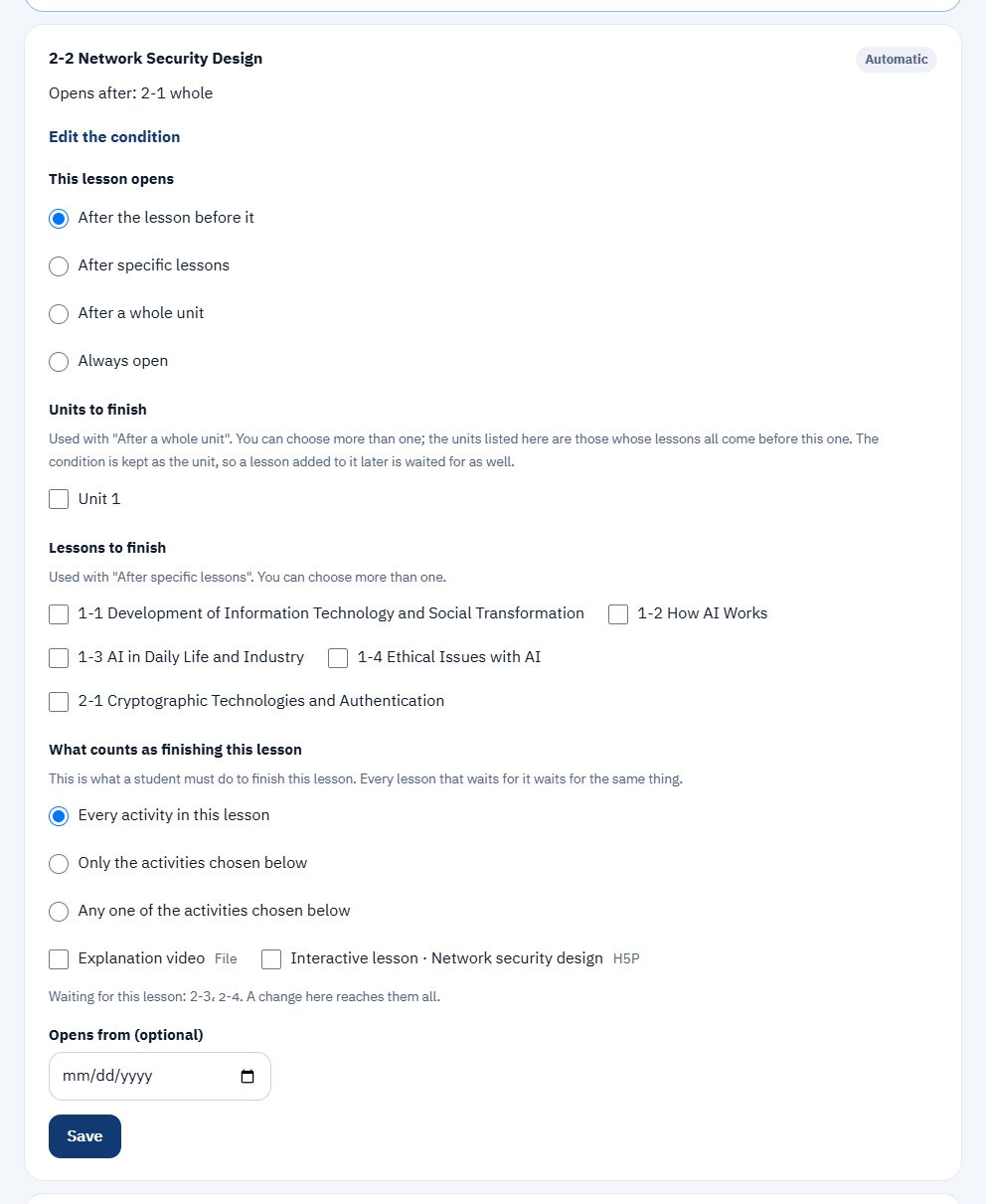
This page belongs to the academy trainer and to the administrator alike. The trainer reaches it from the course's own sidebar (“Lesson order and conditions”), the administrator from the course menu: the same screen, the same powers. There is nowhere else the progression conditions are set.
3 · A lesson's four steps
The student sees the same four steps in every lesson; you decide what goes in each one.
| Step | What goes in it |
|---|---|
| The explanation | The lesson video in two versions: an interactive lesson (an H5P activity that stops the video and asks), and a plain video that runs straight through. The student opens on the interactive one, with a link under it to the plain one. The video is a YouTube link or an uploaded file. |
| Lesson files | The explanation booklet, the mind map, the question sheet, its answers, and anything else. They are shown inside the page and download under their own names. |
| Assessments | The assessments video, which shows the student how to use the sheet and its answers: answer first, mark second. An assessment paper and its answer key, where there are any, go here too. |
| Practice | Three quizzes, marked and graded: “Practice: Easy level”, “Medium” and “Advanced”, each drawing its questions from the lesson's bank (next section). Under them, an interactive practice tab for H5P activities with no mark: terms, ordering, matching and more. The student opens on the quizzes. |
What drives the steps: every activity you put in a lesson sits in one of the four steps, and that is where the student finds it. A hidden activity is not shown to them at all. “Automatic” means a quiz or an interactive activity goes to practice, the first other activity is the explanation video, and the rest are lesson files. “Assessments” is always set by hand.
Interactive activities are in their edition's language: the Arabic course's activities are in Arabic and the English course's in English, buttons, feedback and reasons included. An activity in two languages reads to a student as unfinished.
4 · The question bank and practice
All of a course's questions in one place, split by lesson and level, and the practice built from them.
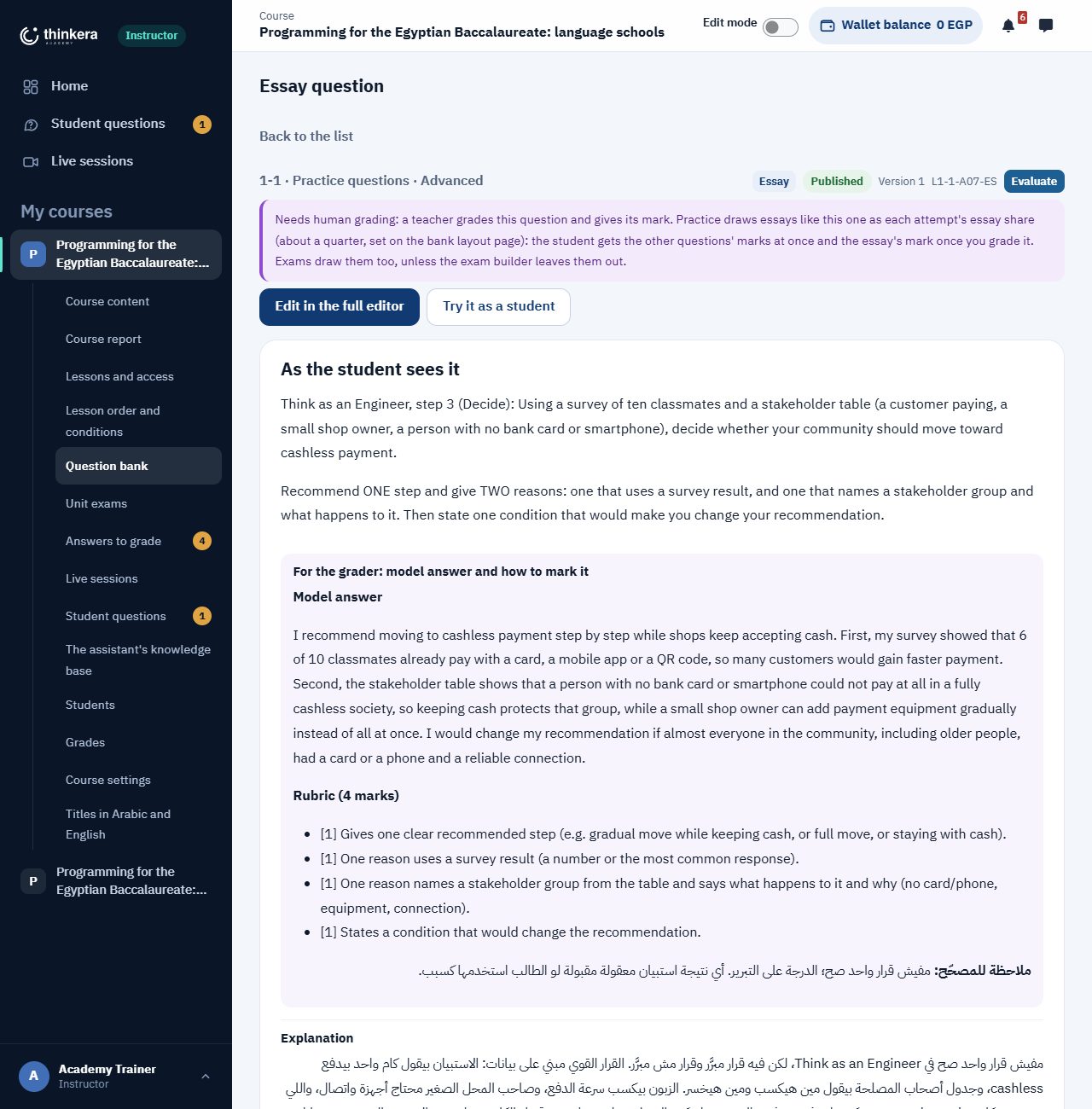
Each lesson has two banks, practice questions and the exam bank, and each has three levels: easy, medium and advanced. Each question records its type and the thinking it asks for (Bloom), so practice does not come out as one long recall test.
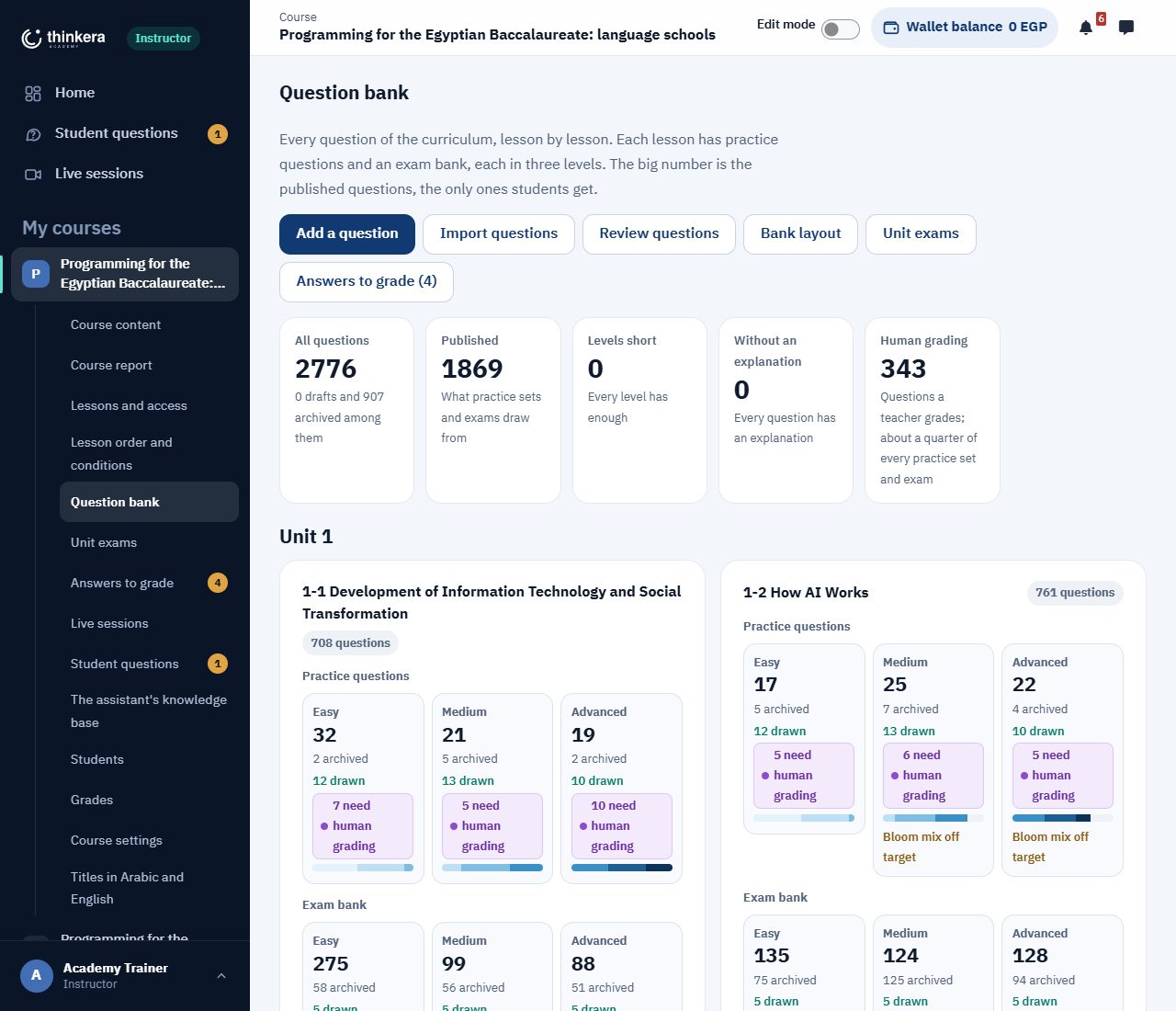
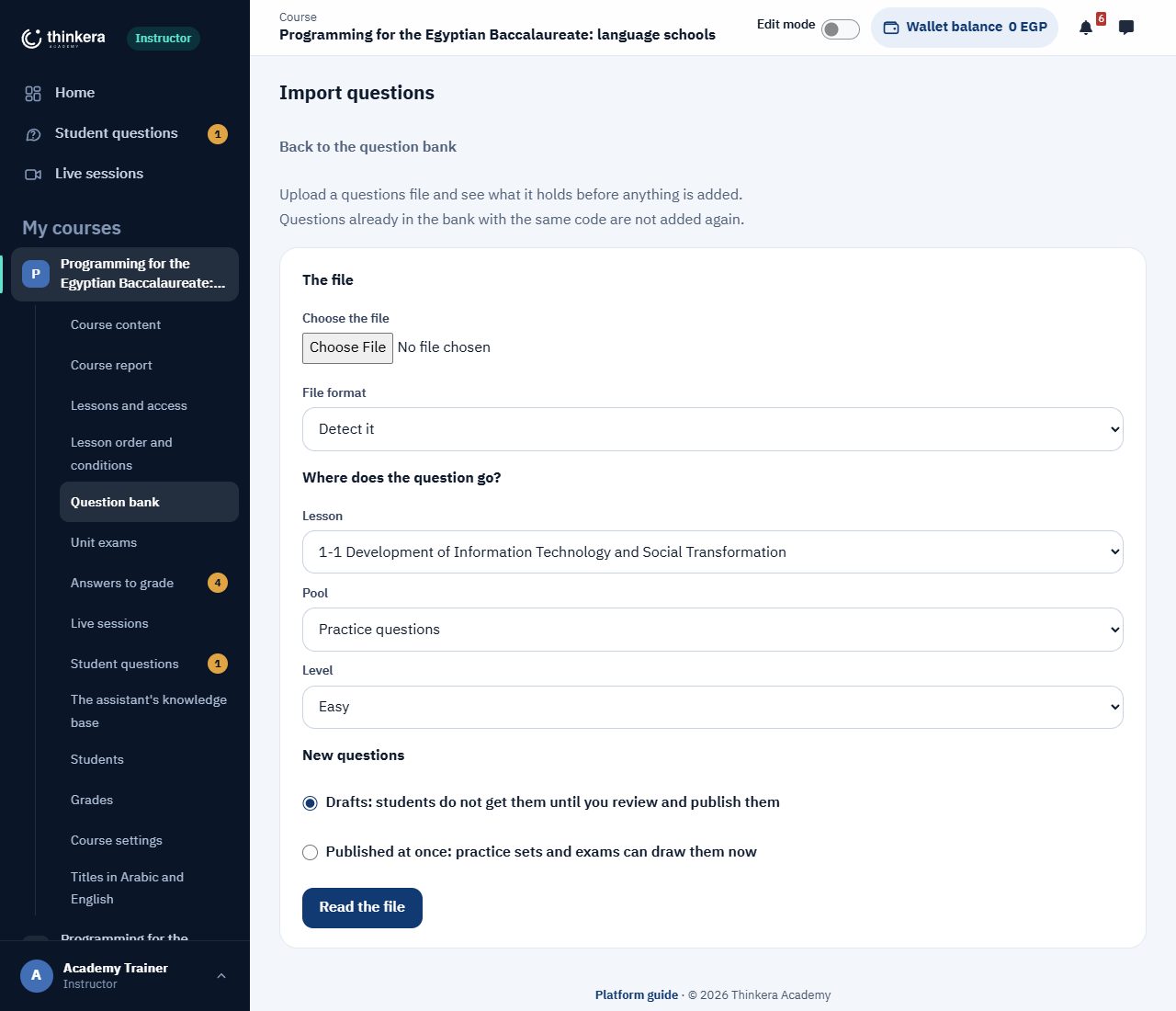
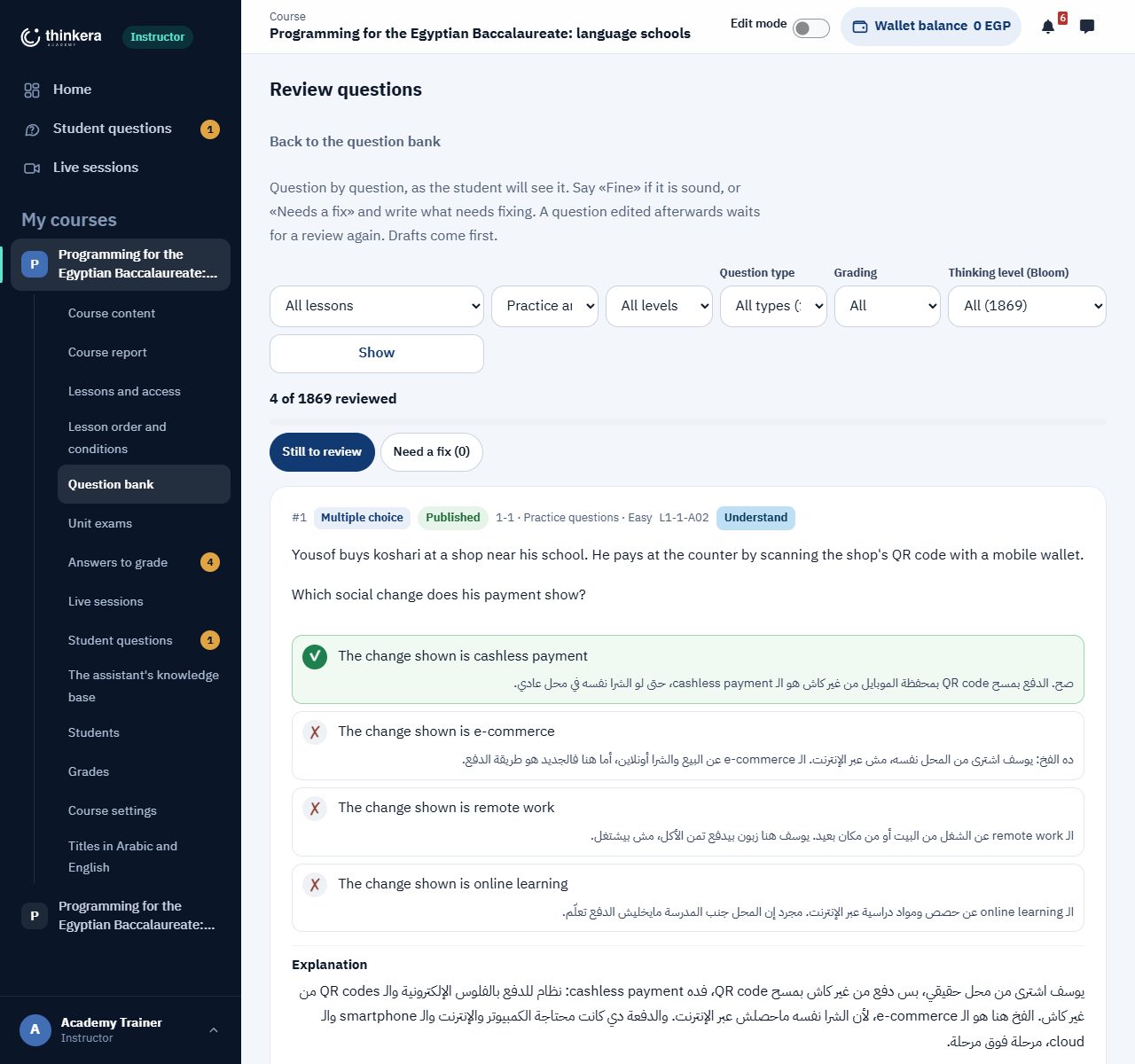
- New questions arrive as drafts until you review and publish them, unless you choose “published straight away” when you import.
- Essays need an XML file: it is what carries the model answer and the rubric. GIFT and Aiken are for multiple choice and true or false only.
- “Bank layout” creates any bank a lesson is missing, and orders the bank like the course.
Practice: three quizzes per lesson
What the student does in the “Practice” step is not the bank itself: it is three quizzes, one per level, each drawing its questions at random from the published practice questions of its level, so every attempt has new questions in a new order. A full bank without these quizzes gives the student nothing.
What an attempt is made of is set on “Bank layout”, for each level:
- How many questions in each attempt.
- The share of essay questions, at least 20%. The rest is spread over the other types, at least one of each, with the bigger types in the bank taking more.
- The expected Bloom spread beside the level's target, so you see when an attempt has turned into memorisation.
- A practice quiz counts as done as soon as the student submits, even before its essays are marked.
- If you change the structure after students have attempted a quiz, a new quiz is made with the new structure, the old one is hidden, and their attempts stay as they were.
5 · Unit exams
Exams at the end of every unit, at three levels, with different questions for every student.
End-of-unit exams are built from the exam bank on the “Unit exams” page, and they sit in the unit's “end-of-unit exams” section. You choose the unit, then:
- For each level (easy, medium, advanced): how many exams, and how long each one lasts in minutes.
- Attempts per student. Zero means no limit.
- The questions: a fixed number from each lesson, or a total shared equally across the lessons. You can spread them by Bloom, and by question type with an essay share you set. “Balanced mix” fills the boxes from what the bank holds, and clears any figure you typed by hand.
- Without the questions that need human marking: tick it when you want the result at once. Without it, a student's final mark appears once the essays are marked.
- Who can take the exams: paid (students who opened the whole course) or free for every student.
- Each exam draws its questions at random, so every student and every attempt gets different ones. An exam nobody has taken is rebuilt in its place under the same name, and “Check before building” shows you what will be made before it is made.
The course rule: there are essay questions at every level, not only the advanced one. An exam of nothing but multiple choice measures recognition, not understanding.
Finishing the unit with its exams
On “Lesson order and conditions”, under each unit that has exams: a student finishes the unit by passing a given number of its exams, and that is what opens the next unit. You set how many exams of each level (zero means that level is not required) and the pass mark. An exam counts once the student scores that percentage or more; submitting alone is not enough. A unit with no exams yet cannot be closed this way.
6 · Marking and review
Written answers are marked against your rubric, the machine takes the obvious ones off your hands, and in each course the decision is yours.
“Answers to grade” holds the essay answers students submitted in practice and exams that are waiting for your mark. You open an attempt, read each answer beside the model answer and the rubric, give a mark and a comment, and the mark counts in the student's result at once. Above them, the “Grading suggestions” card has three choices for this course:
Practice answers: marked at once by a suggestion, then confirmed by you
Three choices: as the site says, “Yes, in this course”, or “No, I grade them myself”. When it is on, an answer takes the suggestion's mark at once and stays with you until you confirm or change it.
Exam answers: off by default
“Exam answers in this course are marked at once too” starts off, because an exam mark a student has read is harder to take back than a practice one. If you turn it on, every machine mark still waits for your confirmation.
“Check” on an essay: the mark stands when the model is sure
An essay in practice carries a Check button like every other question. The student presses it, the answer is handed in, and the model reads it in front of them against the marking criteria. If the model's confidence in its own marking reaches the set percentage or more, the mark is worked out and shown to the student there and then, without waiting for you, and it does not appear in your queue, because it is settled. You can still open any attempt and change the mark at any time.
Below that percentage no mark is given at all: the answer reaches your “waiting to be marked” queue with the model's reading of it beside it as a suggestion, and the student is told that you will read it, with no number shown.
The percentage is yours, and so is the switch
This choice is on by default. The percentage is for this course alone: leave it empty or 0 to follow the platform's setting (95% today); the lowest allowed is 50%. Turn the choice off and every essay in your course waits for you.
The doubtful ones come first
A suggestion the model is not confident of is flagged and sorted to the top of your queue, so the answers most likely to be marked wrongly are the first ones you read.
If you change a mark, they are told why
A changed mark reaches the student as a notification with the reason. That is what makes a student trust the number instead of arguing with it.
7 · The AI assistant
It answers students from your course's lessons, and you decide what it may read.
The assistant searches in three steps: the lesson the student is in, then the rest of the course, then it asks the student whether they want an answer from outside the course. The first two read from the course's knowledge base, which is yours to control.
The knowledge base page
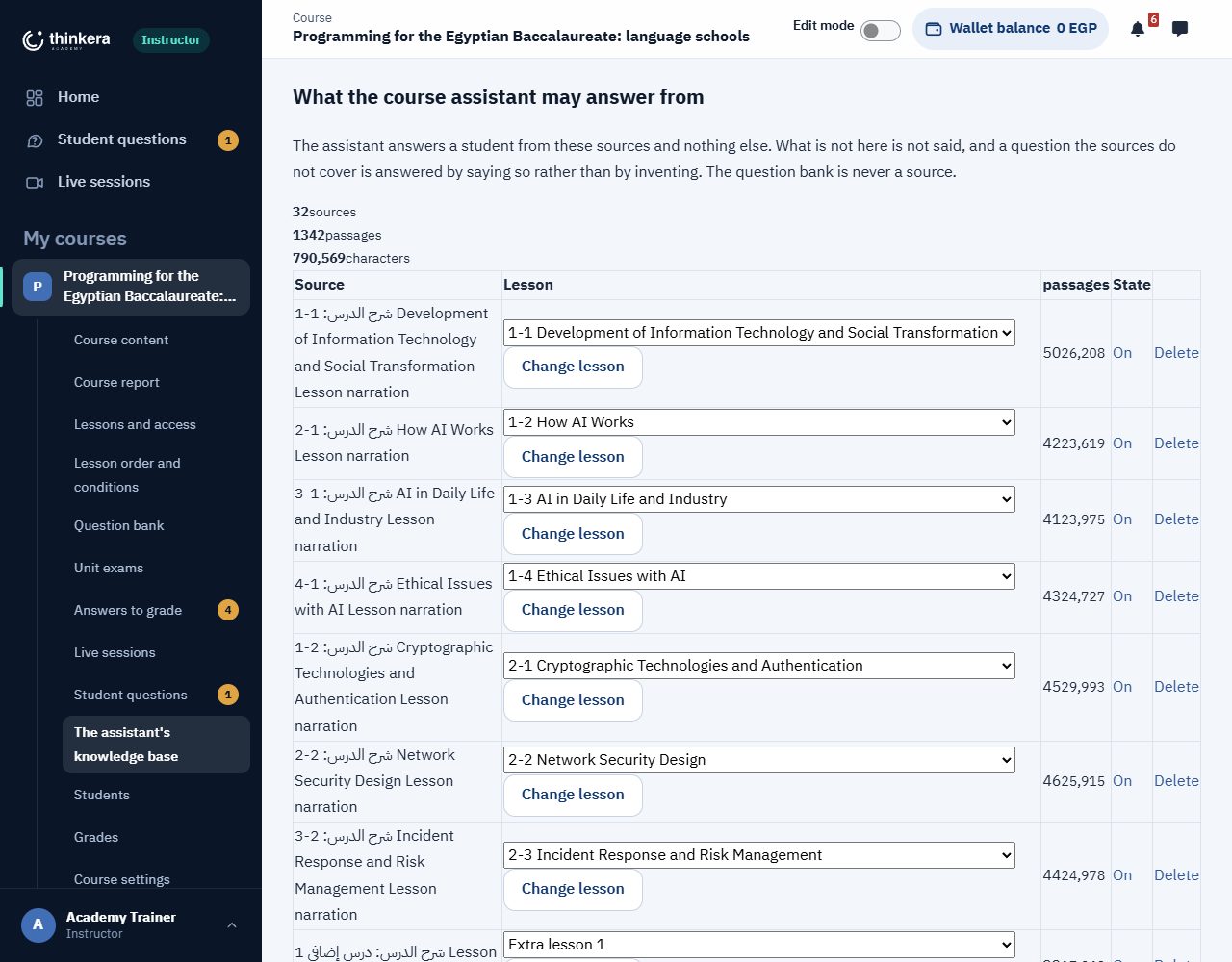
In the course's sidebar: “The assistant's knowledge base”. It shows how many sources and passages there are, and holds:
- Uploads in md or PDF, each tagged with the lesson it belongs to, so the assistant can return it in the right place.
- A switch per source, without deleting it. A source that is off is not read.
- Deletion of what no longer holds, and a view of what was imported and when.
- The question bank is never a source, so the assistant never solves a student's practice for them.
The rule behind it: the assistant names the part of the lesson an answer came from, and when it finds nothing it says so rather than inventing. Going outside the course happens only when the student says yes, and that answer is labelled as being from outside. The student always knows whose words they are reading.
AI on the platform: two jobs, not a general “intelligence”
The platform does not run a model in order to be able to say it runs one. There are exactly two jobs, each with its own model chosen in the platform's settings:
The course assistant
It answers from the knowledge base above, in its three steps, and names its source. That takes off your hands the questions whose answer is already written in the lesson, so what reaches “Student questions” is what actually needs you.
A suggested mark
It compares the student's answer with the model answer and the rubric, and returns a proposed mark with its reasoning and its confidence. It is what sits behind the student's “Check” and behind the suggestion you see beside each answer when marking. The work carries on server-side even if you close the page.
Your rules decide
A suggestion becomes a mark only under the rules in section 6, which you set for your course. You can change any mark and write a reason, and the reason reaches the student.
And how do you know whether to trust a suggestion?
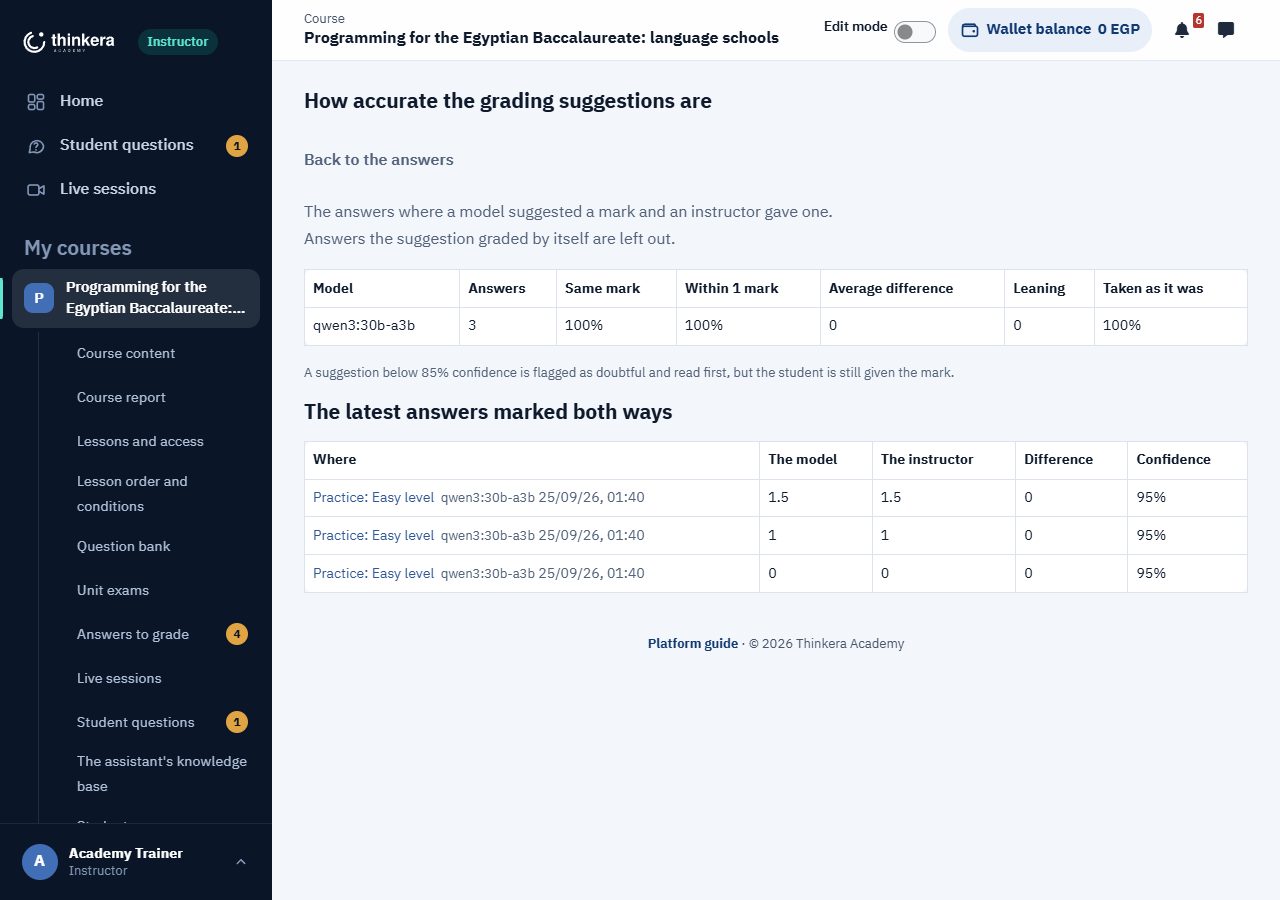
There is a page called “How accurate the AI's suggestions are”, linked from the marking page as “How close the suggestions were to your marks”. It compares each model's suggestions with the marks trainers gave themselves, over the answers that have both, and lists the latest answers marked both ways. Answers the suggestion marked on its own are left out of the comparison, because they would only agree with themselves. So “how far do I trust this” rests on a number rather than an impression.
What is recorded
- A usage log with one line per request: the model, how big the request was, how long it took, and whether it worked.
- What is never written there: a single word a student wrote, or any key.
- The model runs on the academy's own server, so neither students' answers nor your course's content leaves for an outside service.
8 · Questions and sessions
What the assistant does not replace.
Student questions
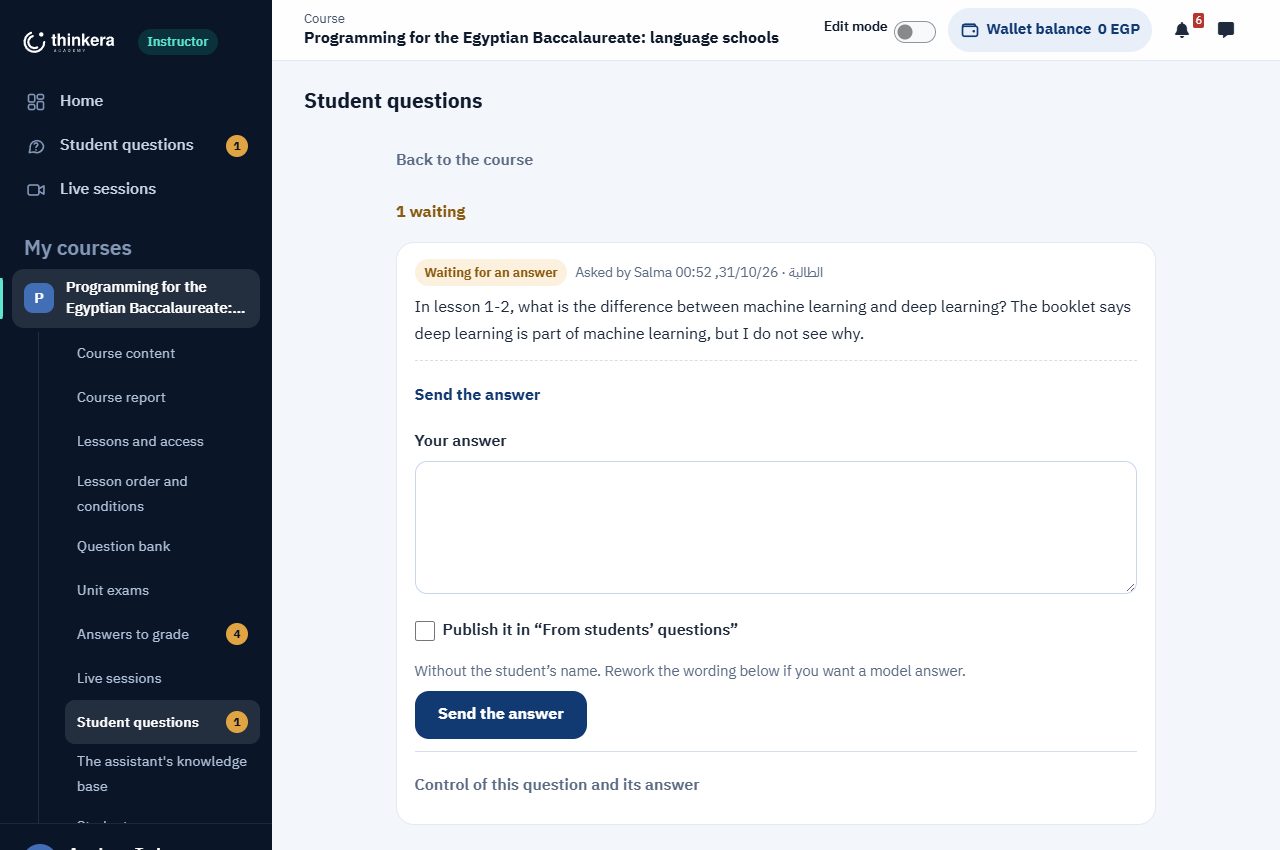
All of a course's questions on one page, unanswered first, each answered in place. When a question would help the others, tick “Publish it in ‘From students' questions’” and it appears to every student of the course with its answer, without the student's name; you can reword it before it is published. Without a course, the page gathers the questions of every course you teach.
Live sessions
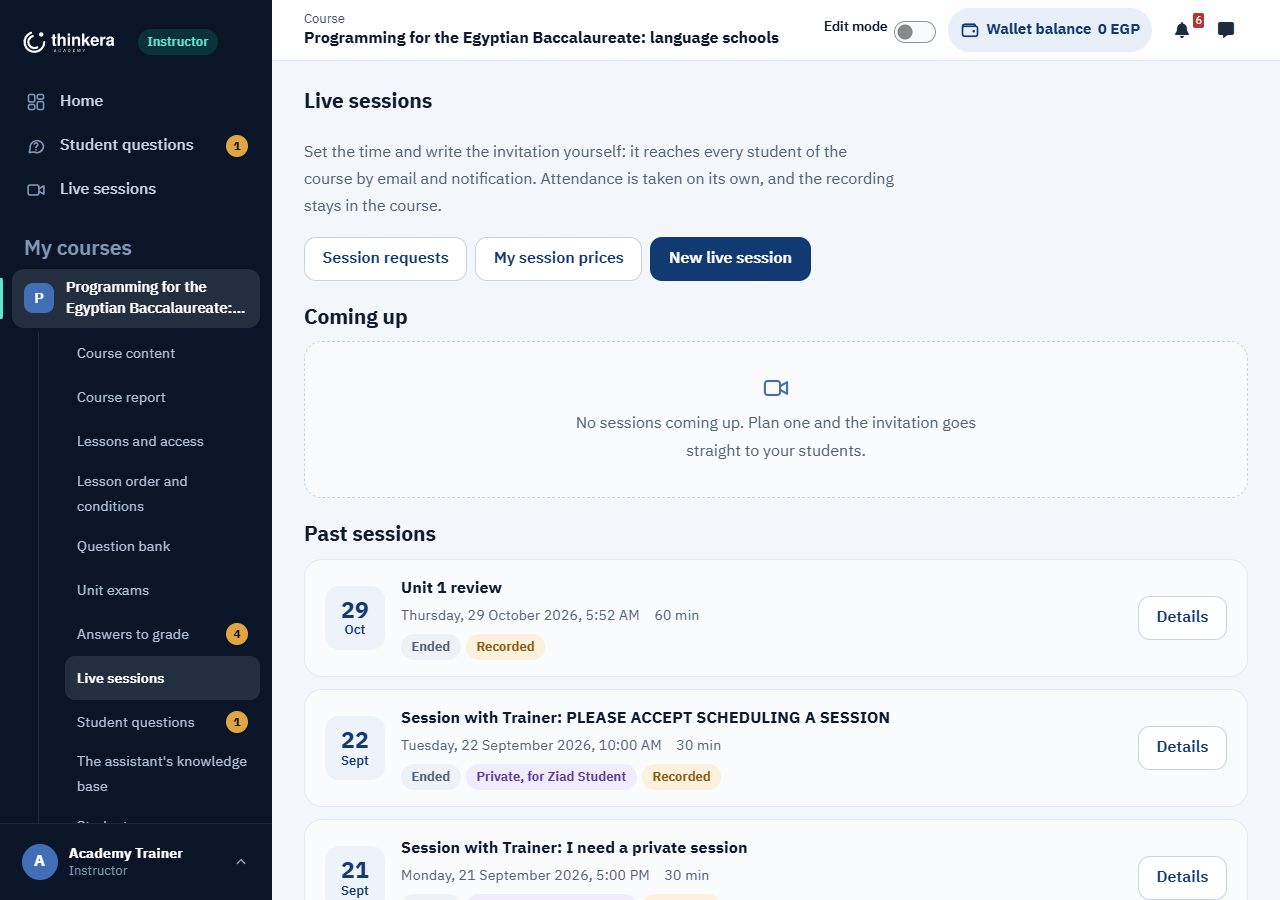
From “Live sessions” you hold a session for every student of the course: the time and length, an invitation in your own words that reaches them by email and notification, whether it is recorded, and who may see the recording. Attendance is recorded on its own, and the recording stays in the course. You can change or call off a session from its page.
Private sessions: requests and prices
- “My session prices”: your own price for a private session, for each length (30, 45 and 60 minutes). An empty box means the academy's price. A new price applies to requests still to come; a request already sent keeps the amount its student saw and paid.
- The student asks: they choose the trainer, the topic, the time and the length, see your price, and pay from their wallet or by transfer with one of the methods the administrator has switched on (InstaPay, and Vodafone Cash once it is on), uploading the receipt.
- “Session requests”: you see the amount, and for a transfer the method, the transaction number and the receipt. You check the transfer, may move the time or change the length, then accept, or reject with a reason. A request paid from the wallet and rejected has its money back in the wallet before the student is told.
9 · Following the class
Who is working, who has stopped, and where they stopped.
The course report holds the numbers (students, active students, average progress, those stuck), how progress is spread, daily activity, and the students table: exactly where each student is, their videos and practice, when they were last in, and their state (on track, slow, stuck, not started yet). A student's name opens their report: every lesson with its steps, and their best score at each practice level. You can download the table, and message a group of students at once.
Who sees what: the academy trainer sees every student in the course. The associate trainer and the content partner trainer see their own students only, without email or mobile (section 13).
10 · Course settings
The last part, and usually done once.
- Course settings: the “top five” ranking (off by default; points count either way), and the badges: 7 badges per course, each of which you can rename, describe, set a number for or switch off; a badge a student has earned stays theirs. It also leads to the course's basic details: name, description, dates and picture.
- Titles in Arabic and English: the names of the units, lessons and activities in the other language, for students who switch in their preferences.
- Prices: the course price, the enrolment methods and publishing on the site belong to the administrator. What is yours: free or paid on “Lessons and access”, and your private session prices on “My session prices”. Unit 1 stays open and free.
11 · The kinds of trainer on Thinkera, and their roles
Three roles, each with its own permissions, its own money and its own way in.
One of Thinkera's own team, given the “trainer” role in a course by the administrator. Builds and runs the course with everything in sections 1 to 10: the lessons, their order and conditions, the question bank, the exams, marking, the AI assistant, every student's questions and the live sessions. Has a dark interface with a sidebar, and is not asked to sign the trainer agreement.
An independent trainer approved on the platform, who teaches the course's content as it is to students who choose them, in live sessions on the platform: one-to-one or with a group. Sees their own students only, and does not edit the content. Earns from sessions, and from the first payment of a new student who came through their link.
The top rank: everything an associate trainer has, plus editing the course's content from “Content tools”: “Open the curriculum” and “Manage lessons”. What they add is reviewed before students see it. Lesson order, the question bank and the exams stay with the academy trainer.
| Permission | Academy trainer | Associate trainer | Content partner trainer |
|---|---|---|---|
| Students they see | Every student in the course | Their own students only | Their own students only |
| Live sessions | For every student of the course, and private sessions at their own prices | For their students and groups, at the administrator's prices | For their students and groups, at the administrator's prices |
| Opening the course and managing lessons | Yes | No | Yes; what is new is reviewed first |
| Lesson order, question bank, exams | Yes | No | No |
| Marking, every student's questions, the knowledge base | Yes | No | No |
| A share of the programme's session prices | No | Yes | Yes |
| A share of a new student's first payment | No | Yes | Yes |
| The trainer agreement | Not required | Must accept it | Must accept it |
| Interface | “Academy trainer”: dark, with a sidebar | The trainer theme: top bar and “Trainer dashboard” | The trainer theme, with “Content tools” |
You can hold more than one role
A student approved as a trainer can stay a student in their courses, and switches between the two from the account menu → “Switch to role”, with “current” beside the role in use. In a course where they are both, they work as one at a time: the role they chose is the one that counts, so they can never follow or pay themselves. An academy trainer also placed as a content partner trainer opens on the trainer theme, has all five tools in “Content tools” (open the curriculum, manage lessons, lesson order and conditions, question bank, exams), switches to “Academy trainer” the same way, and finds “Trainer dashboard” at the end of the sidebar to come back.
Placement by the administrator: the administrator can place any member in a course as a student, an associate trainer, a content partner trainer, or a trainer who also studies there. This placement is a direct approval, without the stages. If a trainer is moved back to student, their students in that course are released and asked to choose another trainer, their sessions not yet held are called off and refunded, and their pending and available earnings stay where they are. Every change is logged, and the member is told.
12 · Joining, and the agreement
From your student account to an approved trainer, and from associate trainer to content partner.
“Join as a trainer”
A fixed link in the top bar beside “Account”, at laptop width and wider; on a phone and smaller screens it is in the account menu. It is also on “Choose your trainer” in any course: “Want to be a trainer in this curriculum?”. Only students see it: academy trainers, administrators and suspended trainers do not. If you chose “Join as an associate trainer” when you first completed your account, the platform takes you to the application each time you sign in until you finish it.
Choose the course and the role
The role is “Associate trainer” or “Content partner trainer”, each explained under it. Write your subject and grade, your teaching experience, the students you teach now, and a link to an explanation you recorded.
Read the whole trainer agreement
The agreement is shown in full in a box on the same page, with a link to open it on its own page, and it starts with your name and username. The application cannot be sent until you tick the acceptance, which says plainly that breaking any of the platform's rules stops your account for good. Send without it and nothing is sent, and what you wrote stays as it was. The agreement is in Arabic in both editions, and the Arabic text is the authoritative one.
The application goes to the administrator
The platform keeps your acceptance with the agreement's version, the date and time, your device's address, the browser, and the agreement's text exactly as you saw it. After sending you see “Your application is under review” with the role and the course, and the answer comes within 3 working days. Until you are approved, your account stays a student's and you carry on studying.
An application under review stays open
Open “Join as a trainer” while your application is under review and you find the application page itself with the full agreement. If you have not accepted the agreement as it now stands, you accept it on the same page, because the administrator cannot approve an application without an acceptance.
Approval
The application goes in stages: screening, a trial lesson, academic approval, then a trial month. The administrator approves you for chosen courses and a chosen role (and may change the role you asked for); if you were a student in that course you stay one. You are notified.
From associate trainer to content partner: “Join as a content partner”
An approved associate trainer finds “Join as a content partner” in the top bar where “Join as a trainer” was. They choose the course and write, in at least a couple of lines, what they would add to it. Nothing new is signed: the agreement they accepted covers content partners (annex C). The administrators are notified, and the request shows on “Trainers” with two buttons: “Approve” (which places them as a content partner in that course) and “Refuse”; the trainer is notified either way, and the answer comes within 3 working days. While they wait, the page tells them since when the request has been under review.
The agreement at any time
Every trainer, and anyone who has applied, finds “The trainer agreement” under “Account”. Above it are the date and version you accepted, and “Read the text you accepted” opens the text exactly as you accepted it, even if the agreement has changed since.
At its end is annex A: the values set on the platform today, such as the platform's rate, the cancellation notice, the withdrawal fee and method, the most students in a group session, and the group session sizes (today up to 10, up to 20 and up to 30 students) with their rule: you choose the size when you schedule and its cost is held, the session takes no more than that, and once it is held the cost of the smallest size that holds those who came is charged and the rest comes back to you. The annex reads these values from the platform, so when the administrator changes one it changes with it. You are told of such a change at least 14 days before it applies (clause 15), it does not touch a session scheduled before it, and you do not need to accept again.
When the agreement changes: the platform publishes the new text under a new version number (now 2026-10-30). The next time an approved trainer opens their dashboard they find the new agreement with “I accept” under it, and cannot carry on working until they accept it. Your earlier acceptance is kept with its text. The academy trainer is exempt, being part of the platform's team.
13 · The trainer's dashboard and students
The student chooses you, and you work with those who did.
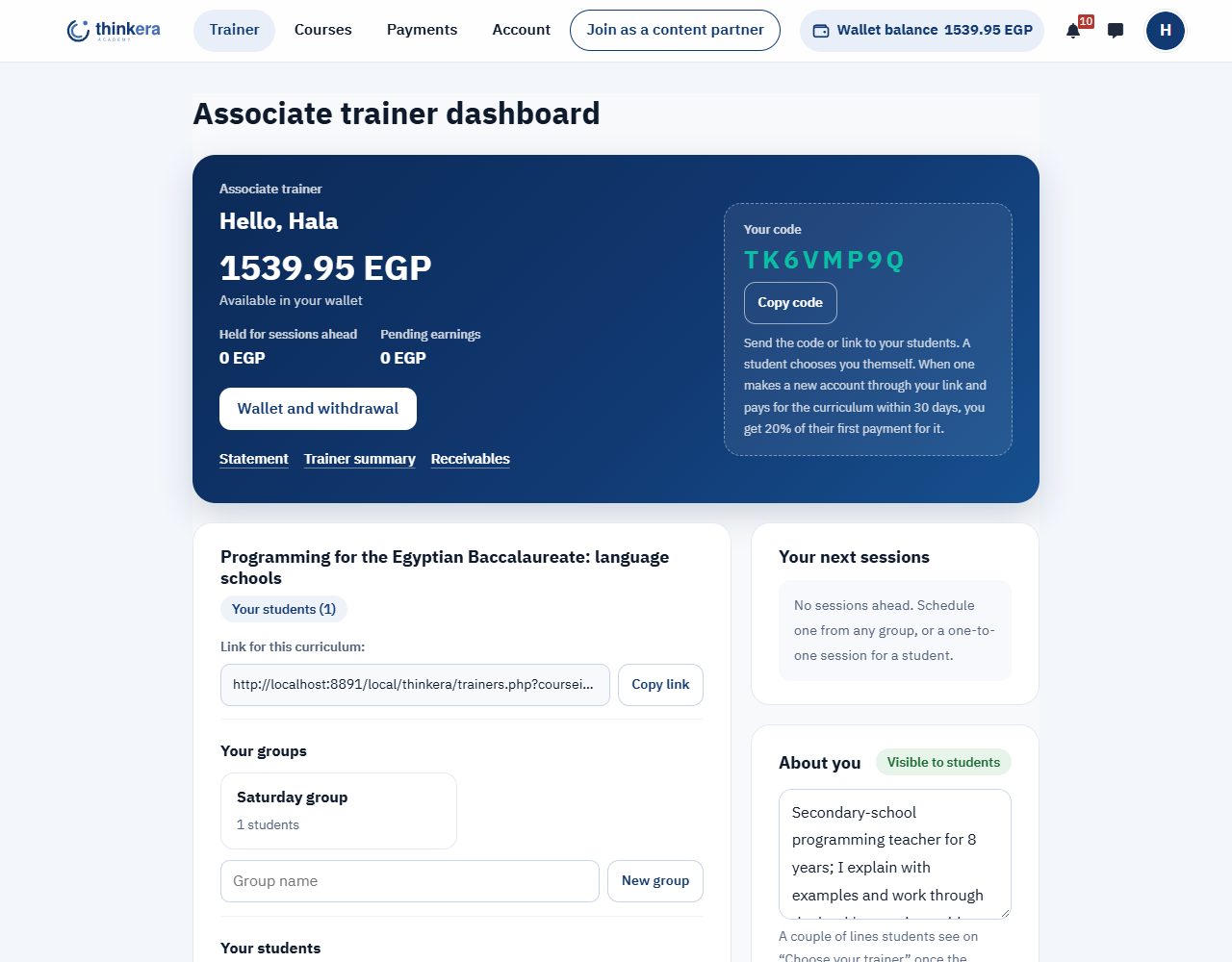
| On the dashboard | What it does |
|---|---|
| Your code and link | One code for you, and a link for each course. A student types the code, opens the link, or picks you from the approved trainers on “Choose your trainer”. |
| Your students in each course | The student's name, since when they have been with you, their group, and the “Progress”, “One-to-one session” and “Messages” buttons. You never see their mobile, their email or their guardian's details, and the student agrees to this before joining you. |
| Progress | The student's own report: lessons done, practice average, last visit, where they are now, and every lesson with its steps. Without email or contact details, and only for students who follow you. |
| Groups | You create a group by name on the dashboard and put your students in it. A group's page holds its sessions, its students (progress, remove), and “Message the whole group”. |
| Messages | You message a student inside the platform only, for as long as they follow you. Neither of you sees the other's number or email. The Thinkera team reviews messages, and one with a phone number, an email, a link, or talk of paying or meeting outside the platform is flagged and shown to the administrator first. |
| Sessions | A one-to-one session for one student, or a group session. The administrator sets the lengths, their prices and their cost (section 14). |
| Your bio | A couple of lines students see on “Choose your trainer” once the administration has approved them, with the state shown beside it (“Waiting for review” or “Visible to students”). A bio with a mobile number, an email or a link is refused, and if the administration refuses one you are shown why. |
| Ratings | A student who attended a session that was held rates it from one to five stars, once, within 14 days of its end. The rating reaches the Thinkera administration only, and you never know who rated. Two stars or fewer alerts the administrator. |
| Reports | “Statement”, “Trainer summary” and “Receivables”, on screen or as Excel or PDF, for any period. |
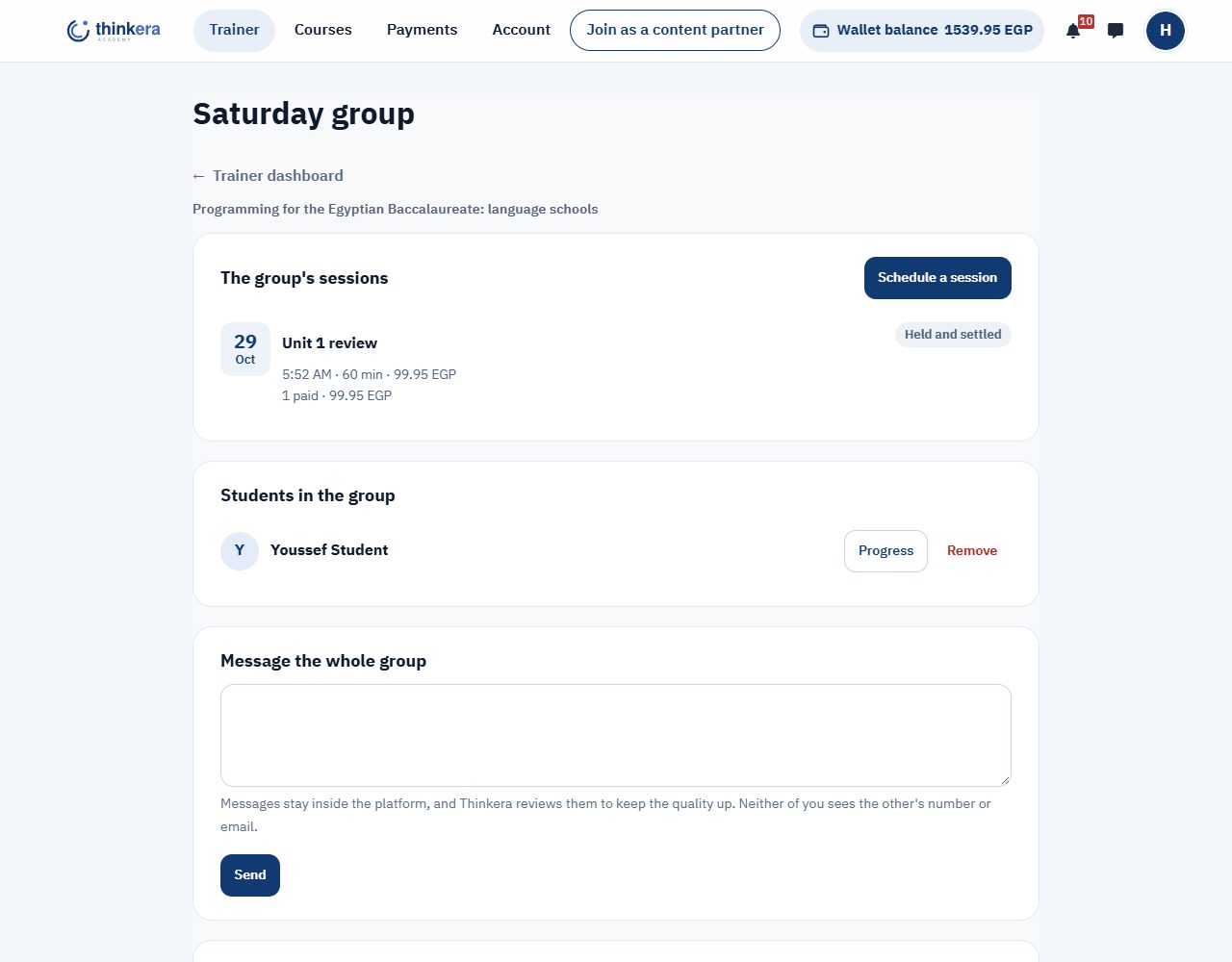
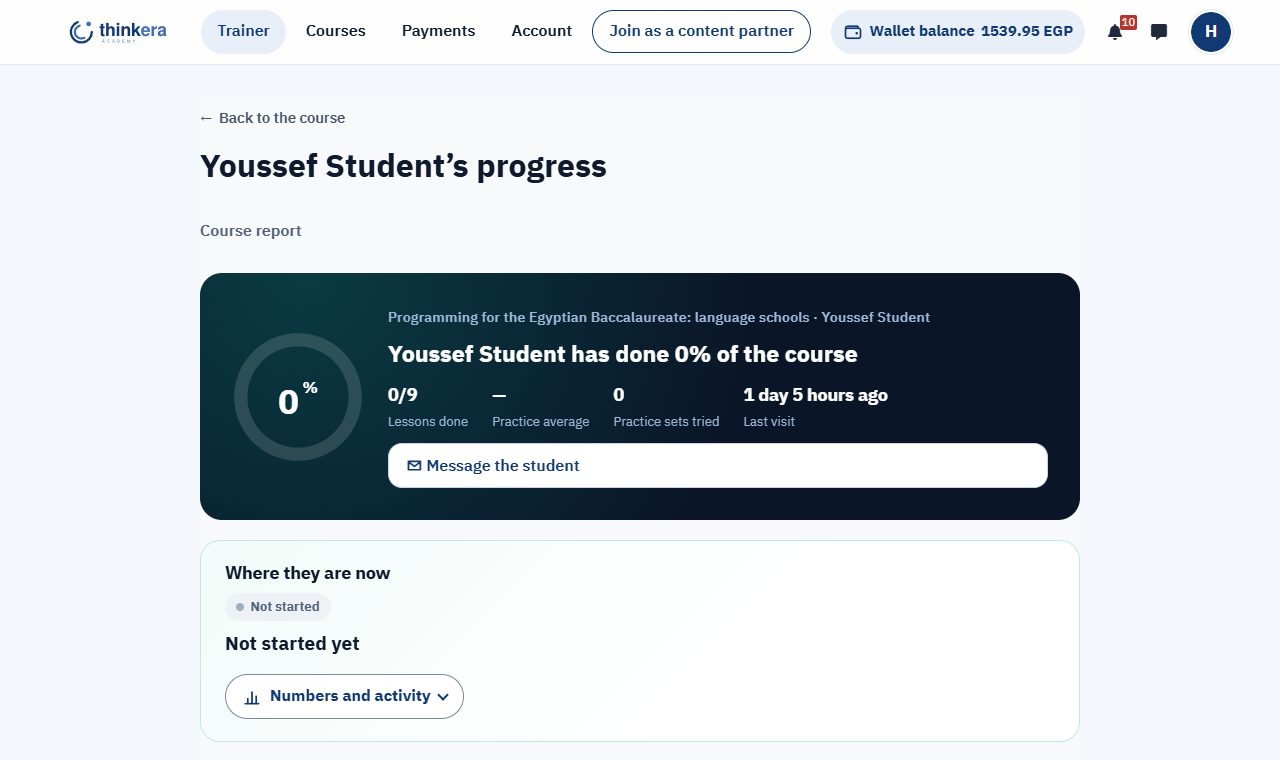
- The student is free: they need not choose a trainer at all, and can study on their own with Thinkera's weekly session. They can leave you at any time, and change trainer once every 14 days. If they leave, paid sessions still beyond the notice period are refunded to them.
- “Choose your trainer” shows each trainer with their approved bio, their number of students and the lowest session price, and every card says “Independent trainer approved on Thinkera”. The page tells students that associate trainers are independent and not Thinkera's staff, and that any arrangement or payment outside the platform is not its responsibility.
- Your students have accepted the “Guidelines for students and parents” when they first came in (the student or a parent). As an approved trainer you are not asked; if your application is refused or your partnership ends, you are a student again and you are asked.
- The session room closes when the session's length is up, with a warning five minutes before. Sessions are recorded, and the Thinkera team reviews recordings, messages and ratings.
- Your standing on the platform is “independent trainer approved on the Thinkera platform”, not a member of its team.
14 · A trainer's money, and how students pay
The course price is not the session price, and the administrator sets every figure on one page: “Trainer shares and prices”.
The course, its videos, explanations, assessments and question banks, is the academy team's work, so its price is the academy's, with one exception. A student new to the platform who makes their account through your link and pays for the course within 30 days of signing up gives you 20% of their first payment for it, once. The student pays the full price, with no discount. A student who already had an account and then joined you brings no share.
For each kind of session (one-to-one or group) and each length, the administrator sets a price for the student and a cost for you. The student pays the price from their wallet. The platform keeps its share of what each student paid, a rate the administrator sets, and the rest is yours. The cost is taken from your wallet for the platform when the session is held.
A group session's cost goes by size: each size (such as up to 10, up to 20 or up to 30 students) has its cost, and you pay the cost of the size that actually came. The sizes and the rule are written into your agreement, in annex A, on the line “Group session sizes”.
When you schedule
From a group (“Schedule a session”) or a student (“One-to-one session”): you choose the title, the time and the length, and write the invitation. For a group session you also choose the session size: the most students who can come in. Beside it is a table showing, for each length, your cost (for each size, in a group session), the student's price, your share from each student and what you can expect to keep. The cost is held from your wallet as soon as you schedule, for a group session the cost of the size you chose, and the figures are fixed on the session, so no later change of prices touches them. A length the administrator has not priced is not offered.
Students book
Students book a seat and pay from their wallets. A group session has a maximum set by the administrator, 30 students today, and the room lets in no more students than the size you chose, and there is a longest session, 90 minutes today.
When the session is held
The cost goes to the platform, and each student's price is split: the platform's rate, and your share recorded as “pending”.
In a group session the platform counts the students who actually came in, charges the cost of the smallest size that holds them, and the rest of what was held goes straight back to your wallet. So if you chose “up to 20” and 7 came, you pay the cost of “up to 10” only. The session page shows how many came, what was charged and what came back.
After the dispute period
After 7 days, the pending amount becomes available in your wallet, unless there is an objection or complaint about the session. The same goes for your share of a course price, and you are notified of it.
Withdrawing
From “Wallet and withdrawal” → “Withdraw balance”: you enter the amount (at least 50 EGP), the account to send to, the name the account is in, and the mobile number. The amount is held from your balance while the administration checks the request, then transferred less the withdrawal fee, 10% of the amount today. The page shows you the fee before you send.
Withdrawals go out by the same payment methods the administrator has switched on, and the page offers only those:
- InstaPay: you enter your InstaPay address.
- Vodafone Cash: you enter a Vodafone number with Vodafone Cash on it, 11 digits starting with 010. If you type it with +20 or in Arabic digits, the page puts it right.
When both are on, you choose “Send it by” InstaPay or Vodafone Cash at the top of the request, and the field below changes with your choice. When only one is on, it goes there without a choice. The method you chose is kept with your request, and the administration sees it while checking and transfers by it. These are the same methods your agreement names in annex A. Today InstaPay is on, with Vodafone Cash ready to switch on.
| If | The student | You |
|---|---|---|
| You cancel 24 hours or more ahead | Refunded in full | The cost comes back |
| You cancel later, or do not come | Refunded in full | The cost is charged; in a group session, the cost of the size that came, or the smallest size if nobody came |
| The student cancels 24 hours or more ahead | Refunded in full | Nothing |
| The student cancels later, or does not come | Nothing back | The session counts as held |
| A platform fault stopped the session | Refunded in full | The cost comes back |
| The administrator refunds the whole course subscription | The money goes back to their wallet and the subscription ends | Your share of that course is cancelled: from pending, or from your wallet if it had arrived |
| The administrator refunds part of it | That part goes back to their wallet | You give back your same rate of the part refunded |
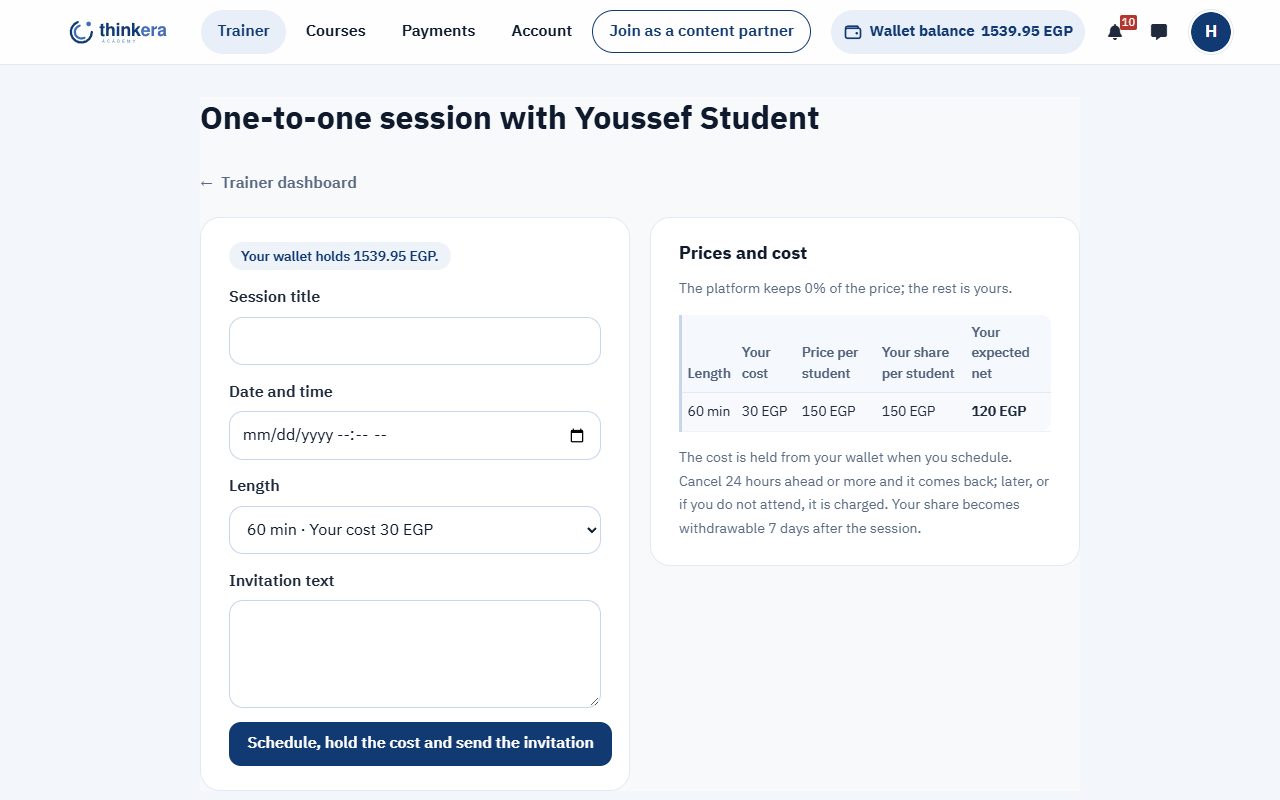
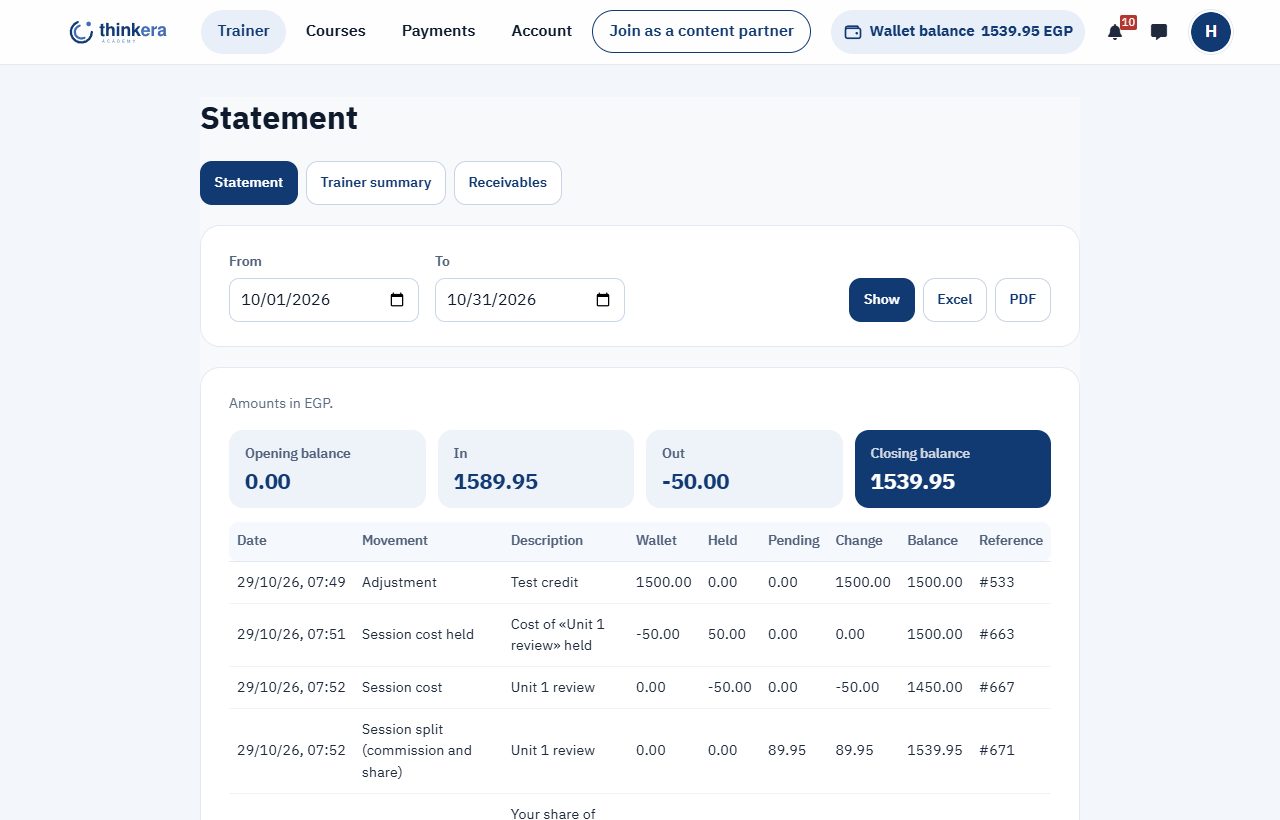
How students pay
Manual payment works the same everywhere: the student transfers and uploads the receipt, and the administration checks it and accepts or rejects. The administrator chooses the transfer methods on offer and enters their details, and a method shows to students only once it is ticked and its details are filled in. Today that is InstaPay, with Vodafone Cash ready to switch on. When more than one is on, the student chooses, and the method chosen is kept with their request.
| Where | How the student pays | What it means for you |
|---|---|---|
| Topping up the wallet | A transfer by one of the methods on offer, with a receipt | The wallet balance is what books seats in your sessions |
| A course subscription | From the wallet, or by transfer with a receipt | Your 20% is counted either way; a transfer once the administrator approves it |
| Sessions of the trainers programme | From the wallet only | Your share is recorded as pending when the session is held |
| A private session with an academy trainer | From the wallet, or by transfer with a receipt | The academy trainer checks it under “Session requests” (section 8) |
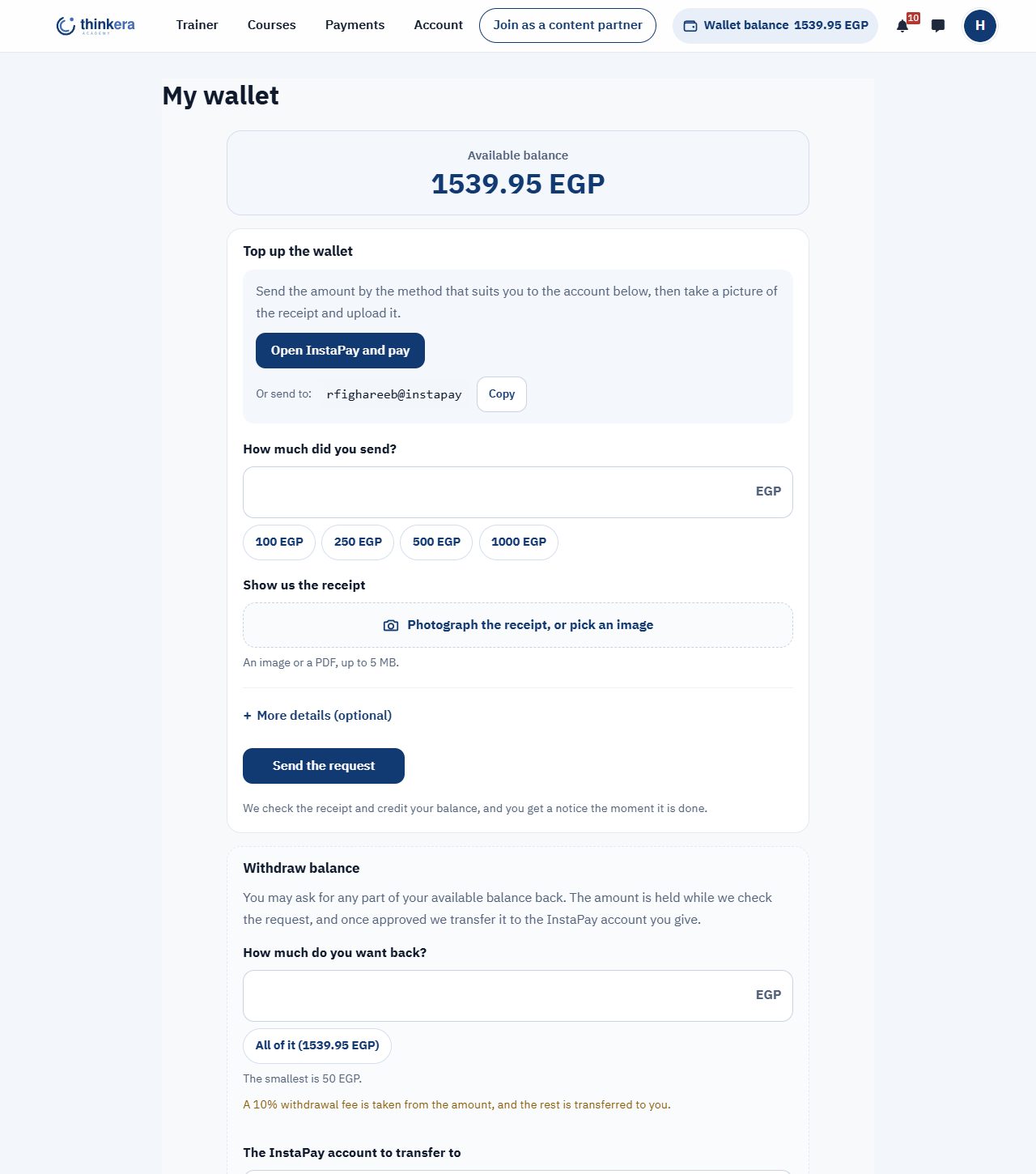
Every pound is in the books. Every movement of money is a double entry that is never deleted or edited, and a mistake is corrected by a reversing entry with a written reason. An automatic check compares the books with the wallets every day, and a difference in your account pauses withdrawals from it until it is reviewed. Your statement is always on the dashboard.
15 · The content partner trainer
Everything an associate trainer has, with editing the content.
- “Content tools” appear on each course card on your dashboard: “Open the curriculum” and “Manage lessons”. From there you edit lessons, their files and their activities. A tool only shows when the page behind it will open for you.
- What is not yours: lesson order and conditions, the question bank, the exams, and the participants, grades and reports pages. They belong to the academy trainer, because they reveal every student in the course.
- Your limits with students are an associate trainer's: your own students only. Editing gives you no view of other students.
- Review: a new lesson or activity you add stays hidden from students until the Thinkera team has reviewed and approved it, and if you show it yourself it is hidden again. A change to existing content shows at once and is reviewed afterwards. If something is refused or hidden you are told why, and once you edit it, it goes back for review. Deletions are recorded. How many of your additions are waiting shows beside “Content tools”.
- Who owns the edits: what you add to or change in Thinkera's course content becomes Thinkera's, and Thinkera credits you where that is customary. Your pay for content is set in annex C of the agreement.
16 · Conduct, and stopping an account
A few clear rules. Breaking any of them stops the account for good.
Take no money for a course, a session or a lesson outside the platform.
Ask no student or guardian for a phone number or contact details, give none of yours, and move no conversation off the platform.
Publish no session recording, and copy or publish nothing from the content.
Do not present yourself as part of the Thinkera team or speak in its name, and use neither its name nor its logo in an advertisement without written consent.
Teach the content as it is, accurately and in the course's terms, and report any mistake you find.
Respect your students, most of whom are under 18, and keep to the limits of a teaching relationship.
Come to your sessions on time, cancel only for good reason, and within the notice period where you can.
Falling short on quality alone (attendance or ratings below the bar): a warning, then scheduling is suspended.
Stopping for good (clause 10, paragraph 4 of the agreement): any breach of the platform's rules, the rules of conduct or the agreement stops the account on the whole platform, as a trainer and as a student; the agreement ends at once, and opening another account is not allowed. Your students are released from you, your sessions not yet held are cancelled and refunded to the students, and your pending earnings are held until review. You are told the reason in writing; to object, write to info@thinkera.academy.
Short of that, the administrator may suspend scheduling and joining while something is reviewed, or end the partnership under the agreement.